

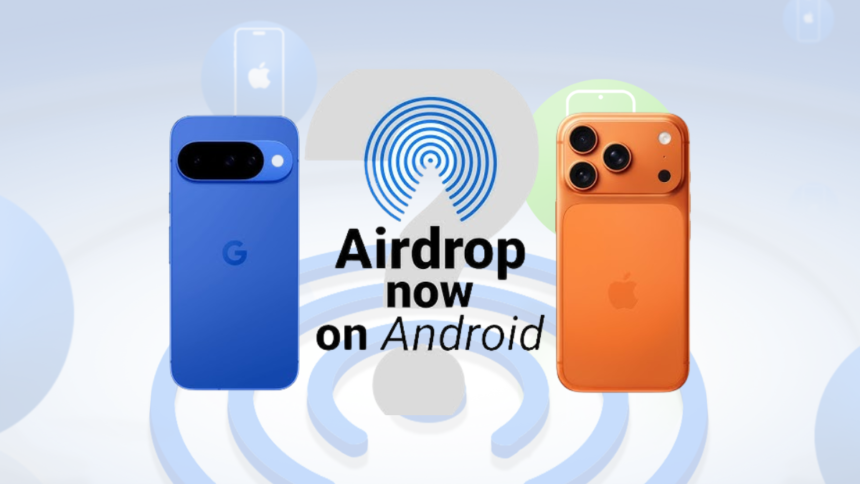
For years, sending files from Android to iPhone felt unnecessarily complicated — emailing yourself photos, sharing via WhatsApp, or uploading to Google Drive just to download it again. Google has now fixed that. Android can directly send files to iPhones using Quick Share’s new AirDrop support, no apps or cloud storage needed.
Here’s how it works, how to use it, and what to do when it doesn’t.
How Google added AirDrop support to Android
Android already had Quick Share (formerly Nearby Share) for Android-to-Android transfers. Google has now expanded it to interact with Apple’s AirDrop — so your Android phone can detect a nearby iPhone and send files directly.
The underlying technology is the same peer-to-peer system both platforms have used for years: Bluetooth for device detection, Wi-Fi Direct for the actual transfer. The big change is cross-platform compatibility. All content stays local and encrypted – No cloud, no middlemen.
Supported Android devices
Support is currently limited to newer flagship devices. Here’s what works right now:
Google Pixel (fully supported)
- Pixel 10 series (all models)
- Pixel 10a
- Pixel 9 series (all models)
Samsung Galaxy
- Galaxy S26 / S25 / S24 series
- Galaxy Z Fold 7 / 6
- Galaxy Z Flip 7 / 6
- Requires One UI 8.5 (some models)
Newly added (rolling out)
- Oppo Find X9 series
- Vivo X300 Ultra
Not on this list? Skip to the alternatives section below — there are reliable tools that work on any device.
How to Send files from Android to iPhone
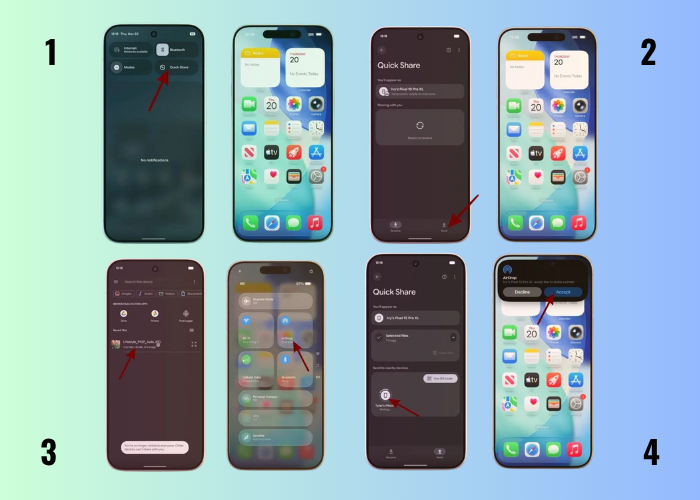
If you have a supported device, the process is surprisingly simple:
- Swipe down to open Quick Settings. Make sure Bluetooth and Wi-Fi are on, then tap Quick Share.
- Tap the three-dot icon → Settings → Who can share with you. Set visibility to Everyone for 10 minutes.
- Go back to Quick Share and open the Send tab. Tap Select and choose the images, videos, or files you want to transfer.
- On the iPhone, swipe down from the top-left corner to open Control Center. Tap and hold the AirDrop tile → set to Everyone.
- Your iPhone name will appear on your Android screen. Tap it.
- The iPhone shows a standard AirDrop pop-up. Tap Accept. The transfer starts instantly.
Faster shortcut: Open Photos or Files, select your content, tap Share → Quick Share. Your phone starts scanning for nearby devices — once the iPhone appears, just tap it. Skip steps 1–4 entirely if Quick Share is already set to Everyone.
How to Receive files from iPhone to Android
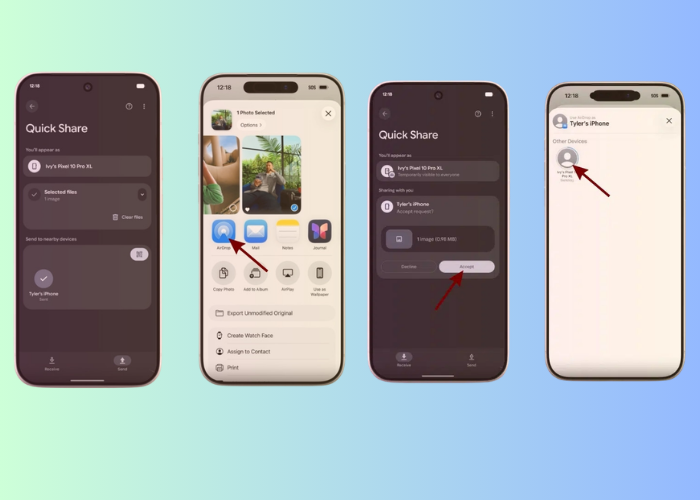
- On the iPhone, open Photos and select the image or video to share.
- Tap the Share button and select AirDrop from the Share Sheet.
- On your Android, open Quick Share and stay on the Receive tab.
- Your Android name appears in the AirDrop list on the iPhone. Select it.
- Tap Accept on Android. Once done, tap Open to view the content.
Alternatives that work on any Android
Until AirDrop support reaches more devices, these tools are more consistent:
- Send Anywhere: Works like AirDrop across almost any device. No internet or login needed – Jjust connect to the same Wi-Fi. The most reliable option for cross-platform transfers.
- Snapdrop: Browser-based, no installation required. Open it on both devices and it just works. Ideal for quick, one-off transfers between any devices on the same Wi-Fi.
- Google Drive: Slower and requires an internet connection, but it never fails. Great when reliability matters more than speed or when devices aren’t near each other.
Android and iPhone sharing files without the headache? It’s about time. Whether you’re using Quick Share’s new AirDrop support or falling back on Send Anywhere and Snapdrop, the days of emailing yourself photos are finally over. Try it out and drop a comment below – Did it work on your device?
What is AirDrop on Android?
It is a feature that lets Android phones share photos, videos, and files directly with iPhones, iPads, and Macs using Android’s built-in Quick Share system — no third-party apps needed.
Which phones can use this feature right now?
It started with the Google Pixel 10 series and has since expanded to the Pixel 9 series, Samsung Galaxy S26 and S25 (via One UI 8.5 update), Oppo Find X9 Ultra, and Vivo X300 Ultra. More Android brands are expected to follow throughout 2026.
What Apple devices does it work with?
It works with iPhones using iOS 17, iPads using iPadOS 17, and Macs using macOS Ventura or newer.
Do I need to download any extra apps?
No. The feature is built into Quick Share and works directly between devices.
How do I set it up on both devices?
On Android: Swipe down, open Quick Settings, and tap Quick Share.
On iPhone/iPad/Mac: Open Control Center, tap AirDrop, and select Everyone for 10 Minutes. Note: “Contacts Only” does not work for Android-to-iPhone sharing yet.
How do I send a file from my Android to an iPhone?
First, ask the iPhone user to set AirDrop to “Everyone for 10 Minutes.” Then open the file on your Android, tap Share, choose Quick Share, pick the iPhone from the list, and tap Send. The iPhone user will receive a standard AirDrop prompt to accept.
How do I receive a file from an iPhone?
Open Quick Share and tap Receive, or set your visibility to “Everyone for 10 Minutes.” When a file comes in, tap Accept.
What if the device is not showing up?
Turn on Bluetooth, Wi-Fi, and Location. Make sure the iPhone is set to AirDrop “Everyone for 10 Minutes” and that both devices are within 30 feet of each other. Restart both devices and try again.