

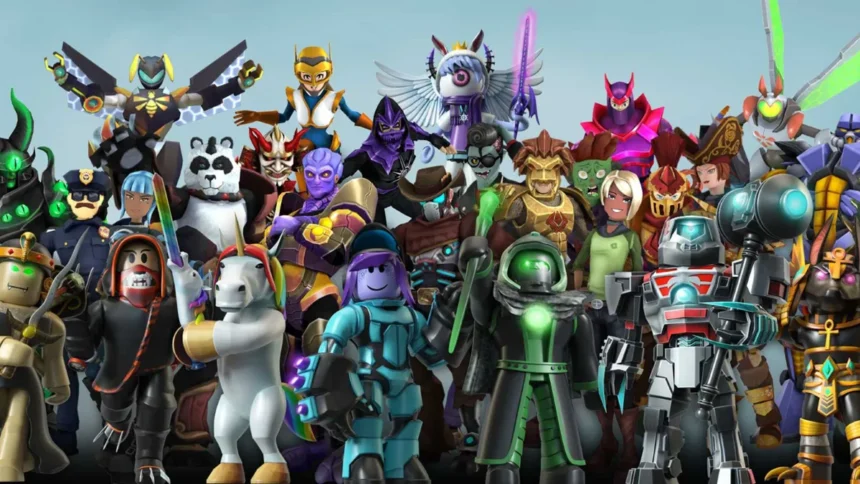
Roblox is not just one game. It is a massive platform with millions of user-created experiences. Whether you want to jump into a racing game, a role-playing world, or an obstacle course, you can get started in just a few minutes. You just need to know how to play Roblox.
- What Is Roblox and How Does It Work?
- How to Play Roblox on PC
- How to Play Roblox on Mobile (Android & iOS)
- How to Play Roblox on Console (Xbox/PS)
- Things to Know About Roblox on Console
- How to Find and Join Games in Roblox
- Best Roblox Games for Beginners
- Basic Controls and Gameplay Tips
- Tips for New Roblox Players
The best part is how accessible it is. You can play Roblox on PC, mobile, or console without losing any of your progress, since everything is tied to your account. The platform is designed to be beginner-friendly, so you can start playing right away even if you have never tried it before.
What Is Roblox and How Does It Work?
Roblox is a platform where you can both play and create games. It is not a single game but a collection of millions of user-created experiences built using Roblox’s own game engine, Roblox Studio. Players can explore a wide range of genres, including:
- Roleplay games
- Obstacle courses, known as Obbies
- Simulators
- PvP and battle games
Roblox is free to play, but it also has its own in-game currency called Robux, which you can use to buy avatar items, game passes, and other cosmetics. You do not need to spend Robux to enjoy the platform, but having some opens up more customization options.
How to Play Roblox on PC
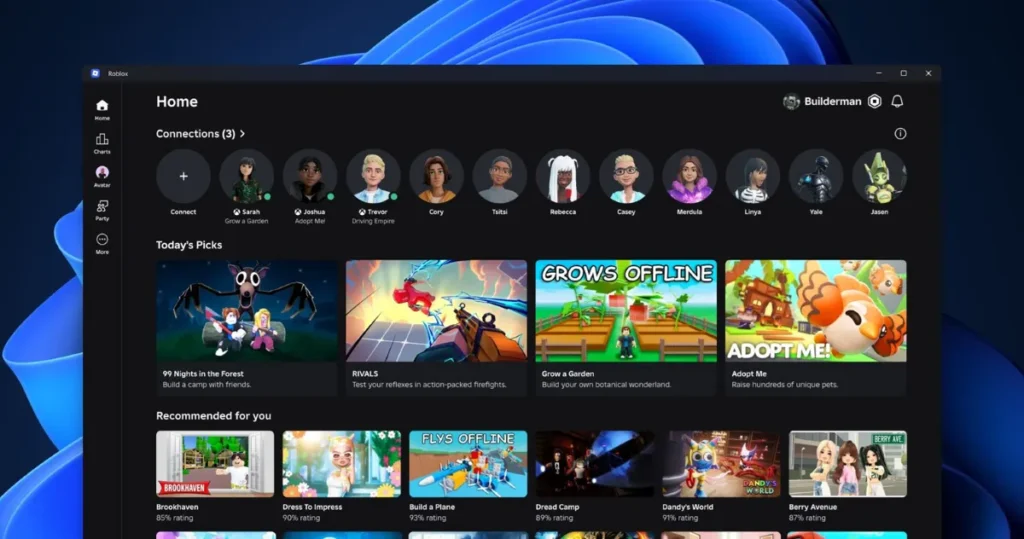
Playing Roblox on PC gives you the best overall experience, with better graphics, smoother performance, and full access to all platform features. Setting it up only takes a few minutes.
Here is how to get started:
- Go to roblox.com and click Sign Up to create a free account. Enter your birthday, choose a username, and set a password. Avoid using your real name in your username, as it is visible to other players.
- Once your account is ready, log in and browse the games on the site. Click the Play button on any game you want to try.
- Roblox will prompt you to download the Roblox Player. Download the file named RobloxPlayerLauncher.exe and run it. The installation takes about 30 seconds and does not require administrator permissions.
- After installation, the game will launch automatically. From this point on, clicking Play on any game will open the Roblox Player directly without going through the browser again.
You can also download Roblox through the Microsoft Store by searching for Roblox and clicking Get. Both methods work on Windows 10 and Windows 11.
Once you are in a game, the default controls on PC are WASD to move, Spacebar to jump, and holding the right mouse button to rotate the camera. Roblox also updates itself automatically each time you launch a game, so you will always be on the latest version.
How to Play Roblox on Mobile (Android & iOS)
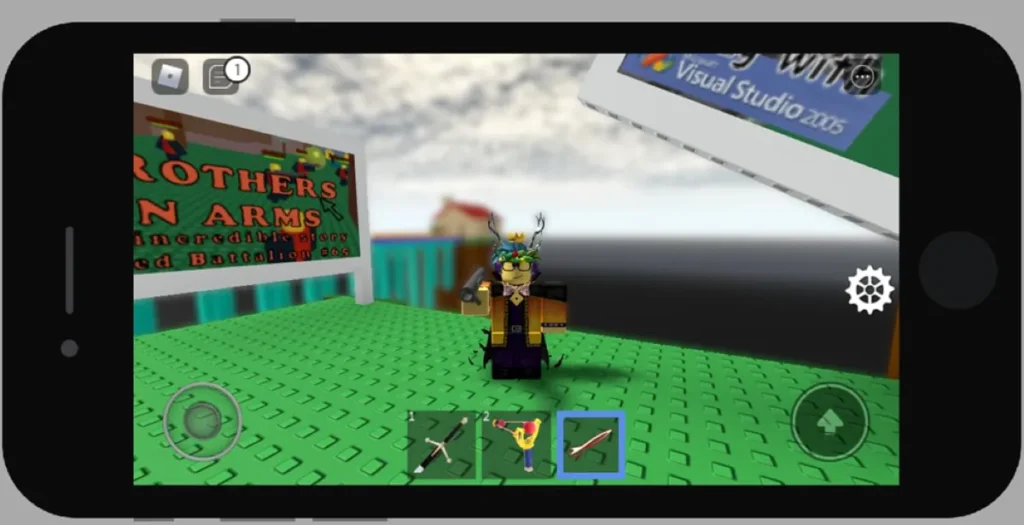
Roblox is available for free on both Android and iOS, making it easy to play on the go. Before downloading, make sure your device meets the minimum requirements. You need iOS 13 or higher for iPhone and iPad, or Android 8.0 or higher for Android devices.
Here is how to get started:
- Open the Google Play Store on Android or the App Store on iOS and search for Roblox. Make sure the app is published by Roblox Corporation to avoid downloading a fake version.
- Tap Install or Get to download the app for free.
- Once installed, open the app and log in with your existing Roblox account. If you do not have one yet, you can create an account directly through the app by entering your birthday, choosing a username, and setting a password.
- Once you are logged in, you will see a home screen showing popular games, your friends, and recommended experiences. Tap any game to start playing.
On mobile, you control your character using an on-screen joystick on the left side of the screen to move, and a jump button on the right. Dragging anywhere else on the screen rotates the camera.
Keep in mind that mobile performance depends on your device. Older or lower-end phones may experience lag or longer load times on more graphics-heavy games. For the smoothest experience, playing over a stable Wi-Fi connection is recommended rather than mobile data.
How to Play Roblox on Console (Xbox/PS)
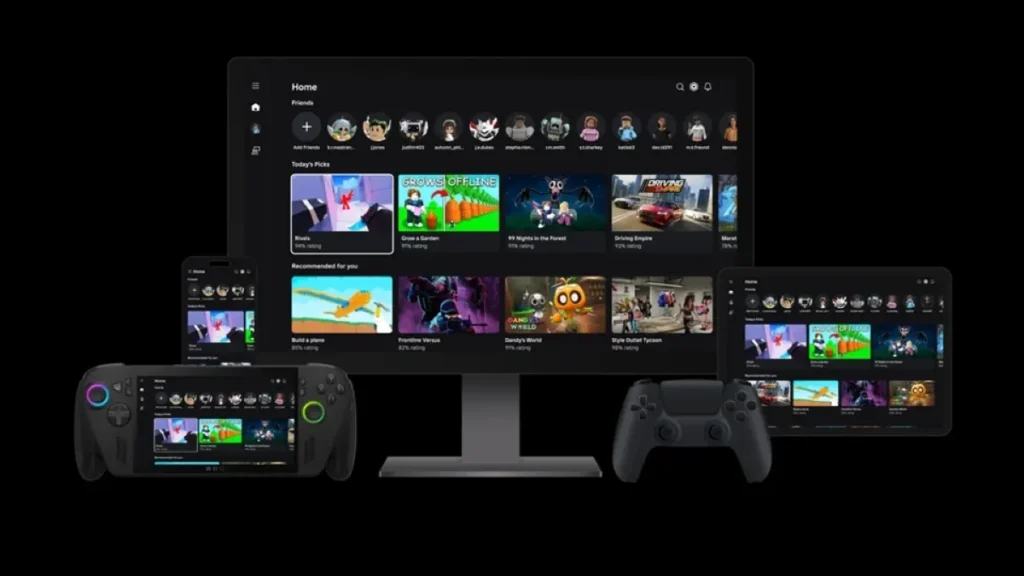
Roblox is available on Xbox One, Xbox Series X/S, PS4, and PS5, making it easy to enjoy on a big screen with a controller. Here is how to get set up on each.
On Xbox
- Open the Microsoft Store on your Xbox console and search for Roblox
- Select Get to download the app for free
- Once installed, open Roblox and log in with your existing Roblox account
- Browse the available experiences and press Play to jump in
You do not need an Xbox Live Gold subscription to play Roblox on Xbox, as Microsoft removed that requirement for free-to-play games. Cross-play is always on for Xbox, so you will automatically be matched with players on PC, mobile, and PlayStation.
On PlayStation (PS4 and PS5)
- Open the PlayStation Store on your PS4 or PS5 and search for Roblox
- Download the app for free
- Open the app and link your Roblox account to your PlayStation Network account. Keep in mind that only one Roblox account can be linked to a PSN account at a time
- Once linked, browse and play any experience that is available on console
The PS5 version of Roblox delivers faster load times and smoother performance compared to PS4, with most experiences running at up to 60 FPS. Cross-play is supported on PlayStation and can be turned on or off from your Roblox settings if you prefer to only play with other PlayStation users.
Things to Know About Roblox on Console
- Not all Roblox experiences are available on console, only those that developers have enabled for console play
- Some features like full avatar shop management and group settings are only accessible on PC or mobile
- Voice chat on console is limited to certain experiences and requires age verification
- Roblox is rated Teen on both Xbox and PlayStation, so it is recommended for players aged 13 and older
How to Find and Join Games in Roblox
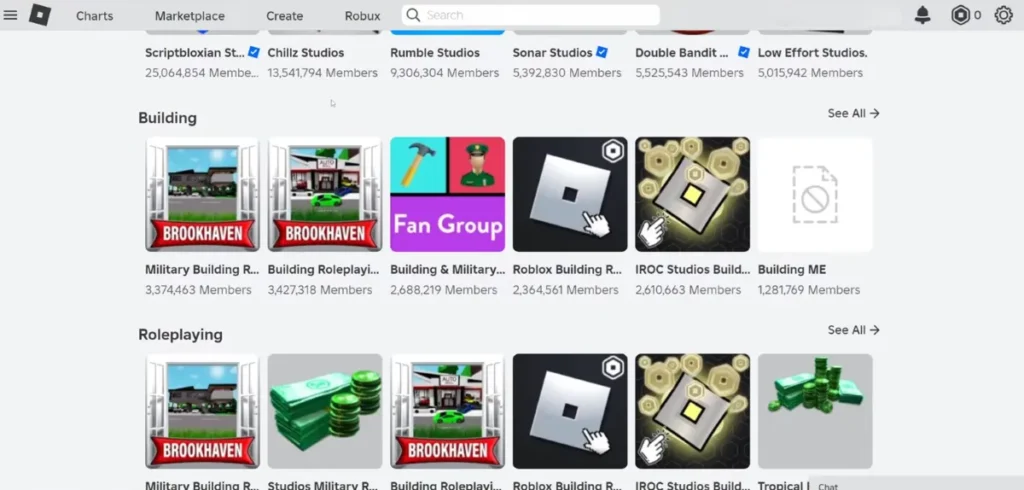
Once you log in, finding games is easy:
- Search for games you want to find
- See categories such as “Popular” or “Top Rated”
- Explore Trending Experiences on Homepage
Each game has a Play button. Click it to join nowly.
Best Roblox Games for Beginners
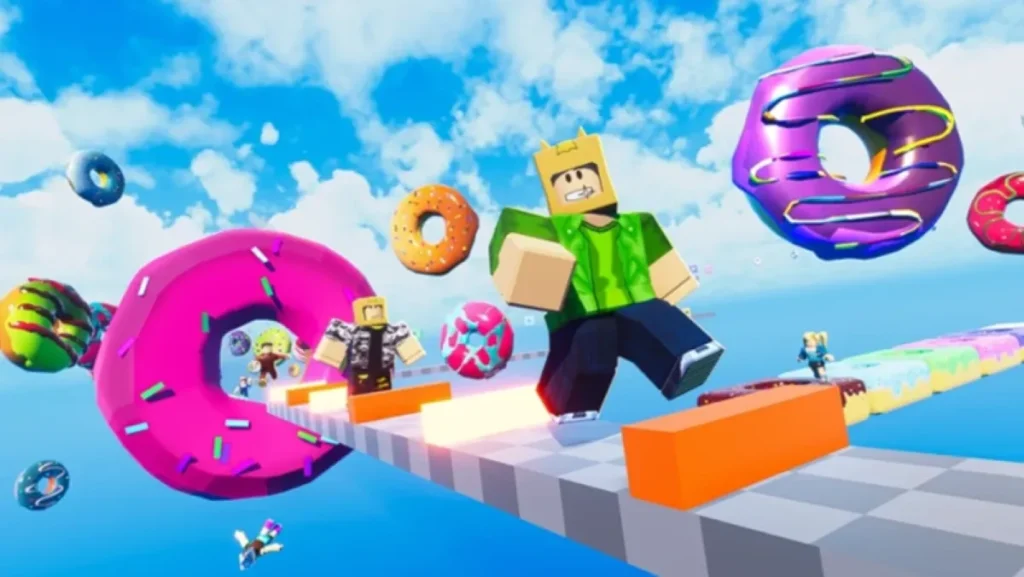
For newbies, try out fun and simple Genres:
- Obby games – Basic obstacle courses to learn controls
- Tycoon games – build and run your own base
- Simulator games – simple mechanics with grind-based gameplay
These games help you understand movement, UI and progression quickly.
Basic Controls and Gameplay Tips
Movement Controls
- PC: WASD Keys and Mouse
- Mobile: In-screen joystick
- Console: Joystick
Interactions
- Select objects (tap / click)
- Jump, Interact, Use action buttons
Social Features
- Talk with Gamers
- Add a friend
- Play games with others
Roblox is a highly social experience, so interacting with others is part of the game.
Tips for New Roblox Players
- Begin with simple games instead of complex ones
- Create your avatar early
- Have fun with friends for a cooler experience
- Try different genres to find the ones you like best.
- Do not robux spend too fast
Is Roblox free to play?
Yes. Roblox is free to play, but has in-game purchases with Robux.
Can I play Roblox without downloading it?
No. You need to install Roblox Player or the mobile app to play.
What devices support Roblox?
PC, Mac, Android, iOS, Xbox and PlayStation.
Do I need an account to play Roblox?
Yeah. Guest mode is not available, you will need an account.
What are the best games for beginners?
The easiest games to start with are Obby, Tycoon and Simulator games.
Can I play Roblox with friends?
Yes. Invite friends to play your game or join their game directly.
Roblox is easy to jump into, but has infinite variety once you get the hang of things. The setup takes just a few minutes, whether you’re on PC, mobile or console
Experiment with different games and learn as you go. Keep it simple. This is the best way to get into Roblox in 2026. This is all from us on how to play Roblox. For more such guides on Roblox, don’t forget to follow FandomScoop.