


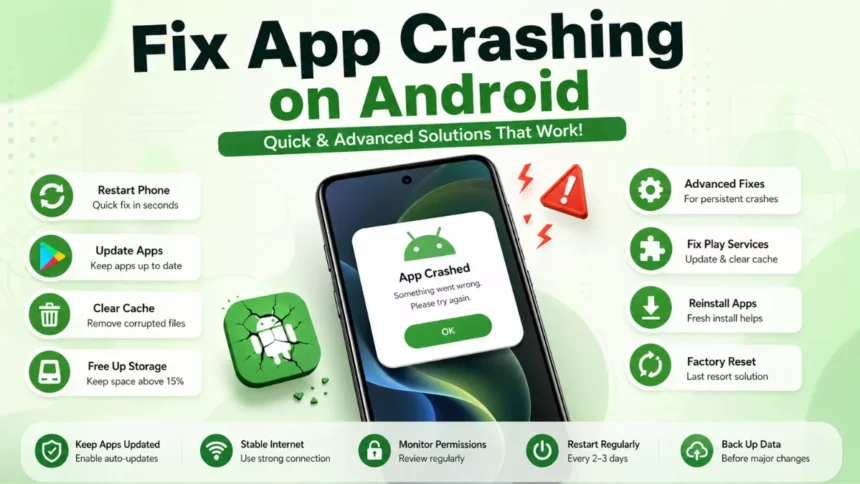
Experiencing apps crashing on your Android phone can be incredibly frustrating—especially when it happens during important tasks. Whether it’s banking, Google services, or your favorite social media apps, I’ve dealt with the same issue more times than I’d like.
Based on what’s worked for me, I’ve put together a complete guide to fixing Android app crashes. From simple quick fixes like restarting your device to more advanced solutions, this guide will help you troubleshoot and prevent crashes so you’re prepared the next time it happens.
Why Do Apps Keep Crashing on Android?
It’s very important to first know the reason for apps crashing on Android devices. Android apps keep crashing for several reasons, and most of them can be easily solved when noticed.
- Outdated apps — Outdated apps don’t work well with your Android system and thus cause app crashes.
- Corrupted cache or data — Files and data are stored via cache in Android devices, and if they get corrupted, it results in app crashes.
- Low storage space — Android devices need some free space to work smoothly. According to Google’s Android Help documentation, storage less than 10% can cause crashing issues on the device.
- Software bugs — Sometimes app bugs are a major reason for apps crashing and cannot be handled until the developer fixes them.
- Compatibility issues — Older apps might not work on the latest Android versions, and the latest apps won’t work on older versions.
Knowing the actual reason for the app crashing is important to find the right way to fix it.
Quick Fixes to Stop App Crashes
Follow these three steps to solve the majority of app crash situations on Android within two minutes.
1. Restart Your Phone
This is the first thing I do when I face an issue of app crashing. Restarting the phone gives your device’s RAM a boost, and all the apps start smoothly. It won’t take more than 45 seconds of your time to do so.
How to restart: Press and hold the power button of your Android → click on Restart.
2. Update the App
Outdated apps are one of the strongest reasons behind their crashing.
How to update:
- Open the Google Play Store
- Tap your profile icon → Manage apps & device.
- Tap Update all or select a specific app to update
I recommend you update your apps frequently, as developers share new patches with these updates, which prevent apps from crashing and fix other bugs.
3. Check Your Internet Connection
Major banking, streaming, and social media apps need a good and stable internet connection. With a poor network, they will not function well and might crash.
Quick checks:
- Turn Aeroplane Mode on and off
- Switch between Wi-Fi and mobile data.
- Restart your router if it’s not working well.
If the app works smoothly on one network and faces issues on the other, then the problem lies in the internet connection, not the app.
Advanced Fixes for Android App Crashes
If the above quick fixes don’t work for you, I suggest you try the following steps, which work in most Android app-not-working situations that can’t be solved with basic solutions.
1. Clear App Cache and Data
For a single app not working, this solution might be the right choice.
How to clear cache:
- Go to Settings → Apps (or App Manager)
- Select the app that’s not working.
- Tap Storage → Clear Cache
If clearing the cache doesn’t help, tap Clear Data. Note: Make sure to have your login details ready before doing so, as it will log you out of the app.
I used this solution for my Chrome app freezing. And after clearing the cache, it never faced the same issue again.
2. Update Android System
I’ve noticed that apps are not always the problem — sometimes the bugs in the Android OS cause issues with the apps. Here’s how you can fix it:
How to update:
- Go to Settings → System → System Update
- Download and install the latest update.
According to Google’s Android support page, system updates fix bugs and improve stability, which impacts app performance.
3. Free Up Storage Space
If your device storage is full, nothing can save the apps from crashing. Follow these steps to clear storage on your Android phone:
Quick ways to free up space:
- Delete apps you don’t need.
- Clear downloads and old media files.
- Use Google Photos to back up and remove local copies.
- Empty the trash folder in your Files app.
I’d advise you to keep 1–2 GB of space free at all times for smooth performance.
4. Reinstall the App
If you face an app crashing issue after clearing the cache and updating both the app and the system, it’s better to uninstall and reinstall the app.
How to reinstall:
- Press and hold the app icon on your Android home screen → Uninstall.
- Reopen Google Play Store → search for the app → reinstall.
This gives you a fresh app to start with — just make sure you have your login details before doing it.
5. Force Stop the App
Force-stopping an app can sometimes help bring it out of a background loop and help it run smoothly.
How to force stop:
- Go to Settings → Apps.
- Select the app → click on Force Stop.
- Reopen the app.
Don’t worry, this step won’t cause any data loss — it’ll just end the ongoing background process and start a new one for the app.
6. Reset App Preferences
This is one of the least-used methods to fix app crashing on Android, but it works really well. Every app uses different default settings and permissions, and resetting them can solve the problem. Here’s how you can do it:
How to reset:
- Go to Settings → Apps.
- Tap the three-dot menu (⋮) → Reset App Preferences.
- Confirm
No data will be deleted. Only system-level preferences will reset after applying this method.
Fix Google Play Services Issues
Google Play Services works in the background but affects every app on your Android device. When it malfunctions, you’ll see errors in various apps. Here’s how you can fix it:
Update Google Play Services
How to update:
- Open the Google Play Store.
- Search for Google Play Services.
- Click on Update if available.
Google updates Play Services automatically, but sometimes you need to do it manually. It only takes 20–30 seconds to check and update it.
Clear Google Play Services Cache
If updating Google Play Services doesn’t work, try clearing its cache with these steps:
How to clear:
- Go to Settings → Apps.
- Tap the three-dot menu (⋮) → Show system apps.
- Find Google Play Services → click on Storage.
- Click on Clear Cache.
I’ve tested this, and it resolved the issue of Instagram crashing on my Realme 7.
Reset Google Play Store
If the issue doesn’t resolve with updates and clearing the cache, the problem may lie in corrupted files in Google Play. Follow these steps to reset it:
How to reset:
- Go to Settings → Apps → Google Play Store.
- Tap Storage → Clear Cache → Clear Data.
Don’t worry — all your accounts and purchases will stay intact. It’ll just refresh the local data of the Google Play Store.
How to Fix Apps Crashing After an Update
Sometimes updates cause apps on your Android device to crash due to a bad software build. In other cases, version compatibility causes the issue. Here’s how you can solve it:
Roll Back to a Previous Version
Google Play Store doesn’t offer a built-in downgrade option. However, you can uninstall the latest update for some system apps to get a quick solution for app crashing after an update.
For system apps (e.g., Google Maps, Gmail):
- Go to Settings → Apps.
- Select the app → tap the three-dot menu (⋮).
- Tap Uninstall Updates.
This step restores the factory version of the app until a new update with the proper fixes is released.
For third-party apps:
- Uninstall the app completely.
- Download an older APK version from a trusted source like APKMirror.
- Install it manually.
Note: Use this as a temporary fix until you receive the official patch update.Check Compatibility
New apps require newer Android versions to work smoothly, which makes it important to check the compatibility between them. Here’s how you can do it:
How to check:
- Open the app’s Google Play Store page.
- Scroll down to the App Info or About this app section.
- Check the Required Android version listed.
If your Android version is below the requirement, update your OS, or wait for an official compatibility fix. This is one of the common solutions for stopping apps from crashing.
When to Factory Reset Your Phone
A factory reset is the last option I’d recommend you consider. Using it will make your phone the same as a new one. Only if all apps are crashing and none of the above methods work should you go with this option. Here’s what to do before a factory reset and how to do it:
Signs It’s Time to Reset
- Crashes are happening across multiple important apps on your Android phone.
- Your phone is slow, freezing, or overheating consistently.
- A recent system update caused a complete system malfunction.
- No other method worked to fix it.
Back Up Everything First
I suggest you first back up everything on your device — a factory reset will delete all files, and they can’t be recovered afterwards.
What to back up:
- Photos and videos — use Google Photos or transfer to your PC.
- Contacts — sync to your Google account.
- App data — upload backups to the cloud for important apps using Google Drive.
- Important files — move to Google Drive or an SD card.
Go to Settings → System → Backup to enable Google’s built-in backup before you proceed with resetting your Android.
How to Factory Reset
- Go to Settings → System → Reset Options.
- Tap Erase All Data (Factory Reset).
- Confirm and wait until it’s complete.
Your phone will now look like a brand-new one. Just install and use the essential apps to avoid such issues in the future.
According to Google’s support documentation, a factory reset can resolve software issues that can’t be fixed through basic troubleshooting steps.
Tips to Prevent Apps from Crashing
Here are some habits to avoid app crashing on your Android. I wish I had known them earlier, but you don’t have to worry — just go through the tips below and keep your apps from crashing.
- Keep all apps updated. Enable auto-updates by visiting the Play Store → Settings → Network Preferences → Auto-update apps.
- Avoid installing apps from unknown sources. Avoid third-party apps, as they are one of the main reasons for app crashing on Android devices.
- Maintain a healthy storage space. Keep at least 15% of your device storage empty to avoid app crashes.
- Restart your device regularly. I restart my device every 2 to 3 days and recommend you do the same. It keeps the device memory fresh and prevents apps from crashing.
- Monitor app permissions. Once a week, check which apps have permission to access storage, camera, location, and contacts. Remove unnecessary permissions.
If you keep following these small habits, you won’t need to look up app-crashing fix guides in the future.
Conclusion
App crashing is annoying, I know, but you can fix it easily in most cases. Start by updating the apps, clearing the cache, and restarting your phone. If things don’t work, go with advanced options like clearing device storage, reinstalling the apps, and fixing Google Play Services.
These are the best app-crashing Android fix steps for you. If none of these work, go with the factory reset option — but don’t forget to back up all your important data via your Google account, app backups, and by storing data on an SD card or a PC.
FAQs
Why do my apps keep stopping?
The main reasons for apps stopping are corrupted cache, outdated software, low storage, and Android compatibility issues. Restart your phone, clear the app cache, update the OS, and free up some space to solve the problem.
Is clearing the cache safe?
Yes, clearing the cache is very safe and won’t delete any of your app data.
How do I stop apps from crashing permanently?
There’s no single method for this. Keep your apps updated, maintain at least 3–5 GB of free space, and restart your device every 2–3 days to avoid app-crashing problems in the future.
Does low RAM cause app crashes?
Yes, when RAM is completely full, background processes stop and cause app crashes. Android apps keep crashing because of this. You can delete unnecessary apps to free up memory on your device.
Should I uninstall problematic apps?
If the app crashes after updating, clearing the cache, and reinstalling, you can uninstall it. If the app itself is unverified, don’t reinstall it. If it’s a developer issue, wait for the right update before reinstalling.