


Most players do not think about account security until something goes wrong. Losing your skins, V-Bucks, or access to your account is a situation nobody wants to deal with, and it usually comes down to not having an extra layer of protection in place.
Two-factor authentication, or 2FA, fixes that. It adds a second security check every time someone tries to log into your Epic Games account from a new device, making it much harder for anyone else to get in even if they have your password.
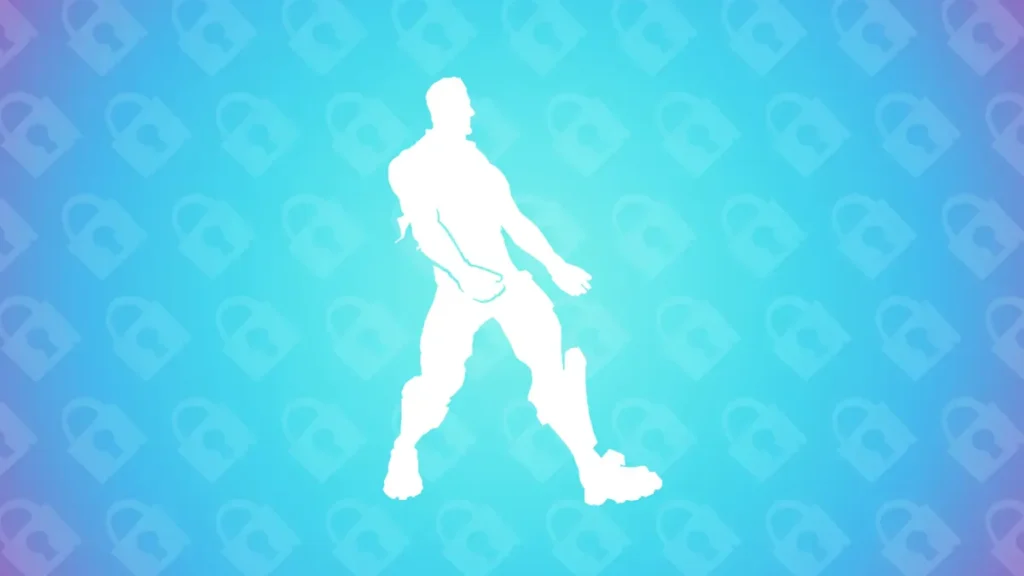
Enabling 2FA in Fortnite also comes with some real benefits beyond just security. You get the free Boogie Down emote just for turning it on, and it is required if you want to send gifts to friends, enter Fortnite tournaments, or claim certain free games on the Epic Games Store.
The whole process only takes a few minutes and is done through your Epic Games account, so it works no matter what platform you play on. Here is how to get it set up.
What is 2FA in Fortnite?
Before jumping onto how to enable 2FA in Fortnite, let’s learn first what it is. Two-factor authentication is an extra step you have to take to log in on top of your password. You need to enter a code that is sent to your email, phone, or an authenticator app after you enter your password.
This means that even if someone gets your password, they still can’t get into your account without the second code.
For some features, Epic Games requires or strongly suggests 2FA. It is also used to check logins from new devices or strange behavior.
This stops most common attacks, like leaked passwords, phishing attempts, and brute-force logins.
Why You Should Enable 2FA?
It’s not just about safety to turn on fortnite 2FA. It directly opens up features in the game.
- Keeps people who shouldn’t be able to access your account from doing so
- Needed to send gifts in Fortnite
- Needed for events like the Fortnite World Cup
- Needed to get some free games on the Epic Games Store
There are also prizes that go along with it. After turning on, players get the Boogie Down emote.
Requirements Before Enabling 2FA
Before you set up 2FA, make sure you have:
- A working Epic Games account
- An email address that is linked to your account and has been verified
- Access to your phone, email, or authenticator app
You need to finish setting up your account first if it doesn’t have an email address linked to it, especially if it was made on a console.
How to Enable 2FA in Fortnite (Step-by-Step)
Method 1 – U sing Epic Games Website (PC/Mobile)
- This is the main method and works on all devices.
- Visit the Epic Games website.
- Sign in to your account
- Open your profile and click on Account.
- Go to Password and Security
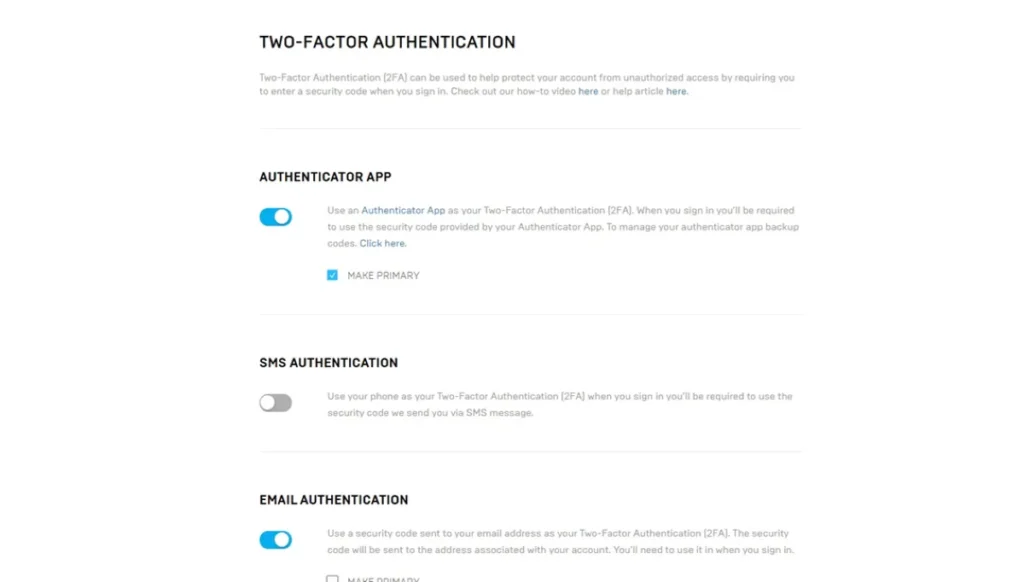
- Scroll down to “Two-Factor Authentication”
- Pick a way:
- App for Authenticator
- Authentication by Email
- Authentication via SMS
- To confirm setup, type in the code you got.
- Your account will show that 2FA is active once you are done.
This is the usual way to turn on 2FA in Fortnite on all platforms.
Method 2 – Enable 2FA on PS5 / Xbox / Nintendo Switch
If you’re looking to enable 2FA Fortnite PS5 or enable 2FA Fortnite Xbox, the steps are the same.
- Console does not have 2FA turned on.
- You need to open a web browser and log into your linked Epic Games account.
- Do the same things as in Method 1.
Note:
You might have turned on 2FA for the wrong Epic account if it doesn’t show up in-game.
Types of 2FA Methods Explained
Email Authentication:
There are three main 2FA options in Fortnite, and each one works differently depending on how you want to get your login code. Email authentication is the simplest option. Every time you log in, a one-time code is sent to your registered email. It is easy to use, but it all depends on how safe your email account is.
SMS Authentication:
SMS authentication sends the code to your phone as a text message. It is quick and easy, but sometimes it takes longer than expected, and most people think it is less secure than other ways.
Authenticator App (Recommended):
The authenticator app method makes codes on your device that are based on time and don’t need email or network signals. This is usually the safest choice because the code stays on your device and is harder to get. Epic Games supports all three methods, so users can choose the one that works best for them in terms of convenience and security.
Fortnite 2FA Not Working? Try These Fixes
If your Fortnite 2FA not working, these are the most common ways to fix it:
- Look in your spam or junk folder for email codes.
- Make sure you are using the right phone or email.
- Sync the time on your device (this is important for authenticator apps).
- Try using a different 2FA method.
- Make sure you turned on 2FA for the right Epic account.
Most problems happen because the accounts don’t match or the code takes too long to arrive.
Benefits of Enabling Epic Games 2FA Setup
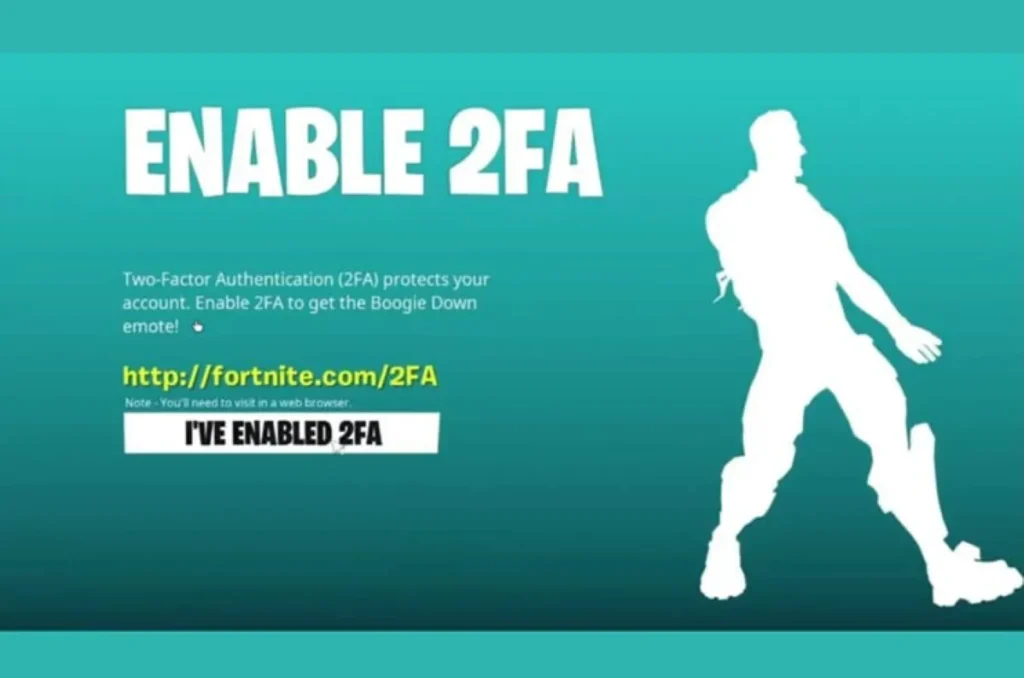
Adding 2FA adds a second step to the verification process, which stops most unauthorized login attempts even if your password is known. This makes it much less likely that someone will take over your account, which keeps your items and progress safe.
Some Fortnite features are only available with two-factor authentication (2FA). You need it to send gifts, get some free stuff on the Epic Games Store, and take part in competitive events.
Epic Games also gives you rewards for turning on 2FA, and your account is more stable when you log in from new devices. In short, it’s not just a security setting. It changes what you can do in Fortnite.
That’s all from us regarding how to enable 2FA in Fortnite.
Is 2FA required for gifting in Fortnite?
Yes. You need to turn on 2FA before you can send gifts.
Why am I not receiving the 2FA code?
Check your spam folders, make sure your email or phone number is correct, and then wait a few minutes before asking for another code.
Which 2FA method is best?
The safest apps are authenticator apps. Email is easier, but it’s not as safe.
Can I disable 2FA later?
Yes. From your Epic Games account settings, you can turn it off at any time.