


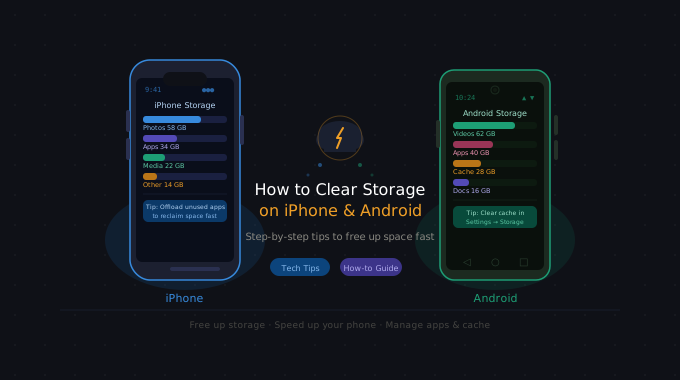
That “Storage Full” warning notification always arrives at the worst times during downloads, updates, and most often while capturing photos and videos on your smartphone. I’ve been there. After testing different methods for both iPhone and Android, I’ve created a detailed guide on the most convenient ways to clear storage on your phone.
Why Phone Storage Gets Full

Most of you probably think the phone itself is the problem, but in reality, background processes are what’s actually occupying your storage. Here are the most common culprits:
Apps and App Data
All the big apps like YouTube, Facebook, and Instagram save data in the background to make their content load faster. Over time, this data accumulates and uses more of your device’s storage.
Photos and Videos
If you’re a fan of 4K videos, HDR images, and burst mode shots, they are likely using far more of your device storage than you might think. For example, one 4K video can take up as much storage as 100 regular photos.
Cache Files
Whenever you open a website or an app, or send a message, your phone saves temporary files to make things work faster the next time. These are called cache files, and over time they can grow to gigabytes without you even knowing.
Downloads and Duplicates
Old APKs, images, documents, and forgotten downloads can take up a good amount of space on your phone. Popular apps like WhatsApp and Telegram save every photo and video to your device until you turn off that setting.
How to Clear Storage on iPhone
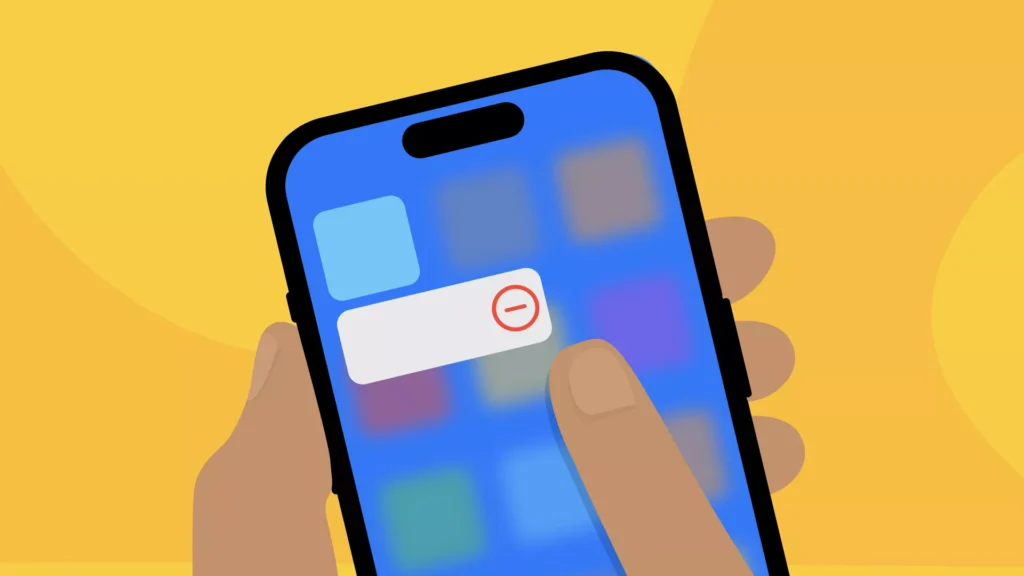
First, I recommend checking what’s actually using your iPhone’s storage. Go to Settings → General → iPhone Storage. This will show you apps sorted by size, so you can plan what to do next.
Delete Unused Apps
This is the best place to start. Go to Settings → General → iPhone Storage, tap on any app you don’t use very often, and choose:
- Offload App — removes the app but keeps its data, so you can restore it in the future without data loss.
- Delete App — removes all the app’s data permanently.
I used this method and saved up to 3 GB by offloading around 11 unused apps on my iPhone.
Clear Safari Cache
Safari saves website data in the background, and clearing it is one of the safest and most effective ways to free up storage.
Go to Settings → Apps → Safari → Clear History and Website Data.
Note: Make sure to save your passwords before doing this, or you won’t be able to log in to websites automatically. You can use Apple’s built-in Passwords app to save and manage your credentials safely.
Remove Large Photos & Videos
Open your Photos app, apply filters, and look for:
- 4K and slow-motion videos
- Burst mode shots you don’t want to keep
- Screenshots that are no longer valuable to you
After deleting the unnecessary photos and videos, visit the Recently Deleted album and empty it, as deleted items stay there for 30 days and continue to use your iPhone’s storage in the meantime.
Enable Optimize iPhone Storage
This is one of the best settings to manage your iPhone storage.
Go to Settings → Photos → Optimize iPhone Storage. With this setting, your full-resolution photos will be stored in iCloud, and lighter versions will remain on your device. This saves storage without sacrificing the original quality.
Using this setting, I saved over 8 GB of storage without deleting a single photo.
Delete Messages & Attachments
All the photos, videos, and voice notes received in Messages use your device storage.
Go to Settings → General → iPhone Storage → Messages to see how much storage they’re using. Then open the Messages app, go to Recently Deleted, and permanently delete old conversations you no longer need. You can learn more about managing Messages storage from Apple’s official support page.
How to Clear Storage on Android
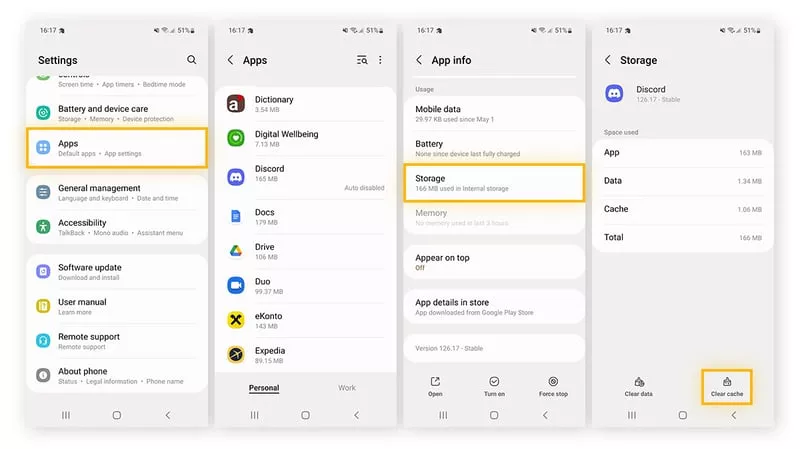
The following steps helped me free up significant space on my Android device:
Clear App Cache
I recommend doing this first on any Android device.
Go to Settings → Storage → Apps, tap on an app like Instagram, Facebook, Chrome, or Netflix, then tap Storage & Cache → Clear Cache.
According to a study by DevX, you can save up to 2–5 GB by clearing the cache from the top 10 apps on your device.
Delete Unused Apps
Go to Google Play Store → Profile → Manage Apps → Unused Apps. This will show you a list of apps you haven’t used in a while. Uninstall the ones you no longer need.
For Samsung users: Go to Settings → Apps → select the app → Storage → Clear Cache or Uninstall.
Use Built-in Cleaner
Most Android devices come with a built-in storage cleaner that works quite well. Here are the steps for different brands:
- Samsung: Settings → Device Care → Storage → Clean Now
- Pixel: Settings → Storage → Free Up Space
- OnePlus/Others: Settings → Storage → Clean Up
According to Google’s official Android support page, you can browse by category, select files, and move them to trash in under two minutes.
Delete Downloads Folder
The Downloads folder often contains files you used once and then forgot about.
Open the Files app → Downloads. Delete any images, videos, and other files you no longer need. I saved 2 GB on my Realme 7 by doing this.
Move Files to Cloud or SD Card
In my opinion, this is the best long-term solution to avoid the “Storage Full” problem:
- Google Photos — back up your photos and videos, then delete the local copies.
- Google Drive — upload large files to Drive.
- SD Card — if your phone supports it, move videos and songs to an SD card to free up internal storage.
You can also enable Smart Storage by going to Settings → Storage → Free Up Space → Settings → Smart Storage. This automatically deletes local copies of photos and videos that are already backed up when your device runs low on space.
Best Apps to Clean Storage
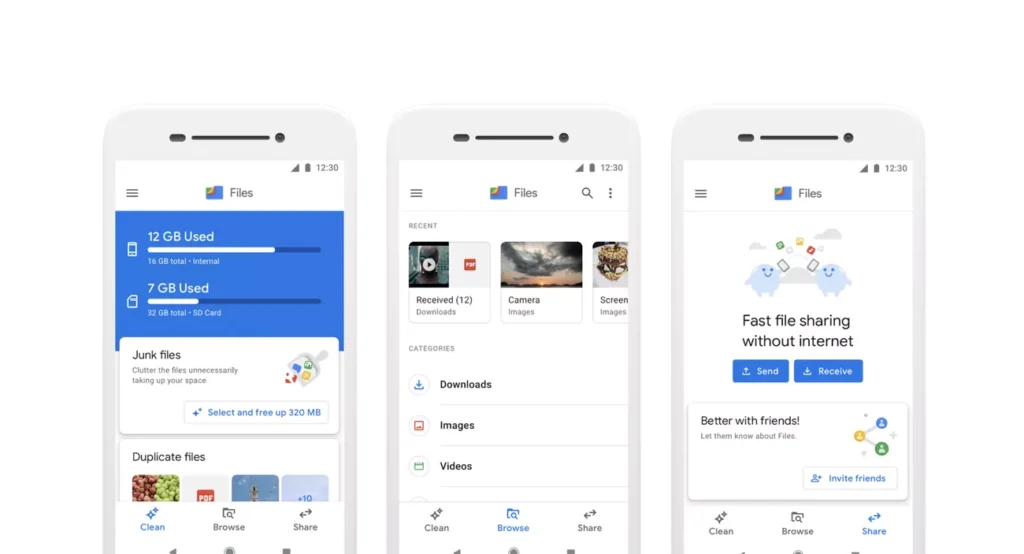
Built-in storage cleaners work for basic tasks, but these two trusted apps can help you clear even more space on Android:
Files by Google
Files by Google is my top recommendation for a trusted storage cleaner. Created by Google, the app can help you free up a significant portion of your storage with ease. It handles:
- Junk cleaning
- Duplicate photos
- Large videos already backed up
- Unused apps
The best part is that it’s completely free, has zero ads, and works offline.
CCleaner
CCleaner was first popular as a PC cleaner, and it works just as well on Android. It’s best for removing junk files and app cache, and it also provides a performance overview of your device in a single interface.
Best features:
- App cache cleaning
- Junk file removal
- Storage analyzer
- System performance monitor
The free version is sufficient for regular use.
How to Automatically Manage Storage
Automatic storage management is a great option for both iPhone and Android. Set it up once, and it will keep your phone clean without you having to think about it.
Enable Smart Storage (Android)
Go to Settings → Storage → Free Up Space → Settings → Smart Storage. This kicks in when your storage is running low and removes local photos and videos that are already backed up to Google Photos.
I’ve been using this on my Realme 7 and haven’t had to worry about storage management since.
Enable Optimize iPhone Storage (iPhone)
Go to Settings → Photos → Optimize iPhone Storage. Original-quality photos are stored in iCloud while lighter versions remain on your device.
Auto-Delete Old Backups
Old backups can consume gigabytes of space. I recommend checking and deleting them every three months:
- iPhone: Settings → Your Name → iCloud → Manage Storage → Backups
- Android: Google Drive → Backups → select old backups → Delete
Tips to Prevent the “Storage Full” Issue
I clear my device storage every week to avoid those Storage Full warnings. Here’s how you can stay ahead of it:
- Regular Cleanup: Set a weekly or monthly reminder to clear app cache, empty Recently Deleted folders, and go through your Downloads folder. It takes only 10 minutes but can save you hours of cleanup later.
- Use Cloud Storage: I use iCloud, Google Photos, and Google Drive to keep my original files, photos, and videos in the cloud and lighter versions on my device. I recommend doing the same.
- Avoid Duplicate Files: Duplicate files are a common and often overlooked reason for storage issues. On Android, you can manage them through Files by Google. On iPhone, go to Albums → Duplicates.
- Limit Downloads: Downloading songs, series, and podcasts can quickly eat up your device’s storage. Keep only what you need and use streaming platforms for the rest.
Conclusion
Clearing storage on your phone shouldn’t be a headache — make it a small weekly habit and save yourself a lot of time in the future.
Cleaning app cache, using Optimize iPhone Storage or Smart Storage on Android, clearing Recently Deleted folders, and using Files by Google or CCleaner can make a huge difference in managing your device storage on both iPhone and Android.
Start with one of the methods mentioned above and notice the difference right away.
FAQs
Why is my phone storage full even after deleting files?
Even after deleting files on your iPhone or Android, they remain in the Recently Deleted folder for up to 30 days. Permanently deleting them will free up the space immediately.
Is it safe to clear the cache?
Yes, it’s completely safe to clear app cache on both iPhone and Android. You won’t lose any personal data, settings, or app progress. You can read more about it on Apple’s support page or Google’s support page.
How much free space should I keep?
It’s recommended to keep at least 10–25% of your total storage free to avoid overheating and lagging. For a 128 GB device, that means keeping 13–19 GB free.
Which app is best for cleaning storage?
For Android, Files by Google is the best option. For iPhone, go to Settings → General → iPhone Storage to manage your storage directly.
Does deleting apps free up space immediately?
Yes, deleting an app removes all of its associated data from your device permanently.