


Do this first: Stop using your iPhone immediately after data loss. Every new photo, message, or app install risks overwriting deleted data permanently. Do not back up to iCloud or iTunes until after you have run a recovery scan.
Losing data on an iPhone is stressful, whether it is a year of photos, an important conversation, or contacts you cannot rebuild from memory. The good news is that deleted files on an iPhone are not always gone permanently. Data persists in storage until it is overwritten by new files, and in many cases the right recovery software can find and restore it within minutes.
We evaluated the top iPhone data recovery tools for 2026, cross-checking features, pricing, iOS 26 compatibility, and real recovery performance from independent tests. Here is exactly what works and why.
How iPhone Data Recovery Works
Apple’s iOS security model makes direct storage scanning much harder than on Android. Recovery tools use one of three paths to access your data.
- Device Scan (Direct Connection): You connect your iPhone to a Mac or PC via USB. The software accesses the device file system and scans for deleted file signatures. This method gives the best results for recently deleted data that has not yet been overwritten. iOS 26’s stricter security requires trusting the computer on your device before the scan can begin.
- iTunes or Finder Backup Extraction: The software reads an existing iTunes or Finder backup stored on your computer and extracts deleted or older versions of files from within it. No physical connection to the iPhone is needed. This is the most reliable method if you have a recent local backup, because the backup preserves a snapshot of your device at a specific point in time.
- iCloud Backup Recovery: Some tools sign in to your iCloud account and extract recoverable data from your iCloud backup. This works without a physical device and is useful when the iPhone itself is damaged or inaccessible. Recovery scope is limited to what was captured in the last iCloud backup.
Before using third-party software: Check Apple’s built-in options first. The Photos app has a Recently Deleted album that keeps files for 30 days. iCloud also retains deleted files for 30 days in the Recently Deleted folder. If your data is within that window, you can restore it for free in seconds without any software.
What to Look for in Recovery Software
- Preview Before You Pay: Every reputable tool on this list offers a free scan and preview. You should see thumbnail images, message previews, or contact details before paying anything. If a tool requires payment before showing you what is recoverable, skip it.
- iOS 26 Compatibility: Tools that have not been updated in 12 or more months may not support iOS 26 and the latest iPhone models. Always check the developer’s website for the last update date and confirmed iOS 26 support before downloading.
- Three Recovery Modes: The best tools support all three paths: direct device scan, iTunes or Finder backup extraction, and iCloud recovery. A tool that only supports one mode gives you fewer chances of success across different data loss scenarios.
- Read-Only Operation: The scan must never write to your iPhone. Any tool that modifies your device’s storage during a scan risks overwriting the very data you are trying to recover. All tools on this list perform read-only scans.
- Transparent Pricing: Some tools show a scan paywall only after a 30-minute scan process, which is a deliberate pressure tactic. Trustworthy tools are clear about what is free and what requires a license before you start. Watch for auto-renewal defaults and check billing settings after any purchase.
The 8 Best iPhone Data Recovery Tools (2026)
Discover the 8 best iPhone data recovery tools in 2026 to restore lost photos, messages, and files with ease. Compare features, pricing, and performance to find the perfect solution for your needs.
1. Disk Drill for Mac

Disk Drill by CleverFiles is the top-ranked iPhone data recovery tool in 2026 across independent review platforms including MacObserver and PandoraRecovery. In real-world tests, it fully recovered deleted photos, contacts, and notes from an iPhone 14, with the fastest scan speed of any tool tested. It supports every iPhone model from the 3GS through the iPhone 17 series and is confirmed compatible with iOS 26 and macOS Tahoe. iPhone recovery runs through the Mac version only. The Windows version handles Mac drives and external storage but does not scan iPhones directly.
Disk Drill uses a backup-based approach on Mac, creating an iTunes-style backup of your device and parsing it for recoverable files. This means results depend on what was captured in your most recent backup, though a direct device scan mode is also available. The Pro license is a one-time purchase model, which is unusual among recovery tools in 2026 and represents strong value compared to subscription-only competitors.
- Recovery Rate: 9.6
- Ease of Use: 9.5
- iOS Compatibility: 9.8
- Value: 9.1
👍 Pros
👎 Cons
Best for: Mac users who want the highest-rated recovery tool with a one-time license and full iPhone 17 and iOS 26 support.
2. Wondershare Dr.Fone Data Recovery (iOS)
Dr.Fone from Wondershare is one of the most comprehensive iOS tools on the market in 2026, available for both Windows and Mac. In independent tests at MacObserver, it fully recovered deleted photos and notes, with partial message recovery. Its biggest differentiator is the suite of tools bundled alongside recovery: system repair for bricked devices, WhatsApp data transfer, iCloud backup management, and GPS spoofing. If you need more than just file recovery, Dr.Fone is the most feature-complete package available.
Pricing is the main point of friction. The standalone iOS Data Recovery module starts at $99.95 per year. The full toolkit is $139.95 per year. A perpetual plan is available at $115.95 as a one-time purchase. Plans auto-renew by default, so check your billing settings immediately after purchase. The free version allows scanning and previewing only, with no recovery until a license is activated.
- Recovery Rate: 8.4
- Ease of Use: 9.0
- Feature Breadth: 9.6
- Value: 6.2
👍 Pros
👎 Cons
Best for: Users who need a full iOS toolkit beyond just recovery, including system repair, WhatsApp transfer, and iCloud management.
3. Stellar Data Recovery for iPhone
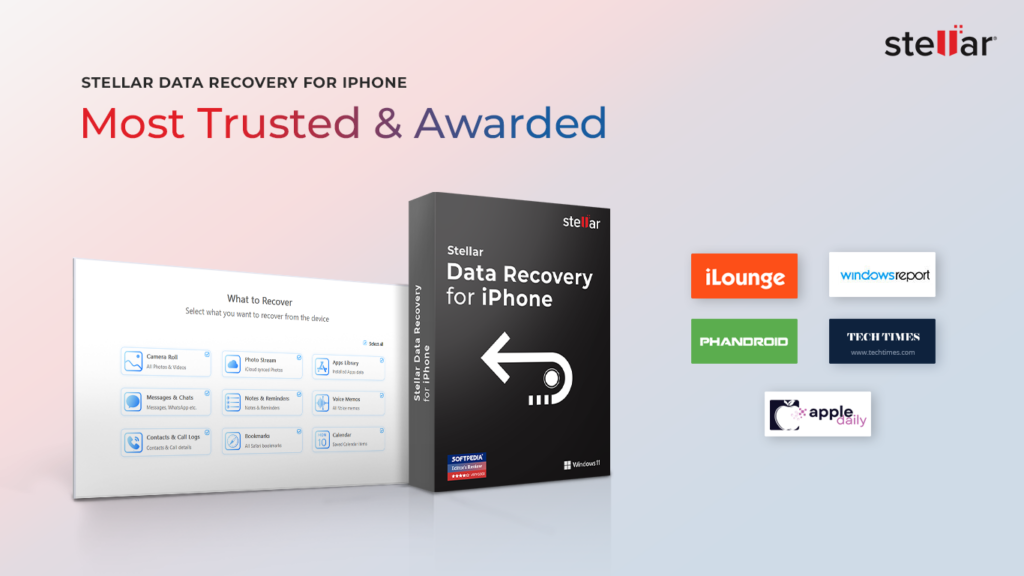
Stellar Data Recovery for iPhone is the top pick for users who specifically need to recover iMessages and app chat data. In independent testing at MacObserver, it outperformed every other tool in this roundup when it came to restoring iMessages and WhatsApp conversations. It also fully recovered photos and notes. Recovery of chat attachments from Viber, WhatsApp, Tango, and other messaging apps is a verified specialty that very few competitors match. Stellar has been in the professional data recovery business for over 25 years, and that experience reflects in the software’s deep scan capability and file system reliability.
The interface is functional but visually dated compared to Disk Drill and Dr.Fone. Macworld describes it as “dated-looking” though notes its recovery performance is strong. The standard license covers three iPhones, which is practical value for families. Pricing is regularly discounted to around $39.99 per year from its standard $59.95 rate.
- Recovery Rate: 8.8
- Chat Recovery: 9.7
- Deep Scan: 9.2
- Interface: 6.5
👍 Pros
👎 Cons
Best for: Users who need to recover iMessages, WhatsApp chats, or chat message attachments and want the deepest scan capability available.
4. EaseUS MobiSaver for iPhone
EaseUS MobiSaver is one of the most popular iPhone recovery tools available in 2026, and its three-step workflow (connect, scan, recover) is the simplest on this list. It recovered photos, notes, and contacts at a high success rate in independent tests, making it a strong choice for first-time users who want a guided experience without technical complexity. The wizard-style interface walks you through each step and clearly labels what each recovery mode does.
There are important caveats. The free version recovers only one photo or video and five contacts, making it essentially a paid-only tool. EaseUS has received consistent criticism from users about bundled bloatware during installation and aggressive upselling practices. The annual pricing of around $79.95 with auto-renewal enabled by default is worth monitoring carefully. Download only from the official EaseUS website to avoid bundled installers.
- Recovery Rate: 8.6
- Ease of Use: 9.4
- Beginner UX: 9.6
- Billing Trust: 5.6
👍 Pros
👎 Cons
Best for: First-time users who want the simplest possible recovery workflow and are comfortable monitoring billing settings carefully.
5. Tenorshare UltData for iPhone
Tenorshare UltData is the strongest specialist tool on this list for recovering data from social and messaging apps. It supports recovery from WhatsApp, Instagram, Kik, LINE, Messenger, Viber, WeChat, and KakaoTalk with specific parsing for chat history, photos, videos, documents, and attachments within each app. It also covers the full set of standard iOS data types: photos, videos, contacts, messages, notes, call history, voicemail, calendars, and Safari history. It lists confirmed support for iOS 26 and iPadOS 26 as of early 2026.
The same billing caution noted for other Tenorshare products applies here. Independent user reviews on Capterra from early 2026 flag unexpected recurring charges and difficulty cancelling subscriptions. Always purchase from the official Tenorshare website, confirm the plan details before checkout, and disable auto-renewal immediately after purchase if you only need a one-time recovery.
👍 Pros
👎 Cons
Best for: Users who need to recover data from WhatsApp, WeChat, LINE, or other social apps and can manage billing settings carefully.
6. FoneLab iPhone Data Recovery
FoneLab is a solid mid-tier option that covers 19 data types across device scan, iTunes backup, and iCloud recovery modes. It is lightweight, scans faster than most tools in this category, and has an intuitive interface that requires no technical knowledge. It handles photos, messages, contacts, call history, notes, WhatsApp data, and more. A practical choice for users who want solid broad recovery without paying for a premium toolkit.
👍 Pros
👎 Cons
Best for: Users who want broad data type coverage at a mid-range price without the billing concerns of some larger tools.
Step-by-Step Recovery Walkthrough
This process applies to any PC-based iPhone recovery tool. Follow these steps in order for the best chance of a successful recovery.
- Stop using your iPhone immediately. Do not take new photos, install apps, or create new files. Every action risks overwriting the deleted data. Enable Airplane Mode if needed to prevent background syncing.
- Do not back up to iCloud or iTunes yet. A new backup overwrites the old one and may reduce what is recoverable. Run the recovery scan before creating any new backups.
- Download the recovery tool from the official website only. Third-party download aggregators frequently bundle modified versions with adware. Always go directly to the developer’s official domain.
- Connect your iPhone to your Mac or PC via USB. When prompted on your iPhone, tap Trust to establish a secure connection. For Disk Drill on Mac, grant Full Disk Access in System Settings > Privacy and Security when prompted.
- Choose your recovery mode. Start with a Direct Device Scan for recently deleted data. If the device scan returns limited results, try iTunes or Finder Backup Extraction if you have a recent local backup.
- Let the scan complete fully. Do not interrupt the process. A full device scan can take 15 to 40 minutes depending on storage size and the tool. Interrupted scans return incomplete results.
- Preview results before paying. Browse the scan results in the free preview and confirm your specific files are visible and in a usable state. If the preview shows what you need, purchase the license and proceed with recovery.
- Recover to your computer, not back to the iPhone. Save recovered files to a folder on your Mac or PC first. Writing directly back to the iPhone during recovery risks overwriting other files still waiting to be recovered.
Check Free Options First
Before spending anything on recovery software, spend two minutes checking these built-in Apple options. They are free and recover data instantly when the timing is right.
- Photos app: Recently Deleted album. Open Photos, tap Albums, scroll to Recently Deleted. Deleted photos and videos stay here for 30 days before being permanently removed. Tap and restore at no cost.
- iCloud: Recently Deleted folder. Sign in to iCloud.com on a computer, open Photos, and check the Recently Deleted folder. Same 30-day window applies. Works even if the photo was deleted from multiple devices.
- Messages: Check iCloud sync. If you use iCloud for iMessage, deleted messages may still be visible on another Apple device signed into the same Apple ID.
- Notes: Recently Deleted folder. Open the Notes app, look for the Recently Deleted folder in the folder list. Recently deleted notes stay there for 30 days.
- Restore from iCloud backup. If you have an iCloud backup from before the data loss, go to Settings > General > Transfer or Reset iPhone > Erase All Content and Settings and restore from that backup. This is the most complete free recovery option when you have a recent backup.
How to Prevent iPhone Data Loss
- Enable iCloud Backup. Go to Settings > Your Name > iCloud > iCloud Backup and turn it on. Your iPhone backs up automatically when connected to Wi-Fi and charging.
- Create a local iTunes or Finder backup before every major iOS update. Connect to your Mac or PC and create a backup in Finder. This takes only a few minutes and gives you a full restore point if the update goes wrong.
- Enable iCloud Photos. Go to Settings > Photos and turn on iCloud Photos. Every photo you take is backed up to iCloud in full resolution automatically.
- Use Google Photos as a secondary photo backup. Download Google Photos and enable backup. Having your library in two cloud locations (iCloud and Google) means a single account issue does not cause permanent photo loss.
- Back up WhatsApp to iCloud. In WhatsApp, go to Settings > Chats Chat > Backup and set a daily automatic backup to iCloud. WhatsApp data is not included in standard iCloud backups.
- Export important contacts to a VCF file. Go to iCloud.com, open Contacts, select all, and export as a VCF file. Save it to Google Drive or email it to yourself. This protects your contact list independently of any single backup.
Can deleted iPhone data really be recovered?
Yes, in many cases. Deleted files remain on iPhone storage until the space is overwritten by new data. The sooner you act after data loss and the less you use the device, the higher the recovery chances. Files deleted more than a few days ago on a heavily used phone are harder to recover.
Is the free scan actually free?
Yes. All tools on this list allow a free scan and preview at no cost. You only pay when you want to actually recover and save the files. The exception is EaseUS MobiSaver, whose free version recovers only one photo or video and five contacts before requiring payment.
Which tool works on Windows for iPhone recovery?
Dr.Fone, Stellar, EaseUS MobiSaver, PhoneRescue, Tenorshare UltData, FoneLab, and FonePaw all support Windows. Disk Drill’s iPhone recovery is Mac-only. The Windows version of Disk Drill does not scan iOS devices.
Can I recover WhatsApp messages on iPhone?
Yes. Stellar, Dr.Fone, Tenorshare UltData, EaseUS MobiSaver, PhoneRescue, FoneLab, and FonePaw all support WhatsApp recovery. Tenorshare UltData and Stellar have the most thorough WhatsApp and messaging app recovery among the tools tested.
Does iPhone data recovery require a computer?
All tools on this list require a Mac or Windows computer to run the recovery software. No fully on-device iPhone recovery app comparable to these tools currently exists on the App Store, because iOS security restrictions prevent app-level access to deleted file storage.
What if the preview shows nothing?
If the free scan preview shows no recoverable files for your data type, the data is very likely already overwritten and no paid license will change that outcome. Try switching recovery modes: if a device scan showed nothing, try an iTunes or Finder backup extraction instead, then iCloud recovery as a final option.
Our Final Verdict
Disk Drill is our top pick for 2026. It earned the highest independent ratings, supports iPhone 17 and iOS 26, offers the fastest scan speed tested, and uses a one-time license model that avoids recurring charges. Mac users get the best experience. If you are on Windows and need iPhone recovery, Stellar Data Recovery is the strongest performer, especially for iMessages and chat data. For users who need a full iOS toolkit beyond just recovery, Dr.Fone covers the most ground despite the higher price. And if recovering WhatsApp, LINE, or social app data is the priority, Tenorshare UltData is the specialist, though check billing settings carefully after purchase.
Quick tip: Run the free scan before paying for anything. Every tool here lets you verify whether your specific files are still recoverable at no cost. If the preview shows your data, recovery is possible. If it shows nothing, switching tools will not change the result.