


By using this site, you agree to the Privacy Policy and Terms of Use.
Accept
FandomScoop Logo FandomScoop Light Logo
  • Movies
  • Streaming
  • TV Shows
  • Call of Duty
  • Fortnite
  • GTA
  • Minecraft
  • Roblox
  • Valorant
  • Puzzle Games
Reading: Best GTA 6 Settings to Change Before Playing
Share
FandomScoopFandomScoop
Font ResizerAa
Search
  • Entertainment
    • Entertainment News
    • Streaming
    • TV Shows
    • Movies
  • Gaming
    • Gaming News
    • Puzzle Games
    • Fortnite
    • Call of Duty
    • GTA
    • Valorant
    • Roblox
    • Minecraft
Follow US

Home – Gaming – GTA – Best GTA 6 Settings to Change Before Playing

GTA

Best GTA 6 Settings to Change Before Playing

FandomScoop
Last updated: November 26, 2026 6:05 pm
FandomScoop
Fevicon Site Icon
ByFandomScoop
Editorial Team
The FandomScoop Editorial Team brings over 2 years of combined experience in gaming journalism, entertainment reporting, and digital media. We cover gaming news, puzzle game solutions,...
Follow:
- Editorial Team
Share
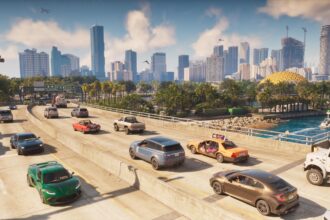
Grand Theft Auto VI original score official artwork
Image: Rockstar Games

GTA 6 has no graphics or frame rate options, so the settings menu is where you shape how the game feels. These are the changes worth making before your first mission. Defaults and recommendations come from player guides, so adjust to your taste.
Contents
  • What you cannot change
  • Settings to change first
  • Units and display
  • Frame rate notes
  • Next steps
  • FAQ
    • Can you get 60 FPS in GTA 6?
    • What is the best minimap setting?
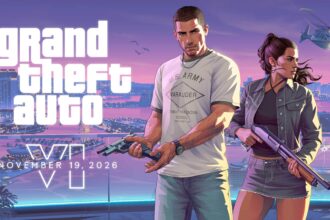
Grand Theft Auto VI official artwork
Image: Rockstar Games

What you cannot change

There is no performance or quality mode and no 60 FPS option. The game targets 30 FPS on PS5, PS5 Pro and Xbox Series X and S, and you cannot choose the resolution. The PS5 Pro adds sharper image clarity but is also 30 FPS. Rockstar lists Settings under the pause menu, with Control Scheme, Controller, Gameplay, Display, UI, Camera, Audio and Account.

Settings to change first

SettingSuggestedWhy
Control SchemeClassicFamiliar for returning players
TargetingLock-OnEasier targeting for newcomers
Aim Sensitivity5 to 6Slows the camera while aiming
Movement SpeedJogFaster around Leonida
NavigationMinimap Always OnKeeps the map visible
SubtitlesAll dialogue, background onEasier to follow the story
UI Text SizeMedium or LargeEasier to read (default Small)
Motion Blur0 to 1 (default 3)Sharper in motion
Camera Bob and ShakeBob 3 to 5, Shake offSteadier view
HDR CalibrationMatch your display (default 600/50/50)Balances brightness
Hit and Status Effects2 to 3Less distracting; a center dot may help motion sickness
Adaptive TriggersLowerLess tiring in long sessions
AudioDialogue high, music and effects 7 to 8Keeps speech clear
Hold ControlsToggle for aim and interactReduces strain

Units and display

Switch miles and Fahrenheit with our units guide. On console, enable HDR and check your TV mode before you launch.

Frame rate notes

Reports say the base PS5 can dip toward 23 FPS in heavy scenes. Read more in our 60 FPS explainer.

Next steps

Once set, start with the beginner tips and check storage needs.

FAQ

Can you get 60 FPS in GTA 6?

Not on console, based on current reports.

What is the best minimap setting?

Minimap Always On is the common recommendation while learning the map.

Last checked: 26 November 2026. Suggested values come from guides, not Rockstar.

TAGGED:GTA 6
Share This Article
Flipboard Email Print
Fevicon Site Icon
ByFandomScoop
Editorial Team
Follow:
The FandomScoop Editorial Team brings over 2 years of combined experience in gaming journalism, entertainment reporting, and digital media. We cover gaming news, puzzle game solutions, streaming updates, technology trends, and pop culture stories, with a commitment to accuracy, transparency, and reader-focused content.
Previous Article Grand Theft Auto VI in-game radio official artwork How to Change Distance and Measurement Units in GTA 6
Leave a Comment Leave a Comment

Leave a Reply Cancel reply

Your email address will not be published. Required fields are marked *

Add as a preferred source on google

You Might Also Like

Grand Theft Auto VI in-game radio official artwork
GTA

How to Change Distance and Measurement Units in GTA 6

November 26, 2026
Grand Theft Auto VI official pre-load artwork
GTA

How to Use the Phone in GTA 6: All Apps and Features Explained

November 26, 2026
Grand Theft Auto VI now available official key art
GTA

GTA 6 Weapon Wheel and Inventory System Explained

November 26, 2026
Grand Theft Auto VI launch trailer still
GTA

GTA 6 Six-Star Wanted Level: How to Get It Fast at the Military Base

November 26, 2026
FandomScoop

FandomScoop: Gaming news, guides and game codes for Roblox, Fortnite, Call of Duty, Minecraft, GTA 6 and more, plus movie and TV coverage.

Categories
  • Entertainment
  • TV Shows
  • Streaming
  • Movies
  • Gaming
  • Call of Duty
  • Fortnite
  • GTA
  • Minecraft
  • Roblox
  • Puzzle Games
  • Valorant
Quick Links
  • About Us
  • Contact Us
  • Cookie Policy
  • Disclaimer
  • Disclosure
  • Editorial Guidelines
  • Privacy Policy
  • Terms and Conditions
  • Sitemap
Copyright © 2026 FandomScoop. All rights reserved.