

Most people set up Windows 11, pin their favourite apps to the taskbar, and call it a day. And honestly, that works — until you realise you’ve been doing things the long way around for months. Windows 11 is a far more capable operating system than it appears on the surface, and Microsoft has quietly built in a layer of tools and shortcuts that most users never discover.
That’s exactly what this guide is about. The Windows 11 hidden features covered here don’t require any downloads, technical know-how, or registry hacks — they’re already sitting inside your PC, completely untouched. Whether you want to focus better, multitask smarter, or just stop wasting clicks, these features were designed to help. You just needed someone to point them out.
1. Realign the Start Button
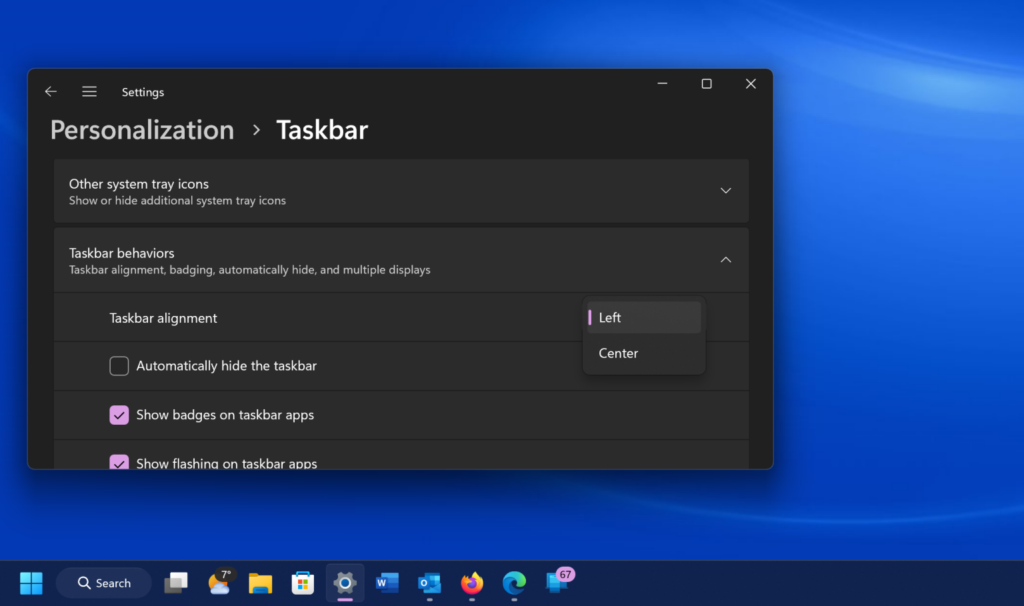
One of the first things you’ll notice when switching to Windows 11 is that the Start button has moved. Unlike previous versions of Windows where it sat in the lower-left corner, it’s now centered alongside the other taskbar icons. If that feels unfamiliar, the good news is that it takes just a few seconds to move it back.
Right-click on the taskbar and select Taskbar Settings. Under the Taskbar Behaviors section, find the Taskbar Alignment option and switch it to Left.
Your icons will shift to the left side and the Start button will return to its classic position, right where you’d expect it to be.
2. Download PowerToys
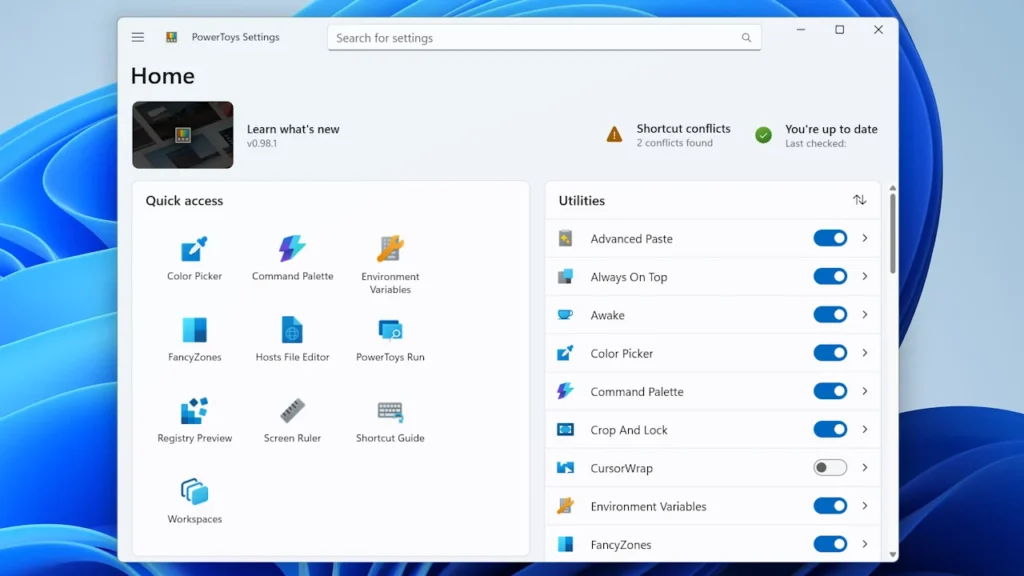
If you want to get serious about customizing Windows 11, PowerToys is the first tool you should install. It’s a free utility developed by Microsoft itself and packed with features that power users have been relying on for years.
With PowerToys, you can remap your keyboard, resize images in bulk, preview files without opening them, and even bring back a more advanced window snapping experience. Head over to the Microsoft Store or GitHub, search for Microsoft PowerToys, and install it for free. Once it’s running in the background, you’ll wonder how you ever managed without it.
3. Get AI Assistance With Copilot
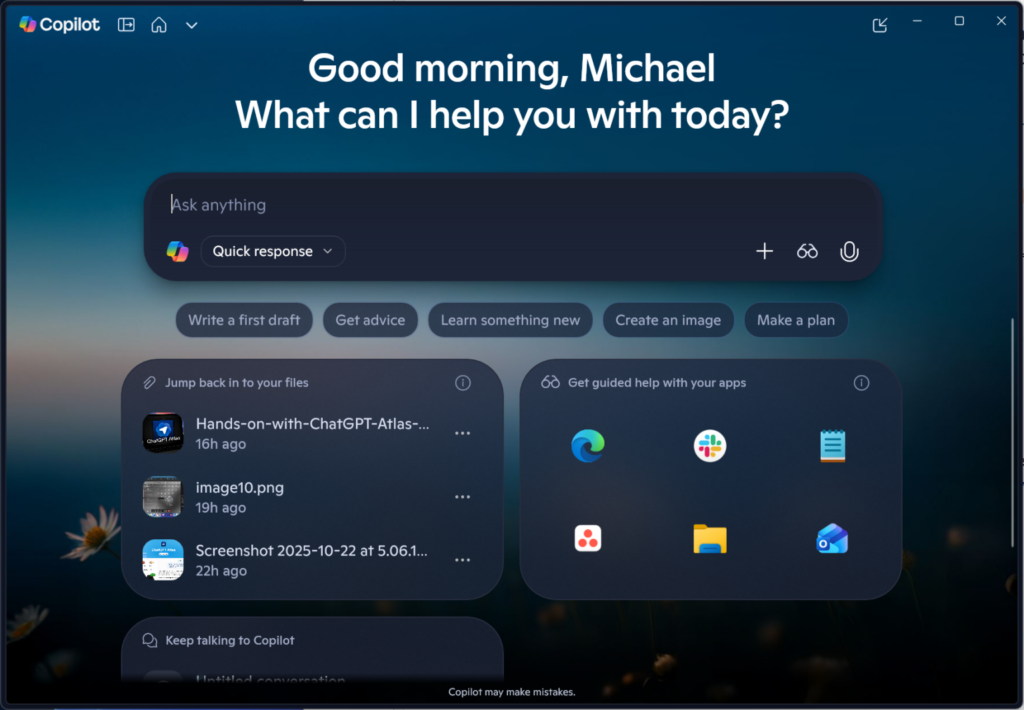
Microsoft has built its assistant, Copilot, directly into Windows 11 and it’s more capable than most people realize. You can open it from the taskbar or by pressing the dedicated Copilot key if your keyboard has one.
Beyond answering questions, Copilot can help you draft emails, summarize documents, generate images, and even control certain Windows settings through simple conversation. Try asking it to turn on Do Not Disturb, explain a concept you’re working on, or help you write something from scratch. It’s essentially a smart assistant sitting right inside your operating system.
4. Customize the Quick Settings Panel
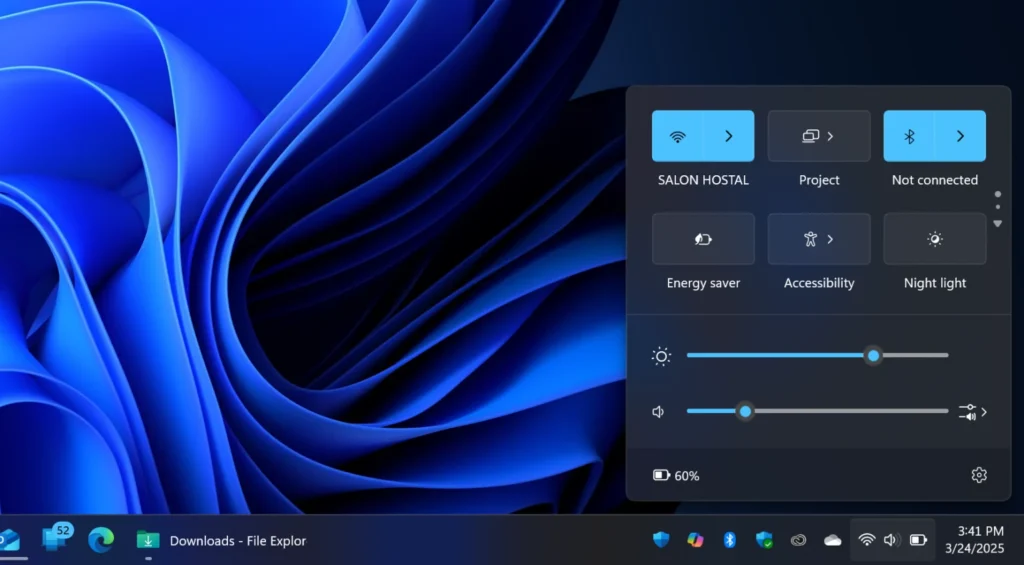
The Quick Settings panel in Windows 11 is the small menu that pops up when you click the Wi-Fi, volume, or battery icons in the bottom-right corner of your screen. By default, it shows a standard set of toggles, but you can tailor it to show exactly what you need.
Click the pencil icon at the bottom of the Quick Settings panel to enter edit mode. From there, you can remove toggles you never use and add ones that matter more to you, such as mobile hotspot, night light, or accessibility shortcuts. It’s a small change that makes everyday tasks noticeably faster.
5. Create and Manage Multiple Desktops
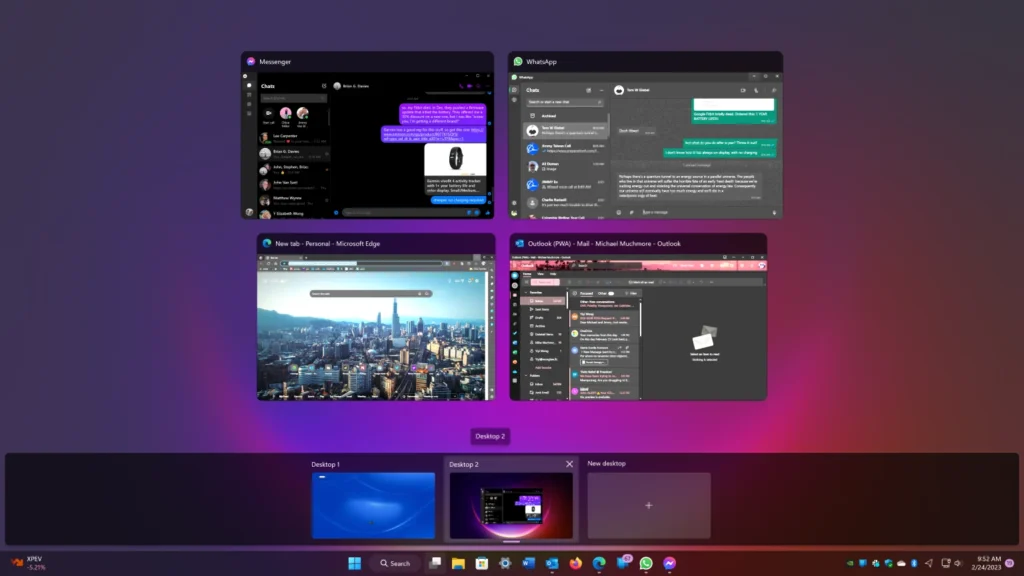
If you’re juggling work, personal browsing, and side projects all at once, virtual desktops can be a game changer. Windows 11 makes it easy to create separate desktops for different tasks, keeping things organized and reducing mental clutter.
Click the Task View button on the taskbar, which looks like two overlapping rectangles, or press Windows + Tab to open the view. From there, click New Desktop to create a fresh workspace. You can switch between desktops with Windows + Ctrl + Left or Right arrow keys, and even rename them or assign custom backgrounds to each one.
6. See Information at a Glance With Widgets
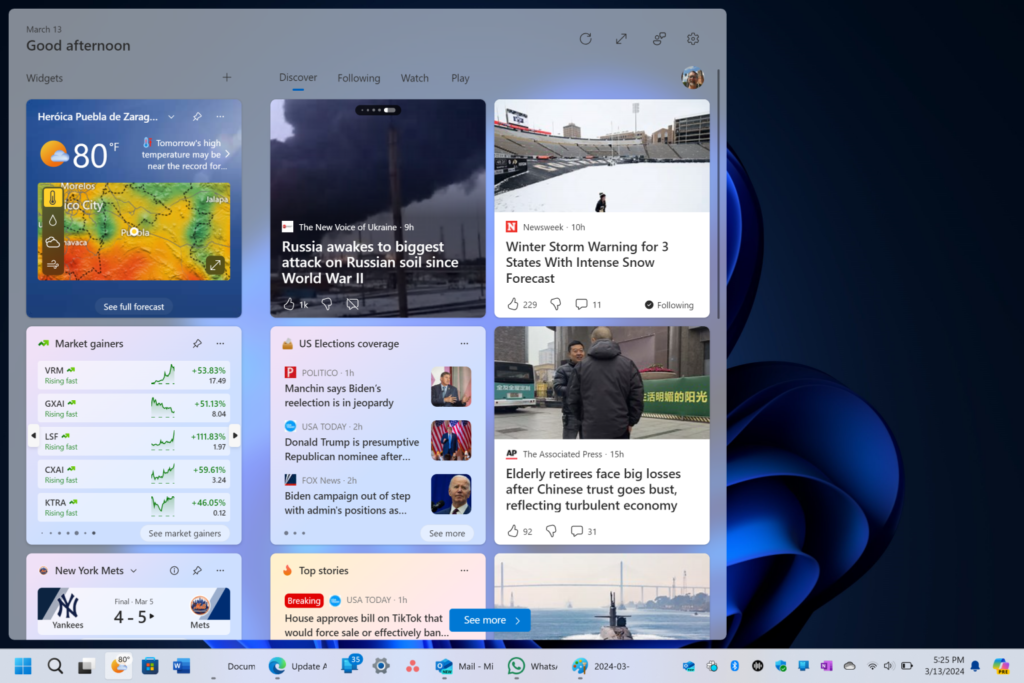
Windows 11 brings back a modernized version of Widgets, giving you quick access to news, weather, your calendar, sports scores, stock updates, and more, all without opening a browser.
Click the Widgets icon on the taskbar or press Windows + W to open the panel. You can add, remove, and resize widgets to show only what’s relevant to you. It’s a handy way to stay informed throughout the day without getting distracted by a full browser tab.
7. Learn New Ways to Snap Your Window Layouts
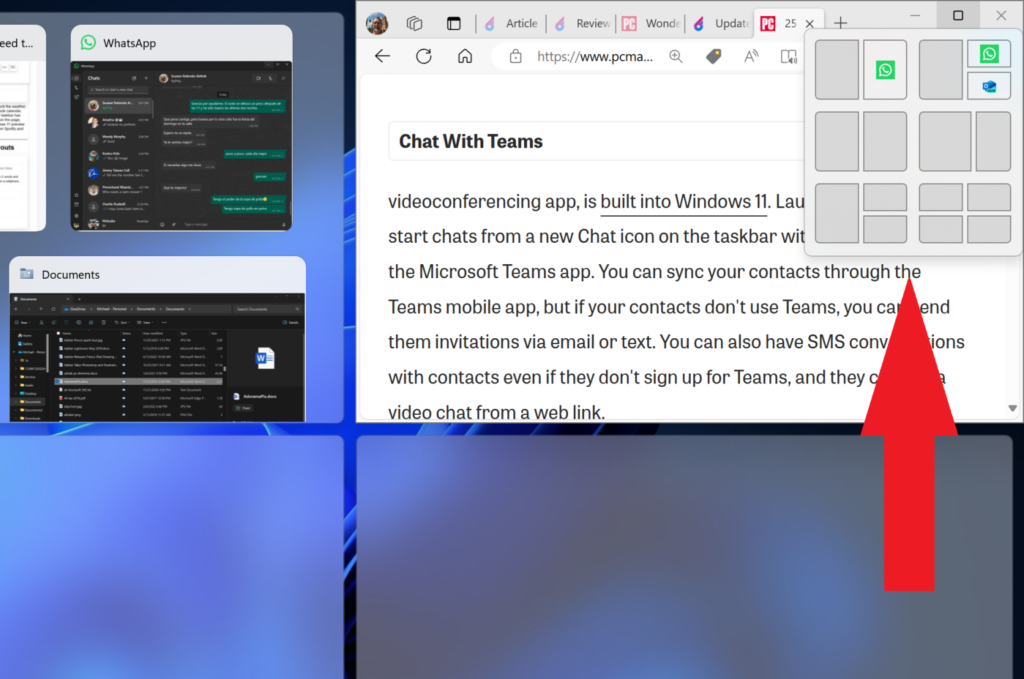
Window snapping has always been a useful Windows feature, but Windows 11 takes it much further with Snap Layouts. Hover your mouse over the maximize button on any open window and a small popup will appear showing different layout options, including side by side, three columns, a large panel with smaller ones stacked beside it, and more.
Click the layout that suits your workflow and Windows will automatically arrange your open apps to fit. You can also use Windows + Z to trigger the Snap Layout menu from your keyboard. Once you build the habit, managing multiple windows becomes significantly faster and less frustrating.
8. Connect Your Phone for Texts, Calls, and More
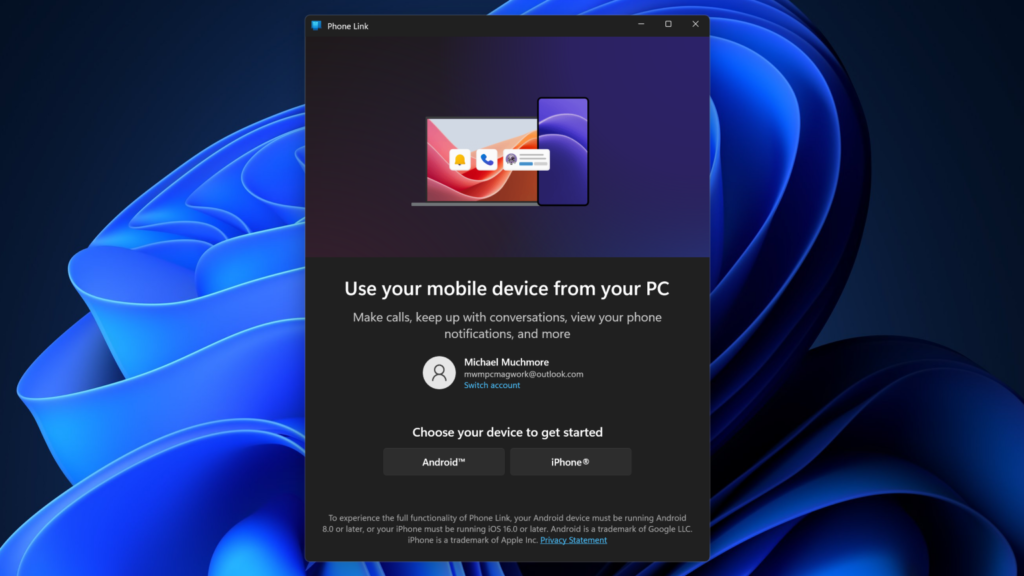
Windows 11 lets you link your Android or iPhone directly to your PC through the Phone Link app, which comes pre-installed on most Windows 11 devices. Once connected, you can send and receive text messages, make and receive calls, view your phone’s photos, and even mirror your phone’s screen, all from your desktop.
Open the Start menu, search for Phone Link, and follow the setup instructions. Android users get the deepest feature set, but iPhone users can still sync notifications and messages. It’s one of those features that genuinely saves time once you set it up.
9. Increase Security by Using Passkeys
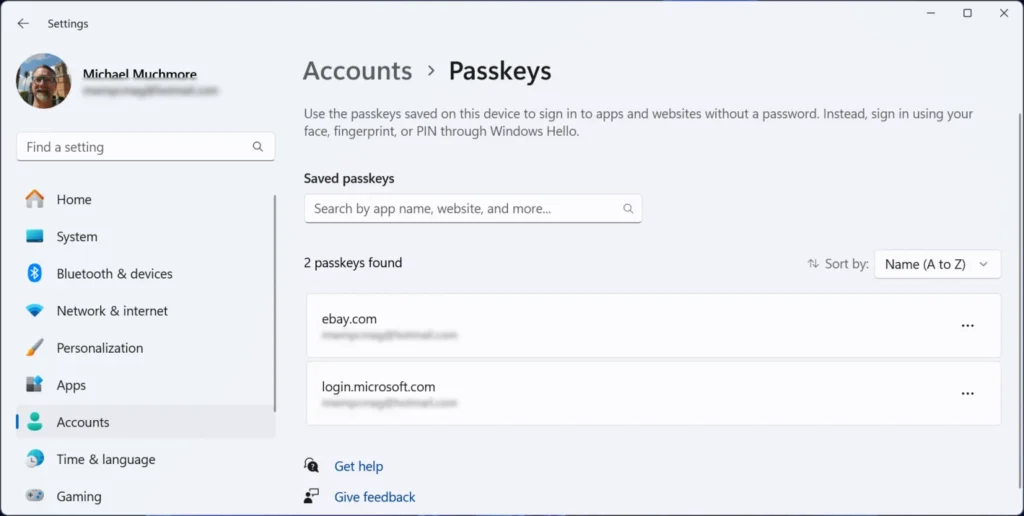
Passwords are increasingly being replaced by passkeys, a more secure and convenient way to sign in to apps and websites. Windows 11 has built-in support for passkeys, meaning you can log in to supported services using Windows Hello, which includes your fingerprint, face recognition, or a PIN instead of a traditional password.
To set up passkeys, go to Settings, then Accounts, and then Passkey Settings. From there you can manage the passkeys stored on your device. As more apps and websites adopt this standard, you’ll be able to ditch weak or reused passwords for good.
10. Get the Most Out of the Updated File Explorer
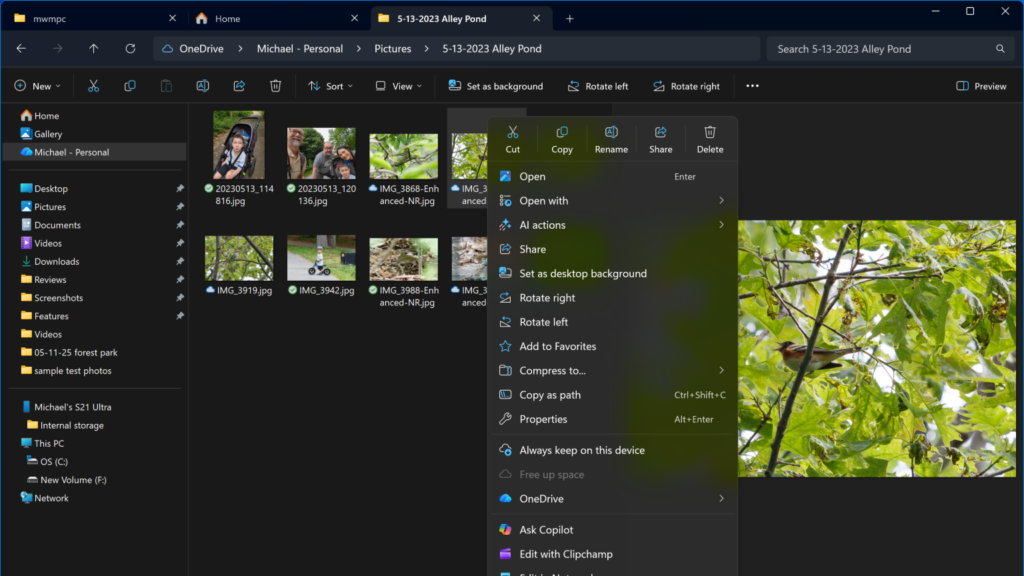
The File Explorer in Windows 11 has received a significant visual refresh and several useful new features that make managing your files easier. One standout addition is the ability to open multiple folders in tabs within the same File Explorer window, similar to how a browser handles multiple websites.
Press Ctrl + T to open a new tab inside File Explorer and Ctrl + W to close one. You’ll also find a cleaner toolbar at the top with quick access to common actions like compress, rename, share, and more. If you deal with a lot of files daily, spending a few minutes exploring these improvements is well worth it.
11. View the Full App List
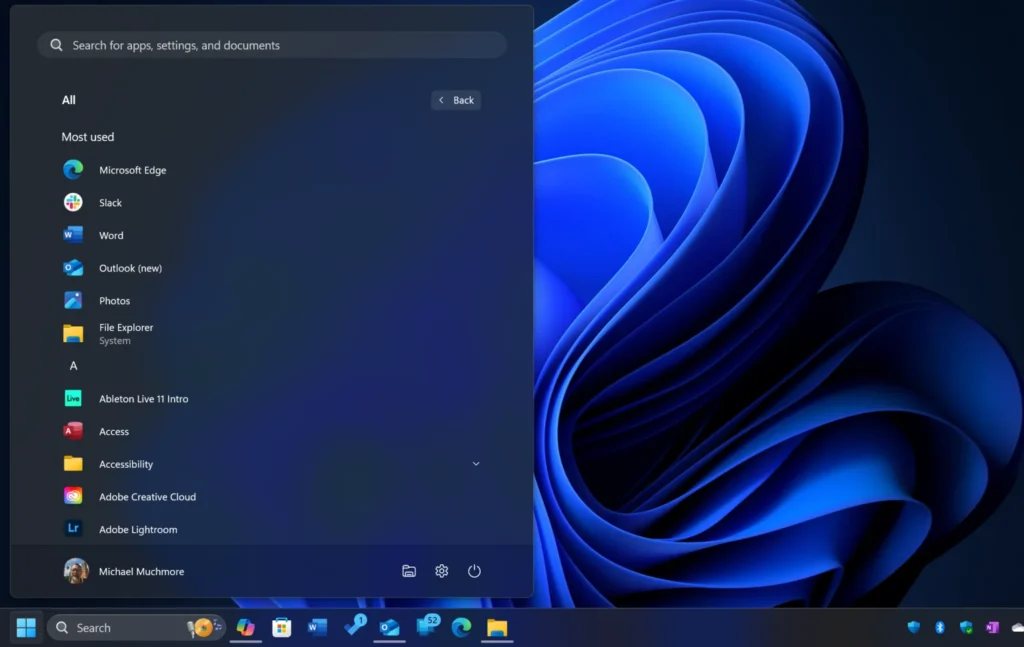
The Start menu in Windows 11 shows pinned apps and recent files by default, but your full list of installed applications is just one click away. In the Start menu, look for the All Apps button in the top-right corner and click it.
This gives you an alphabetical list of every app installed on your device, much like the app drawer on an Android phone. It’s a simple feature but incredibly useful when you’re looking for an app you haven’t pinned or don’t use regularly enough to remember where you left it.
12. Pin Apps to the Start Menu
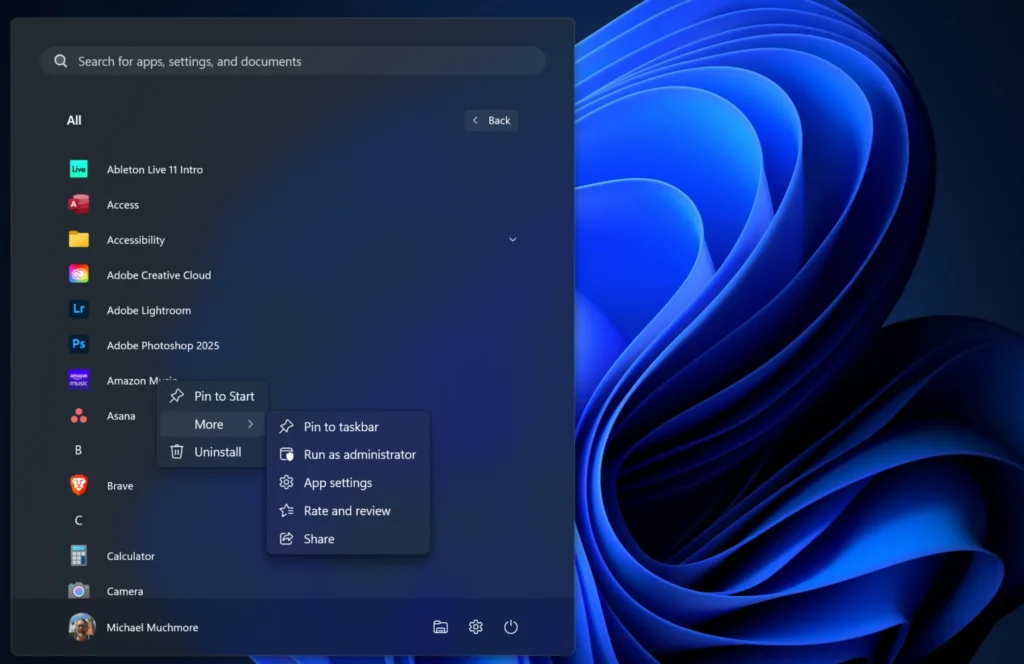
While the full app list is useful, pinning your most-used apps to the Start menu means you won’t have to go searching every time. Right-click any app, whether in the All Apps list, on your desktop, or in File Explorer, and select Pin to Start.
Your pinned apps will appear in the top section of the Start menu, giving you fast one-click access whenever you need them. You can also rearrange pinned apps by dragging and dropping them, or group them into named folders by dragging one app on top of another. It’s a small customization that keeps your workflow clean and efficient.
13. Use AI to Edit and Create Images
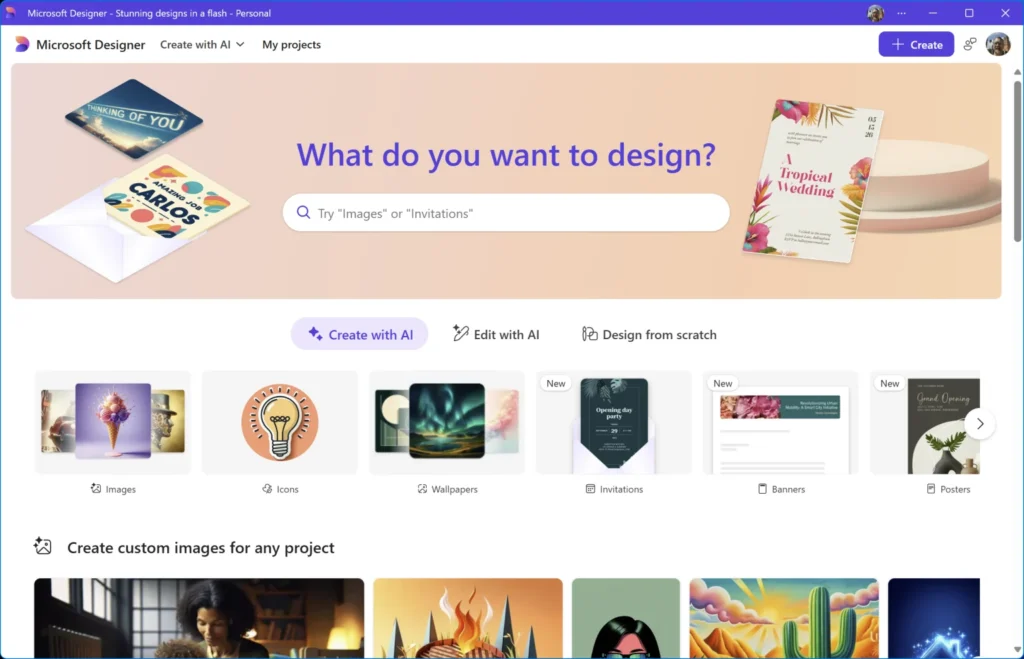
Windows 11 comes with a surprisingly powerful set of built-in tools for editing and creating images. The Photos app now includes AI-powered features that let you do things that once required third-party software.
With the Generative Erase tool, you can remove unwanted objects from a photo and the app will intelligently fill in the background. The Background Remove feature lets you instantly cut out a subject from any image with a single click. You can also use Cocreator in the Paint app to generate original images just by typing a text description.
Open the Photos app or Paint from the Start menu to get started. These tools are simple enough for beginners but capable enough to handle most everyday editing needs, all without downloading anything extra.
14. Customize Your Interface With a Theme
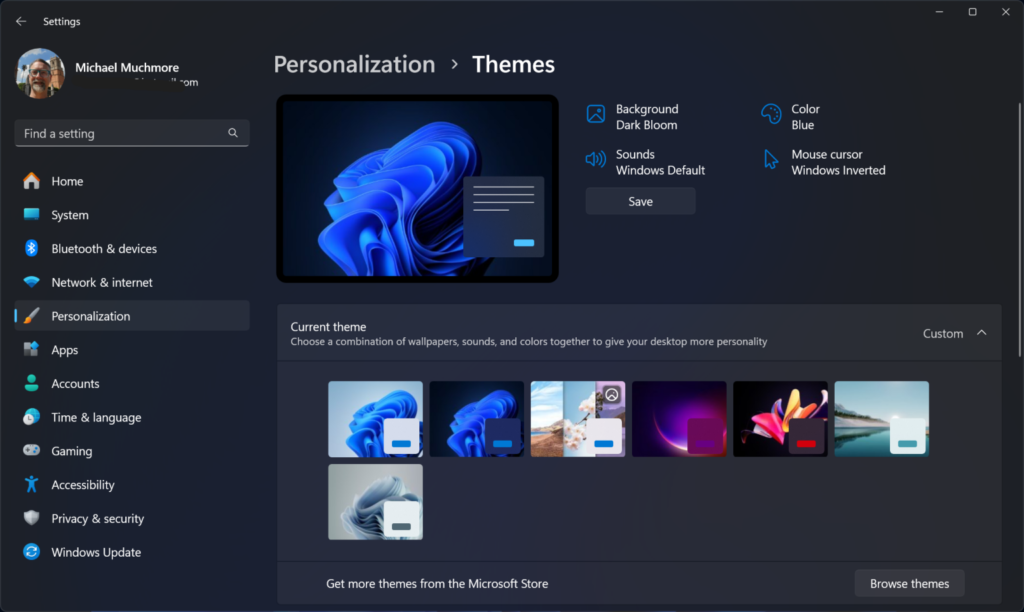
If you spend a lot of time in front of your screen, the way Windows looks can have a real impact on your experience. Windows 11 lets you apply themes that change your wallpaper, accent colors, sounds, and cursor style all at once.
Go to Settings, then Personalization, and then Themes. You’ll find several built-in options to choose from, and you can also browse and download additional themes directly from the Microsoft Store for free. If you prefer a more personal touch, you can mix and match individual settings like accent color, dark or light mode, and background to create your own custom look.
It’s one of the easiest ways to make Windows feel like yours.
15. Customize the Start Menu
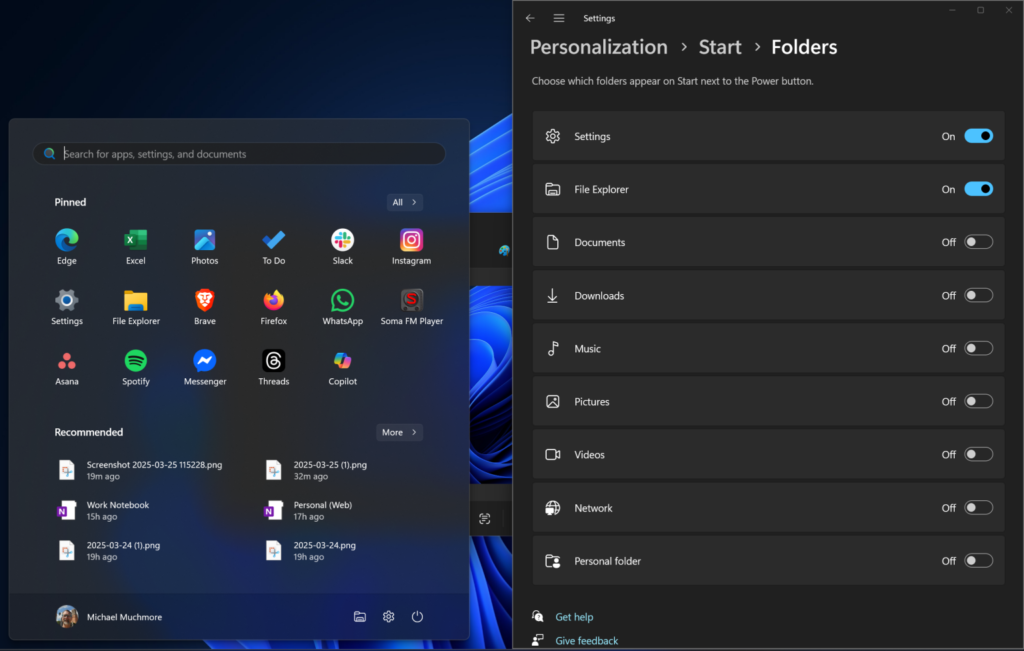
The Start menu in Windows 11 is more flexible than it looks at first glance. Beyond just pinning apps, you can reshape the entire layout to better suit the way you work.
Go to Settings, then Personalization, and then Start. From here, you can choose to show more pins or more recommendations depending on your preference, toggle the visibility of recently added apps, most used apps, and recently opened files. You can also turn off recommendations entirely if you prefer a cleaner, distraction-free Start menu.
For even more control, right-click any pinned app to unpin, move, or drop it into a folder by dragging it on top of another app. A well-organized Start menu can save you several clicks every single day.