

Roblox is one of the most reliable gaming platforms out there, but like any online game, it can run into issues from time to time. Whether the game is not loading, crashing on launch, or showing an error message, most problems have a straightforward fix.
The causes can vary depending on your device. It could be a server outage on Roblox’s end, a problem with your internet connection, an outdated app, or a corrupted file on your device. Before spending hours trying to figure it out, it helps to know exactly where to look.
This guide covers the most common Roblox problems in 2026 and how to fix them step by step, whether you are on PC, mobile, or console.
Common Reasons Why Roblox Is Not Working
Before jumping into fixes, it helps to understand why Roblox stops working in the first place. Most issues come down to one of these causes:
- Server outages — Roblox occasionally goes down for maintenance or experiences unexpected server issues. When this happens, the problem is on Roblox’s end and there is nothing you can do except wait. You can check the current server status at status.roblox.com to see if an outage is affecting your region.
- Weak or unstable internet connection — Roblox needs a steady connection to load and run properly. If your internet is slow or keeps dropping, games may fail to load, crash mid-session, or kick you out repeatedly.
- Outdated app or client — Running an older version of Roblox can cause compatibility issues, especially after a major platform update. Keeping the app updated helps avoid most of these problems.
- Corrupted or cached files — Over time, Roblox stores temporary files on your device that can become corrupted and cause loading errors or crashes.
- Firewall or antivirus blocking Roblox — Security software on your PC can sometimes flag Roblox and prevent it from connecting to the internet or launching properly.
- Device not meeting minimum requirements — Older phones, tablets, or PCs that do not meet Roblox’s minimum specs may struggle to run the game or fail to load it at all.
- DNS or network configuration issues — Some network settings, especially on school or public Wi-Fi, can block Roblox from connecting to its servers.
Identifying which of these applies to your situation will make it much easier to find the right fix.
Check Roblox Server Status
How to Check Roblox Server Status
Before trying any fixes on your end, it is worth checking whether Roblox itself is down. If the servers are having issues, no amount of troubleshooting on your device will help. The problem will resolve on its own once Roblox fixes it on their end.
Here is how to check:
- Go to status.roblox.com — this is the official Roblox status page. It shows the current condition of all Roblox services in real time, including the website, mobile app, Xbox app, game servers, the Marketplace, and more. If something is down or experiencing issues, it will be listed here along with updates from the Roblox team.
- You can also check downdetector.com/status/roblox — this is a third-party site that tracks outage reports from users around the world. If a large number of players are reporting problems at the same time, it will show up as a spike on the graph.
- Check Roblox’s official social media accounts on X (formerly Twitter) at @Roblox and @RobloxStatus. Roblox often posts updates about known outages and estimated fix times directly on these accounts.
If the status page shows everything is working normally and other players are not reporting issues, then the problem is most likely on your device or network. In that case, move on to the troubleshooting steps below.
Fix Roblox Not Working on PC
If Roblox is not launching, crashing, or refusing to load on your PC, work through these fixes one by one until the problem is resolved.
- Restart your PC — This is the simplest fix and solves more problems than you might expect. Restart your computer before trying anything else.
- Check your internet connection — Make sure your connection is stable. Try opening another website or game to confirm your internet is working. If it is slow or dropping, restart your router before trying Roblox again.
- Update Roblox — Roblox updates itself automatically when you launch a game, but if the update is failing, try uninstalling and reinstalling the app to get the latest version.
- Clear the Roblox cache — Corrupted temporary files can stop Roblox from loading. To clear them, press Windows + R, type %temp% and delete any Roblox-related folders you find there.
- Disable your antivirus or firewall temporarily — Security software can block Roblox from connecting to its servers. Try disabling it briefly to see if that is the cause. If it is, add Roblox to your antivirus exception list rather than leaving it disabled permanently.
- Update your graphics drivers — Outdated GPU drivers are a common cause of crashes and loading failures. Go to your graphics card manufacturer’s website and download the latest driver for your card.
- Close background applications — Too many programs running at once can cause Roblox to crash or perform poorly. Close any unnecessary apps before launching Roblox.
- Flush your DNS — Open Command Prompt as an administrator, type ipconfig /flushdns and press Enter. Restart your PC after and try launching Roblox again.
- Reinstall Roblox — If none of the above works, uninstall Roblox completely through Settings, then download and reinstall a fresh copy from roblox.com.
If the problem still persists after all these steps, contact Roblox Support directly at en.help.roblox.com for further assistance.
Fix Roblox Not Working on Mobile (Android & iOS)
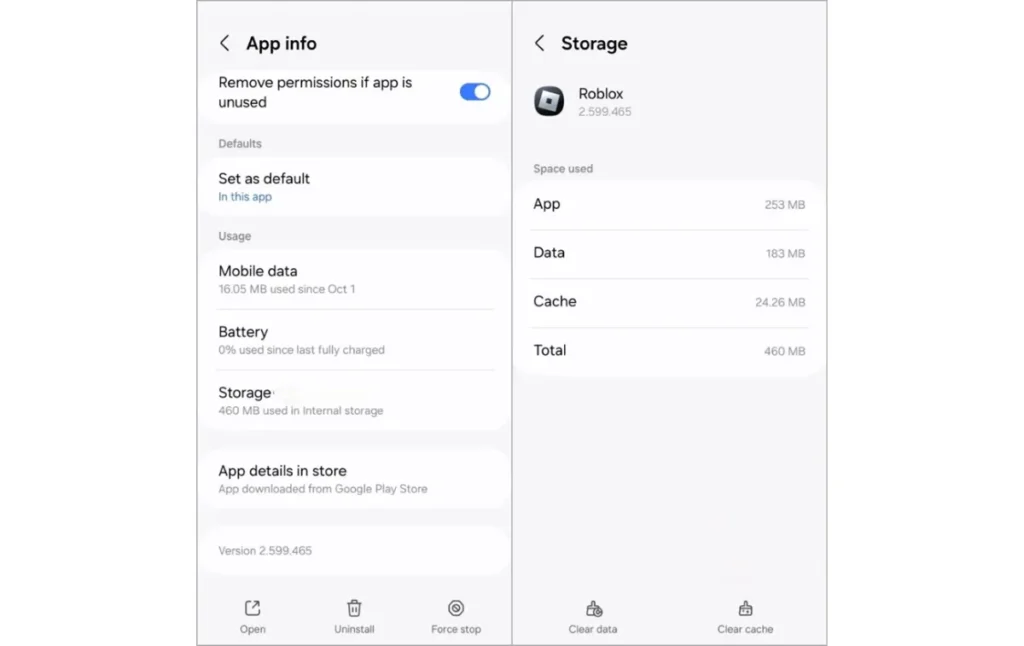
If Roblox is crashing, not loading, or refusing to open on your phone or tablet, try these fixes one at a time.
- Restart your device — A simple restart clears temporary issues and frees up memory. This alone fixes most minor app problems.
- Check your internet connection — Switch from mobile data to Wi-Fi if possible, as Roblox runs better on a stable Wi-Fi connection. If you are already on Wi-Fi, try moving closer to your router or restarting it.
- Update the Roblox app — Open the Google Play Store on Android or the App Store on iOS and check if a Roblox update is available. Running an outdated version is a common cause of crashes and loading failures.
- Clear the app cache — On Android, go to Settings, find Roblox under Apps, and tap Clear Cache. On iOS, you will need to delete and reinstall the app to clear cached data, as iOS does not have a built-in cache clearing option for individual apps.
- Check your date and time settings — An incorrect date or time on your device can stop Roblox from connecting to its servers. Go to Settings and make sure automatic date and time is turned on.
- Lower in-game graphics settings — If Roblox loads but runs poorly or keeps crashing, open the settings inside a game and lower the graphics quality. This is especially helpful on older or lower-end devices.
- Free up storage space — If your device is low on storage, apps can crash or fail to load. Delete unused apps or files to free up space and try opening Roblox again.
- Check app permissions — If your microphone or other features are not working, go to your phone’s Settings, find Roblox under Apps, and make sure all required permissions are enabled.
- Reinstall Roblox — If nothing else works, delete the app completely and reinstall it fresh from the Google Play Store or App Store. This clears any corrupted files and installs the latest version.
If the issue continues after trying all of these, check status.roblox.com to confirm there is no ongoing outage, or reach out to Roblox Support for further help.
Fix Roblox Not Working on Console (Xbox/PS)
If Roblox is crashing, not loading, or freezing on your console, try these fixes one at a time.
- Restart your console: Hold down the power button and do a full restart, not just sleep mode. This clears temporary issues and frees up system memory.
- Check your internet connection: Make sure your console is connected to the internet. If you are on Wi-Fi, try switching to a wired connection for a more stable experience. You can test your connection through your console’s network settings.
- Update Roblox: Go to My Games and Apps on Xbox or the PlayStation home screen, find Roblox, and check if an update is available. Running an older version can cause crashes and loading issues.
- Update your console system software: An outdated system update can cause compatibility issues with Roblox. Check for any pending system updates and install them before trying again.
- Clear the console cache: On Xbox, hold the power button for 10 seconds to do a full power cycle, which clears the cache. On PlayStation, turn off the console completely, unplug it for 30 seconds, then plug it back in and restart.
- Pause any background downloads: If you are downloading or installing another game in the background, it uses bandwidth and system resources that can cause Roblox to crash. Pause any active downloads before launching Roblox.
- Check your account privacy settings: On Xbox, incorrect Microsoft account privacy settings can block access to Roblox content. Sign into account.microsoft.com, go to Xbox privacy settings, and make sure content visibility is set to Everyone.
- Try a different account: If Roblox works on a different profile, the issue is likely with your account settings rather than the game or console itself.
- Reinstall Roblox: If none of the above works, uninstall Roblox from your console and reinstall it fresh from the Microsoft Store on Xbox or the PlayStation Store on PS4 and PS5.
If the problem continues, check status.roblox.com for any ongoing outages or contact Roblox Support at en.help.roblox.com.ix issues and interfere with authentication.
How to Fix Roblox Crashing or Freezing
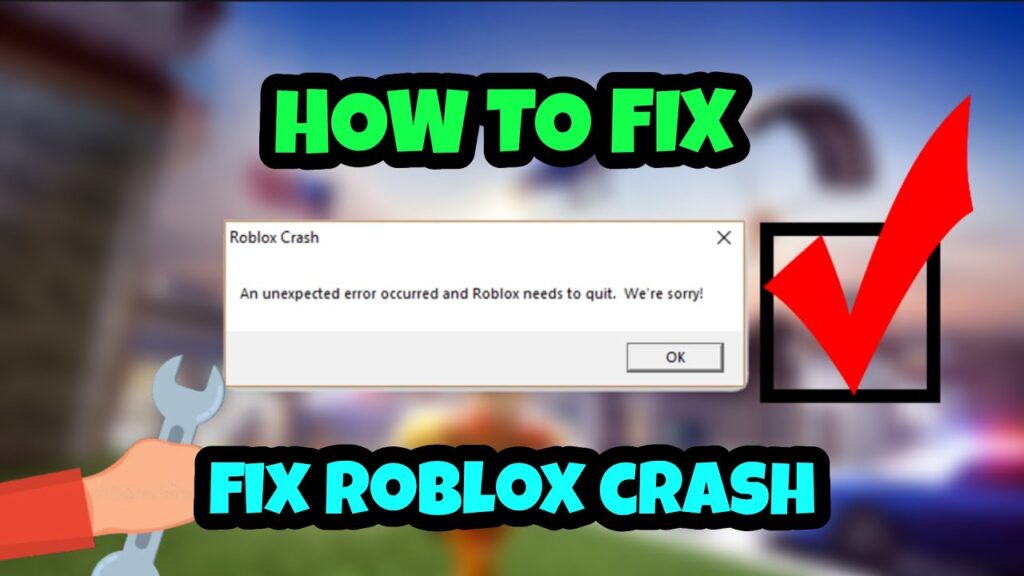
If Roblox keeps closing unexpectedly or freezing mid-game, here are the most effective fixes to try:
- Lower your graphics settings: High graphics settings are one of the most common causes of crashes and freezing, especially on older or mid-range devices. Open the settings menu inside any Roblox game and reduce the graphics quality to a lower level.
- Update your graphics drivers: Outdated or corrupted GPU drivers cause a large number of Roblox crashes. Visit your graphics card manufacturer’s website, such as NVIDIA, AMD, or Intel, and download the latest driver for your card.
- Close background applications: Programs running in the background, including screen recorders, Discord, and browser tabs, use system memory and can interfere with Roblox. Close anything you do not need before launching the game.
- Clear the Roblox cache: Navigate to %localappdata%\Roblox on Windows and delete the Cache and Settings folders. Restart your PC and launch Roblox again to let it rebuild fresh files.
- Check for Oculus or Meta software conflicts: Roblox’s anti-cheat system can conflict with Oculus software, causing random crashes. If you have Oculus or Meta software installed but do not use VR, try uninstalling it and see if the crashes stop.
- Disable or whitelist Roblox in your antivirus: Security software can interfere with Roblox processes and cause it to crash. Temporarily disable your antivirus to test if it is the cause. If it is, add Roblox to the exception list rather than leaving your antivirus off.
- Check your internet connection: An unstable connection can trigger freezing mid-game. Switch to a wired connection if possible, or move closer to your router.
- Make sure your device is not overheating: Overheating forces apps to crash as a safety measure. Make sure your device has good ventilation and is not running too many heavy programs at the same time.
- Reinstall Roblox: If none of the above works, uninstall Roblox completely and do a fresh install from roblox.com. This replaces any corrupted files that may be causing the crashes.
Advanced Fixes (If Nothing Works)
If none of the basic steps have resolved your issue, here are a few more things worth trying before reaching out for help.
- Flush Your DNS (PC Only): Flushing your DNS resets how your computer connects to Roblox’s servers and can fix stubborn connection issues that other fixes miss. To do this, open Command Prompt as an administrator, type ipconfig /flushdns and press Enter. Restart your PC afterwards and try launching Roblox again.
- Check Your Firewall and Antivirus Settings: Your firewall or antivirus software may be blocking Roblox from accessing the internet without you knowing. Go into your security software settings and add Roblox as an exception. On Windows, you can also go to Windows Defender Firewall, select Allow an app through the firewall, and make sure Roblox is on the list.
- Reinstall Roblox from Scratch: If you have not already done a clean reinstall, this is worth trying. Uninstall Roblox fully through your device settings, manually delete any leftover Roblox folders in your AppData directory, then download and install a fresh copy from roblox.com.
- Contact Roblox Support: If nothing has worked at this point, the issue may be specific to your account or device and will need to be looked into directly. Visit en.help.roblox.com and submit a support request. Include details about your device, operating system, and the exact error or problem you are seeing. The more detail you provide, the faster they can help.
Tips to Prevent Roblox Issues
These tips will help you avoid problems in the future:
- Always keep Roblox up to date.
- Have a reliable internet connection
- Stay away from unofficial apps and mods
- Regularly restart your device
That’s all from us regarding Roblox not working fix. Do follow FandomScoop for more such Roblox guides.
Conclusion
Roblox issues are frustrating, but most of them are easy to fix once you know what to look for. Whether it was a simple internet problem, an outdated app, or a corrupted file, the steps in this guide should get you back in the game quickly.
If none of the fixes worked, the problem may be on Roblox’s end. You can check the official Roblox status page at status.roblox.com to see if there is a known outage. In most cases, server issues are resolved within a few hours.
Once everything is working again, you can jump straight back into your favorite experiences without losing any progress.
Why is Roblox not working today?
Usually because of server downtime or maintenance. See the official status page.
How do I fix Roblox not opening?
Quick solution – clear cache, reinstall the app, or restart the device.
Why does Roblox keep crashing?
Often, this is due to low system resources, outdated apps or apps running in the background.
How do I fix Roblox login issues?
Reset your password . Disable VPN . Check server status .
Is Roblox down right now?
To verify, check the official status page or outage trackers.
Can VPN cause Roblox issues?
Yes, VPNs can cause connection and login problems.