

Fortnite not launching is one of those issues that instantly ruins the mood. One minute everything works fine, and the next minute the game gets stuck on the loading screen, crashes before reaching the lobby, or silently closes without even throwing an error. What makes it more frustrating is that this problem now affects almost every platform, including PC, PS5, and Xbox.
From what I’ve seen recently, most players immediately jump to reinstalling the game without actually checking what caused the issue in the first place. That usually wastes a ton of time because Fortnite startup problems are often triggered by smaller things like corrupted files, outdated GPU drivers, Easy Anti-Cheat conflicts, broken cache data, or background apps interfering with the game.
The good thing is that most Fortnite launch problems are fixable within minutes if the troubleshooting steps are done in the correct order. Some fixes are incredibly simple too. A restart, file verification, or driver update is sometimes enough to get Fortnite working again immediately.
Why Fortnite Is Not Launching
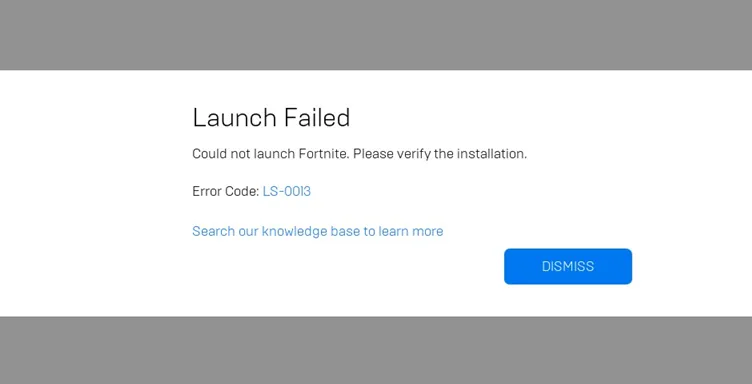
Fortnite usually doesn’t stop launching randomly. There’s almost always a specific reason behind it. Finding the root cause first makes troubleshooting much easier.
Corrupted Game Files
Corrupted game files are probably the biggest reason Fortnite refuses to launch properly.
Fortnite updates constantly. Every season, hotfix, or patch modifies game files, and sometimes those updates don’t install correctly. If a critical file becomes damaged or incomplete, Fortnite can crash before startup finishes.
Epic Games officially recommends verifying game files because corrupted files regularly cause:
- startup crashes,
- loading freezes,
- Easy Anti-Cheat errors,
- and instant shutdowns.
The most common signs include:
- Fortnite opening and closing instantly,
- black screen during startup,
- infinite loading screen,
- or crashing before the lobby appears.
Personally, corrupted files show up most often after interrupted downloads, sudden PC shutdowns, or failed updates.
Outdated Drivers or System
Outdated graphics drivers break Fortnite more often than many players realize.
Fortnite’s Unreal Engine updates frequently introduce rendering changes, and older GPU drivers sometimes fail to handle those updates properly. That usually leads to crashes during launch or loading.
Epic recommends updating both graphics drivers and the operating system for Fortnite launch-related issues.
There have also been reports of certain Windows 11 builds conflicting with Easy Anti-Cheat and causing startup crashes.
From experience, if Fortnite suddenly stopped launching right after:
- a Windows update,
- GPU driver update,
- or seasonal patch,
compatibility problems become the first thing worth checking.
Background Applications
Background applications cause way more Fortnite issues than most people expect.
Apps like:
- Discord overlay,
- MSI Afterburner,
- RivaTuner,
- RGB software,
- browsers using hardware acceleration,
- and GeForce Overlay
can interfere with Fortnite or Easy Anti-Cheat directly.
Epic specifically warns that unsupported or insecure software running in the background may trigger Easy Anti-Cheat violations.
A lot of Reddit users also reported Fortnite crashes disappearing after disabling overlays or switching rendering modes.
One of the weirdest real examples involved Opera GX causing launch instability because of hardware acceleration conflicts.
Server Issues
Sometimes the problem isn’t on the device at all.
Fortnite servers regularly experience downtime during:
- new season launches,
- live events,
- maintenance windows,
- major updates,
- and matchmaking outages.
Epic’s official status tracker frequently reports login and matchmaking disruptions.
There have also been massive outages recently where players worldwide got stuck on loading screens or couldn’t authenticate accounts properly.
Honestly, checking server status first saves a lot of unnecessary troubleshooting.
Quick Fixes to Try First
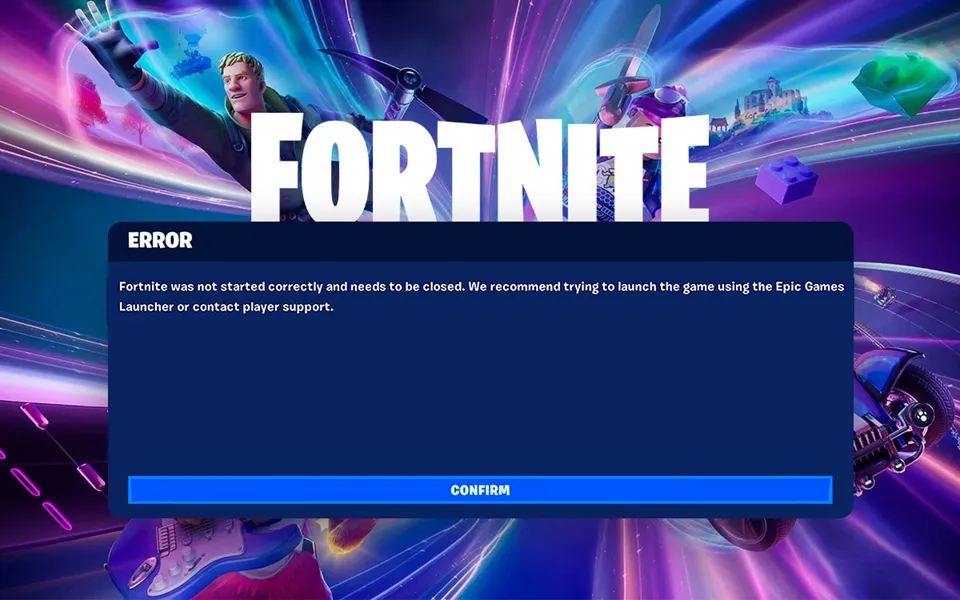
Before changing deeper settings or reinstalling anything, these quick fixes should always be tested first.
Restart Your Device
This sounds basic, but it genuinely fixes Fortnite problems surprisingly often.
A proper restart clears:
- frozen launcher processes,
- temporary RAM issues,
- Easy Anti-Cheat conflicts,
- and stuck background services.
On consoles, restarting also refreshes cache files that can interfere with Fortnite startup.
One thing that actually matters here is doing a full reboot instead of using sleep or rest mode.
Check Internet Connection
Fortnite depends heavily on Epic’s authentication servers during startup.
If the internet connection becomes unstable, Fortnite may:
- freeze while launching,
- fail login verification,
- or get stuck on “Connecting.”
Epic recommends restarting the router and troubleshooting network problems for launch-related issues.
Usually, testing:
- mobile hotspot,
- Ethernet,
- or another Wi-Fi network
helps confirm whether the issue is network-related.
Check Fortnite Server Status
This should always be checked before trying complicated fixes.
Epic’s official status page is here: Epic Games Status Page
Downdetector and Fortnite Status on X are also useful during outages.
If thousands of players are reporting the exact same issue at the same time, local troubleshooting probably won’t help much. Even if you have managed to fix the launching issue, you must know how to fix Fortnite lag.
How to Fix Fortnite Not Launching on PC
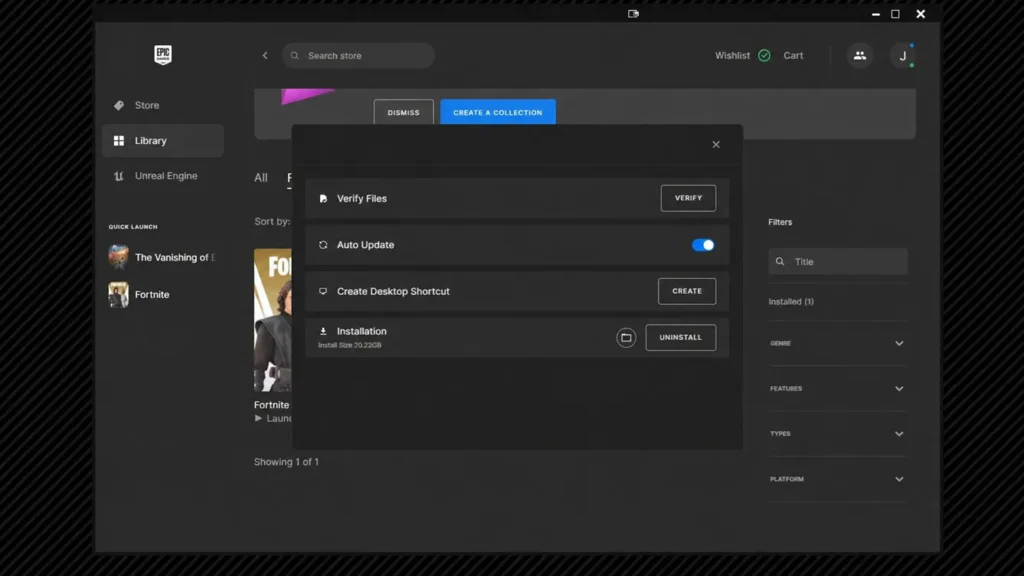
PC troubleshooting usually comes down to corrupted files, permissions, drivers, or conflicting software.
1. Verify Game Files
This is usually the first real fix worth trying.
Steps:
- Open Epic Games Launcher
- Go to Library
- Click the three dots beside Fortnite
- Select “Manage”
- Press “Verify”
Epic officially recommends this fix for crashes and startup issues.
The launcher scans Fortnite and replaces broken or missing files automatically.
In a lot of cases, this alone fixes:
- startup crashes,
- loading freezes,
- missing DLL errors,
- and launch failures.
2. Update Graphics Drivers
Outdated GPU drivers are a massive problem for Fortnite stability.
The newest drivers should always come directly from:
Windows automatic drivers are often outdated compared to official releases.
Epic recommends updating graphics drivers for launch and performance issues.
Something interesting seen recently is that newer drivers occasionally cause problems too. If Fortnite started crashing immediately after a GPU update, rolling back to an older stable driver sometimes works better.
3. Run as Administrator
Permission conflicts occasionally stop Fortnite or Easy Anti-Cheat from launching correctly.
To run Fortnite as administrator:
- Right-click Epic Games Launcher
- Open Properties
- Go to Compatibility
- Enable “Run this program as administrator”
This helps bypass certain Windows permission restrictions.
Not the flashiest fix, but it works surprisingly often for launch failures.
4. Disable Background Applications
Background apps are responsible for a ridiculous number of Fortnite crashes.
The biggest offenders include:
- Discord overlay,
- MSI Afterburner,
- OBS,
- GeForce Overlay,
- RGB software,
- browsers,
- and monitoring tools.
Epic warns that some background software may trigger Easy Anti-Cheat security errors.
From experience, disabling overlays alone fixes Fortnite startup problems for a lot of players.
A clean boot environment is also useful when the exact conflicting app isn’t obvious.
5. Disable Antivirus or Firewall Temporarily
Some antivirus programs falsely block Fortnite or Easy Anti-Cheat.
This happens more often with aggressive antivirus suites like:
- Avast,
- AVG,
- BitDefender,
- and sometimes Windows Firewall itself.
Temporarily disabling protection helps confirm whether antivirus software is blocking startup files.
If Fortnite launches afterward, adding these programs to the whitelist usually fixes the issue permanently:
- Epic Games Launcher
- Fortnite
- Easy Anti-Cheat
6. Update Windows
Fortnite sometimes depends on newer Windows system components.
Epic repeatedly recommends installing the latest Windows updates for crash-related issues.
Important updates include:
- cumulative Windows updates,
- Visual C++ Redistributables,
- .NET Framework updates,
- and optional driver updates.
Some Easy Anti-Cheat crashes were directly linked to specific Windows compatibility issues recently.
7. Reinstall Fortnite
Reinstalling Fortnite should be the final option, not the first thing tried.
A clean reinstall helps when:
- files keep corrupting,
- Easy Anti-Cheat remains broken,
- or crashes survive every other fix.
Epic also recommends clearing Fortnite local app data during severe crash troubleshooting.
Deleting leftover config folders before reinstalling usually produces better results too.
How to Fix Fortnite Not Launching on PS5 and Xbox
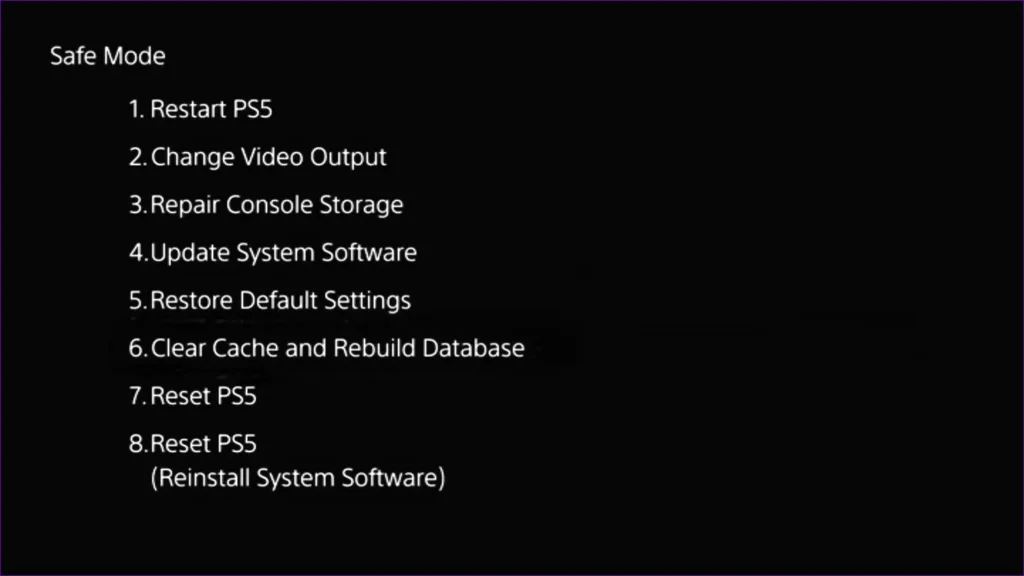
Console troubleshooting is simpler because there are fewer system variables involved.
Restart Console
A full reboot clears temporary console bugs and memory problems.
Completely powering off the console works better than using Rest Mode or Instant-On.
This commonly fixes:
- login freezes,
- startup crashes,
- and loading loops.
Clear Cache
Cache corruption occasionally breaks Fortnite startup on consoles.
For Xbox:
- Hold the power button for 10 seconds
- Disconnect power briefly
- Restart the console
For PS5:
- Enter Safe Mode
- Use cache clearing options
Cache resets are commonly recommended during Fortnite login and loading problems.
Update Game and System
Fortnite and the console firmware should always stay updated.
Version mismatches can cause:
- matchmaking failures,
- startup crashes,
- and login problems.
This fix sounds simple, but outdated firmware is still a surprisingly common issue.
Reinstall the Game
Corrupted installation data can also affect consoles.
If Fortnite repeatedly crashes during startup, reinstalling the game refreshes damaged files completely.
Not the fastest fix considering Fortnite’s size, but definitely effective when everything else fails.
Once you have successfully launched the game, now it’s time to apply the best settings for Fortnite.
Fix Fortnite Crashing on Startup
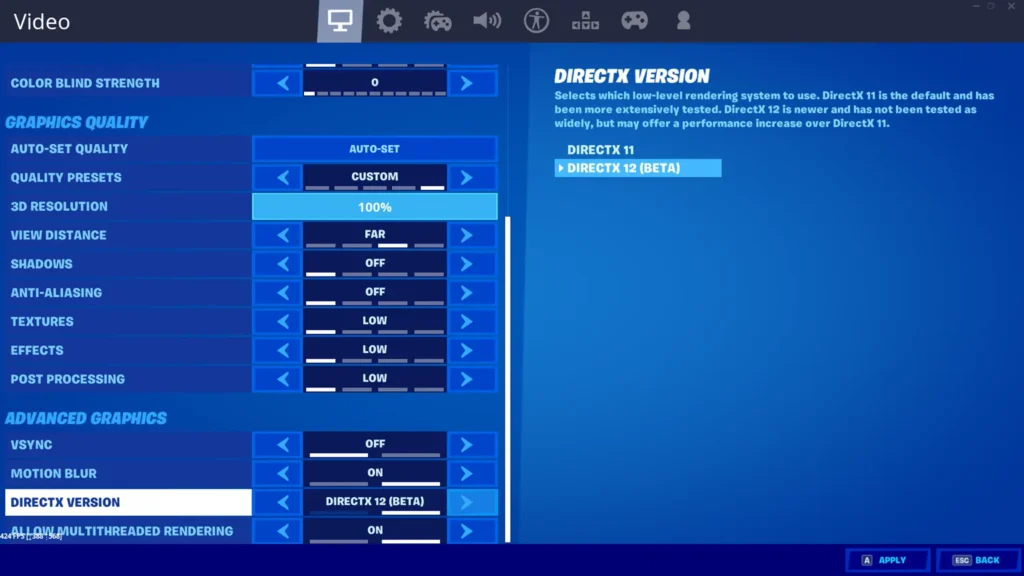
If Fortnite launches briefly and crashes afterward, graphics settings are usually involved.
One of the best fixes is switching rendering modes.
Common working solutions include:
- changing DirectX 12 to DirectX 11,
- enabling Performance Mode,
- lowering texture quality,
- disabling ray tracing,
- and reducing rendering distance.
A lot of players reported Performance Mode fixing repeated crashes and instability.
Others solved startup crashes by changing rendering APIs entirely.
Fortnite’s Unreal Engine updates also increased hardware demands over time, so older GPUs struggle much more now compared to previous years.
Common Errors and Fixes
Fortnite Stuck on Loading Screen
Loading screen freezes are usually linked to:
- server outages,
- corrupted files,
- or unstable internet.
The best fixes are:
- Restart Fortnite
- Verify game files
- Restart router
- Check Epic server status
Major outages regularly cause loading problems across all platforms.
Fortnite Closes Immediately After Launch
Instant shutdowns are commonly caused by:
- overlays,
- Easy Anti-Cheat conflicts,
- corrupted configs,
- or permission issues.
The most effective fixes are:
- disabling overlays,
- running as administrator,
- repairing files,
- and repairing Easy Anti-Cheat.
Epic also documented controller-related startup crashes on PC recently.
When to Contact Support
If none of the fixes work, Epic Games support becomes the next step.
Official support page:
Support is usually necessary when:
- Easy Anti-Cheat errors never stop,
- crashes survive reinstalling,
- account problems prevent login,
- or Fortnite fails across multiple systems.
Providing:
- screenshots,
- crash logs,
- DxDiag reports,
- and error codes
usually speeds up the support process a lot.
Conclusion
Fortnite launch problems are frustrating, but most of them are absolutely fixable without doing anything extreme. From what I’ve seen, the biggest working fixes are verifying game files, updating GPU drivers, disabling overlays, checking server status, and clearing corrupted cache data.
Starting with the quick fixes first usually saves the most time. A simple restart or file verification often solves issues that initially look much more serious than they actually are.
Why is Fortnite not opening on my PC?
The most common reasons include corrupted files, outdated graphics drivers, Easy Anti-Cheat conflicts, overlay software, or Windows compatibility problems.
How do I fix Fortnite not launching?
Restart your device, verify Fortnite files, update drivers, disable overlays, and check Epic server status.
Why does Fortnite crash on startup?
Startup crashes are usually caused by graphics driver issues, corrupted files, unstable rendering modes, or conflicting background applications.
Is Fortnite server down?
Server outages happen regularly during updates, maintenance, and live events. The best place to check is Epic’s official status page.
Should I reinstall Fortnite to fix issues?
Yes, but only as a last resort. Most launch problems can usually be fixed without reinstalling the entire game.