

Ever lost a duel in VALORANT because your game stuttered mid-fight? We’ve all been there. In a competitive shooter like VALORANT, performance is everything. Even a tiny frame drop can cost you a clutch round — and a chunk of precious RR. The good news? You don’t need an expensive gaming PC to get smooth gameplay. With the right setup and a few smart tweaks, you can significantly improve your FPS and reduce lag, even on low-end hardware.
In this guide, I’ll walk you through the best VALORANT settings for maximum FPS and performance, including optimized graphics settings, sensitivity tips, and useful optimization tricks for both low-end and high-end PCs.
Why FPS matters in VALORANT
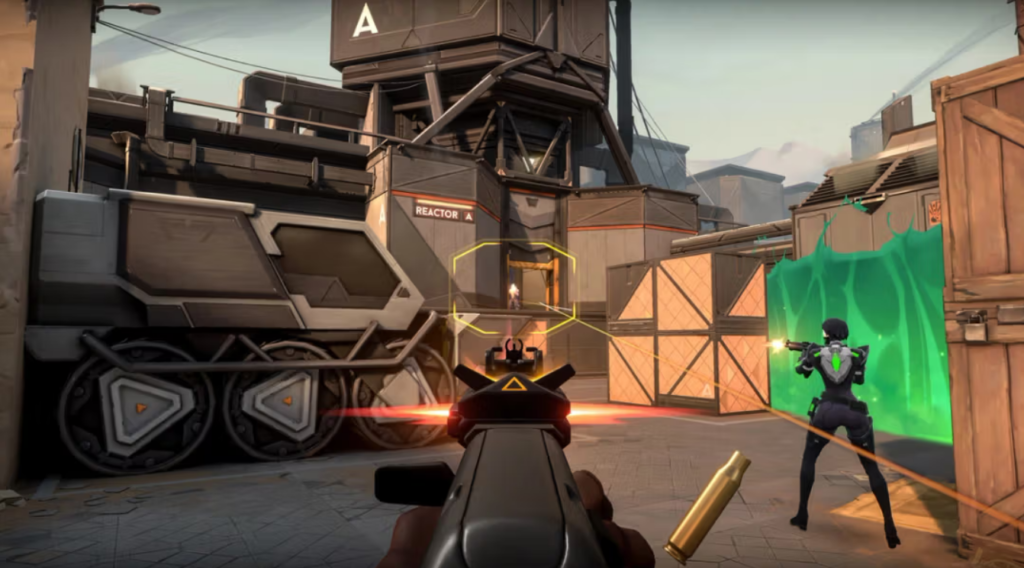
The higher FPS (frames per second) in games like VALORANT, the more noticeable the competitive advantage. A smoother game will give you cleaner tracking, more responsive aiming, and reduce input delay. If your device struggles to deliver a stable frame rate, even simple gunfights can feel inconsistent.
This is why many professional players prefer lower graphics settings: Performance matters more than visuals. Stable FPS helps you react faster, especially during chaotic site executions or intense retake situations.
Best graphics settings for VALORANT
Let’s start with the display settings first. These won’t make a drastic difference, but they are still an essential start.
Display Settings
- Display Mode: Fullscreen: Always use full-screen mode instead of windowed or borderless. It reduces input lag and improves performance consistency.
- Resolution: Native resolution: Native resolution usually gives the best visual clarity. However, if you’re on a low-end PC, lowering the resolution slightly can provide a decent FPS boost.
- Limit FPS: If your FPS fluctuates heavily, capping it slightly above your monitor refresh rate can help stabilize performance.
VALORANT graphics settings guide
Here are the recommended graphics settings for competitive VALORANT play:
| Setting | Recommended |
|---|---|
| Multithreaded Rendering | On |
| Material Quality | Low |
| Texture Quality | Low or Medium |
| Detail Quality | Low |
| UI Quality | Low |
| Vignette | Off |
| VSync | Off |
| Anti-Aliasing | MSAA 2x or Off |
| Anisotropic Filtering | 2x or 4x |
| Improve Clarity | Off |
| Experimental Sharpening | Off |
| Bloom Quality | Off |
| Distortion | Off |
| Cast Shadows | Off |
When video settings are set to low or moderate, it reduces visual clutter and helps maintain stable FPS during fights.
VALORANT best settings for low-end PC
Not everyone has a high-end gaming setup, and that’s completely fine. VALORANT is actually optimized pretty well for budget systems. Here’s how to squeeze more performance out of a weaker rig:
- Try lowering your resolution to 1600×900 or 1280×720.
- Turn off unnecessary visual effects.
- Close browser tabs and background apps before launching the game.
- Enable Performance Mode and Game Mode on Windows.
- Disable startup applications you don’t need.
- Keep at least 15-20% of your SSD or HDD storage free.
Best sensitivity settings VALORANT players use
Your mouse settings matter just as much as graphics settings.
Sensitivity
Most players perform better with low-to-medium sensitivity because it allows more precise aim control. Constantly changing sensitivity is one of the biggest mistakes newer players make. Stick with one sensitivity for a while and build muscle memory.
DPI recommendations
Most competitive players use:
- 400 DPI
- 800 DPI
- 1600 DPI
Combined with in-game sensitivity, this creates your effective DPI (eDPI).
What is eDPI?
eDPI = Mouse DPI × In-game sensitivity
For example:
- 800 DPI × 0.35 sensitivity = 280 eDPI
A comfortable eDPI range for most players is around 200-300.
How to increase FPS in VALORANT
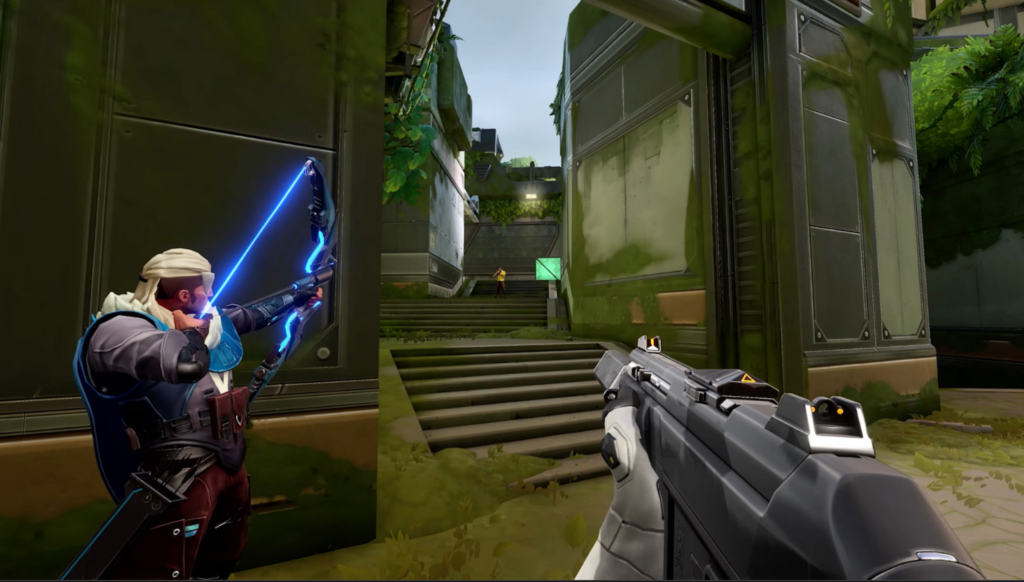
If you’re still experiencing low FPS despite using the best VALORANT graphics and display settings, try these additional optimization tips.
Update graphics drivers
Outdated GPU drivers can seriously hurt performance and cause frame drops and stutters. Make sure you update graphics drivers regularly. You can find the drivers for your GPU via these links:
Use an SSD instead of HDD
Installing VALORANT on an SSD reduces loading times and can help with texture streaming and stuttering.
Close background apps
Applications like Discord overlays, browsers, recording software, or Windows and game updates running in the background can reduce FPS noticeably.
VALORANT lag fix tips
If you’re still lagging, the problem could be tied to network issues. Ping spikes and packet loss can make the game feel delayed even if your FPS is high. Here are a few quick fixes you can try to fix internet woes:
- Use a wired Ethernet connection whenever possible.
- Stop downloads or streaming while gaming.
- Restart your router regularly.
- Select the closest server region in-game.
- Close applications hogging your internet bandwidth.
Why pro players use low graphics settings
You may assume that professionals use high graphics settings because they have powerful PCs. In reality, however, most pros intentionally play on low settings.
This is because cleaner visuals and stable FPS are more important than pretty effects in competitive shooters. Lower settings also reduce distractions and improve visibility during fights.
Common mistakes that hurt performance in VALORANT
Here are some mistakes you’d want to avoid:
Playing on high graphics
Higher graphics settings make the VALORANT experience visually pleasant, but often reduce FPS without providing any competitive benefit.
Ignoring Windows optimization
Your PC settings matter almost as much as in-game settings. Make sure you update your system’s drivers regularly. Disable settings like “Enhance mouse pointer precision” and the battery saver mode.
Conclusion
The best VALORANT settings for FPS are the ones that give you stable performance and consistent aim. Ultra graphics aren’t essential for ranking up; smooth gameplay, low input delay, and settings that feel comfortable are.
Start with the recommendations above, test them for a few matches, and make small adjustments based on your setup. Most PCs can run VALORANT well with proper optimization.
If you want to improve further, consider learning better crosshair placement, aim routines, and movement mechanics alongside your VALORANT performance settings.
What is the best FPS for VALORANT?
Ideally, you want FPS higher than your monitor refresh rate. For example, if you use a 144Hz monitor, your device should be delivering above 144 FPS consistently.
Should I play on low or high settings?
Low settings are generally better for competitive play because they improve performance and reduce distractions.
Does FPS affect aim?
Yes. Higher and more stable FPS reduces input delay and makes aiming feel smoother and more responsive.
How do I fix lag in VALORANT?
Use a wired connection, close background downloads, choose the nearest server, and optimize your network settings for the best experience.