

Lag in Fortnite can completely ruin your match. It usually appears in three major forms: high ping, low FPS, and random stuttering. Delayed shots, freezing screens, and sudden frame drops are all common symptoms of lag. In this guide, I’ll show you How to Fix Lag in Fortnite on PC, PS5, and Xbox using practical and tested methods that actually improve performance.
What Causes Lag in Fortnite?
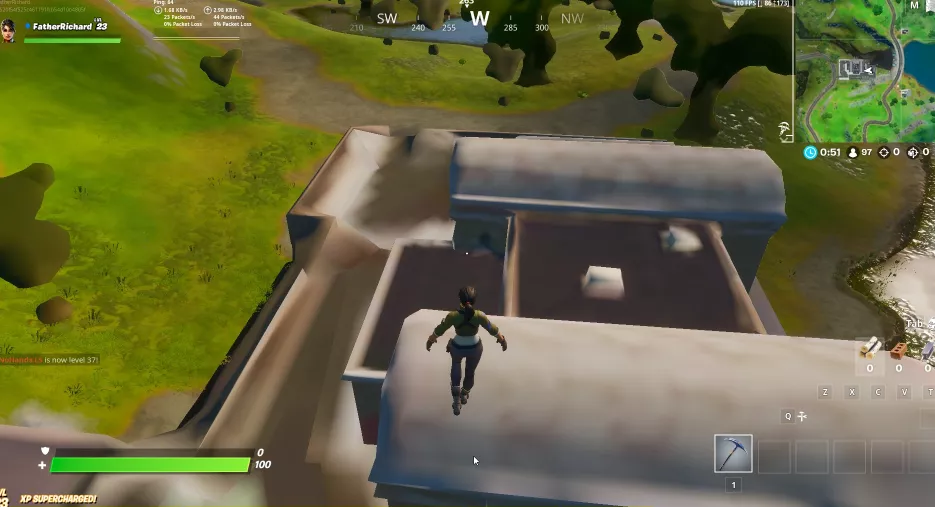
It’s important to first know the primary reasons responsible for lag in Fortnite. There are three main reasons:
High Ping (Internet Issues)
Ping, in simple words, is the time your device takes to communicate with Fortnite’s servers. A higher ping results in delays, late actions, and enemies appearing to teleport.
Two main reasons behind it are:
- Slow internet speed — your network bandwidth is insufficient.
- Server distance — if a server is far from your location, data transfer takes longer and results in high ping.
A ping below 60ms is considered good for Fortnite. Below 30ms is perfect for any mode of the game.
Low FPS (Hardware Issues)
FPS (frames per second) is the factor that decides how smooth your game looks and feels while playing. Low FPS causes input lag and stuttering.
On PC, an outdated GPU or CPU can’t render the environments of modern Fortnite.
On consoles, if you’re running the game in high quality without optimization, frame rate drops are noticed quite often.
Background Apps & Processes
Apps running in the background use the processing power of your device or console and steal bandwidth, resulting in lag and stutter in Fortnite.
Common background issues that cause lag in Fortnite:
- Browser tabs — multiple browser tabs that are left open use most of the processing power.
- Download managers — downloading large files during gameplay can also cause lag in Fortnite.
- Discord, Spotify, or streaming software consumes CPU and RAM.
Closing these before you start Fortnite can reduce lag in the game.
How to Fix Fortnite Lag (Step-by-Step)
1. Check Your Internet Connection
Many players face the high ping issue despite having strong hardware, and the reason for it is a weak or unstable internet connection.
Use a wired Ethernet connection
Wi-Fi is an option but is not reliable for gaming. A direct Ethernet cable will give you a stable, low-latency connection every time you play Fortnite.
Restart your router
Routers generally accumulate memory load over time. A simple restart can clear that and reduce ping immediately.
- Unplug your router from the power source.
- Wait 30 seconds.
- Plug it back in and reconnect.
Close active downloads
Close any downloads running in the background on your PC, console, or any other device connected to the same network. Pause or stop them while you play Fortnite and experience the difference in gameplay.
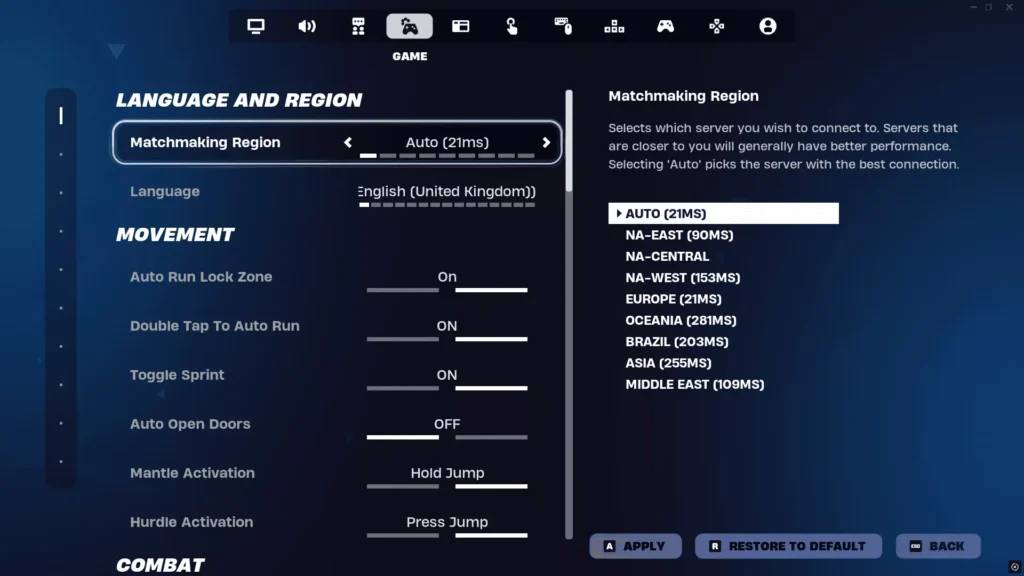
2. Change Matchmaking Region
Fortnite allows you to manually select which server region you connect to. Choosing the wrong region can lead to higher ping, so it’s important that you select the one closest to your location.
How to change it:
- Open Fortnite and go to Settings.
- Click the gear icon (Game tab).
- Scroll to Matchmaking Region.
- Switch from Auto to the region closest to your real location.
Auto selection works for many, but isn’t always accurate. In Fortnite Chapter 7, players have been placed on servers far from their real location. Manually picking your nearest region — such as NA East, NA West, or Europe — can result in lower ping and higher stability during gameplay.
3. Optimize Fortnite Settings
If you’re using the default settings in Fortnite, you’re already behind on performance optimization. Adjusting them is the fastest way to improve FPS and reduce ping on your device.
Graphics Settings:
- Lower your resolution — reducing it from 1080p to 720p reduces GPU load and results in better FPS.
- Turn off shadows — shadows use most of the GPU’s resources in Fortnite; disabling them can lead to an immediate FPS boost.
- Set View Distance to Medium — Epic or Far view distance forces your system to render more of the map, which leads to lower FPS.
Advanced Settings:
- Enable Performance Mode — this lowers visual quality in exchange for higher FPS and smoother gameplay (complete details in the next step).
- Turn off Motion Blur — motion blur requires more processing power and makes it harder to track fast movements visually. Turning it off is a good practice to boost gameplay.
Quick tip: Restart the game after applying any of the above settings to notice the changes in your gameplay.4. Enable Performance Mode in Fortnite
Performance Mode is Fortnite’s built-in rendering option for low-spec devices or consoles. It reduces texture quality and visual effects, resulting in higher FPS and less stuttering. For players who participate in competitive tournaments, this single setting can significantly improve gameplay.
How to enable Performance Mode:
- Open Fortnite and go to Settings.
- Click on the Video tab.
- Scroll to Rendering Mode.
- Select Performance.
- Click Apply and restart Fortnite.
Note: Fortnite currently offers three different rendering options: Performance (DX11), DirectX 12, and DirectX 11 (Legacy). To get maximum FPS and minimum lag, select Performance.What changes when Performance Mode is on:
- Textures are rendered at a lower quality.
- Unnecessary visual effects are removed completely.
- The game uses more of your CPU and RAM than your GPU — a big benefit for lower-end systems.
Benefits:
- Higher FPS — players on mid-range PCs commonly go from 60 FPS to 100+ FPS.
- Less stutter — increased frame rates directly result in less stuttering during gameplay.
- Lower input lag — higher FPS reduces the delay between your input and what you see on the screen.
According to Epic Games’ official Fortnite support documentation, Performance Mode is recommended for players who are experiencing FPS drops or are playing on older hardware.
5. Update Drivers & Game
Outdated GPU drivers and an outdated game are two commonly overlooked reasons for lag in Fortnite. You can fix these easily by:
Update Your GPU Driver
Driver updates bring performance optimizations for games like Fortnite.
- NVIDIA users: Open GeForce Experience → click Drivers → Check for Updates → install the latest version.
- AMD users: Open AMD Software: Adrenalin Edition → navigate to Home → check for driver updates.
- Intel Arc users: Use Intel Driver & Support Assistant to find and install updates automatically.
Restart your PC every time you update your GPU driver.
Keep Fortnite Updated
Epic Games constantly releases patches that fix performance bugs, memory leaks, and server-side issues in Fortnite.
To check for patch updates:
- Open the Epic Games Launcher.
- Go to your Library.
- An available update will appear automatically — just click Update.
An outdated version of Fortnite can cause compatibility issues with the latest servers, which may result in lag and high ping.
Console players on PS5 and Xbox should also check for system firmware updates. Console OS updates also bring network and performance improvements that can affect your Fortnite stability and performance.
6. Close Background Applications
Background apps can lead to performance dips even if Fortnite has the right settings and is up to date. These apps use your system’s CPU and RAM, causing lag during gameplay.
The most common memory-consuming background applications are:
- Discord overlay — the in-game overlay scans your screen and uses more GPU. Disable it in Discord under Settings → Game Overlay → toggle off.
- Chrome or Edge tabs — browser tabs running YouTube, Twitch, or even simple websites use a significant amount of your system RAM. Close those tabs completely before playing Fortnite.
- Streaming software — OBS, Streamlabs, or any screen recorder uses CPU and GPU alongside Fortnite. It’s better to turn them off when you’re not streaming.
- Cloud sync apps — Google Drive, OneDrive, and Dropbox upload and sync files in the background, which may result in unstable bandwidth and lag in the game.
How to close background apps on your PC:
- Press Ctrl + Shift + Esc to open Task Manager.
- Click on the Processes tab.
- Find the high CPU or RAM usage apps.
- Right-click on them and select End Task.
On console:
- PS5 — press the PlayStation button → highlight the app → press Options → Close.
- Xbox — press the Xbox button → highlight the app → press Menu → Quit.
Closing these background apps won’t take more than a minute, but will noticeably improve your gameplay from the very next session.
7. Optimize PC Settings
Fortnite’s in-game settings work up to a certain limit. Your Windows system settings also determine how much power your PC dedicates to the game.
Set Windows Power Plan to High Performance
By default, Windows runs on a Balanced power plan, which throttles CPU speed to save energy. Switching to High Performance can boost your Fortnite gameplay.
To do this:
- Press Windows + R and type powercfg.cpl → hit Enter.
- Select High Performance from the list.
- If it isn’t visible, click Show additional plans.
This setting allows your CPU to run at full speed while playing Fortnite.
Disable Startup Apps
Startup apps run automatically in the background when your Windows system boots. Disabling unnecessary applications can free up RAM and CPU before starting Fortnite.
To do this:
- Press Ctrl + Shift + Esc to open Task Manager.
- Click on the Startup tab.
- Right-click any non-essential app and select Disable.
Common apps you can disable include Spotify, Discord, OneDrive, Teams, and Skype.
Set Fortnite to High Priority on your PC by:
- Opening Task Manager while Fortnite is running.
- Going to the Details tab.
- Finding FortniteClient-Win64-Shipping.exe.
- Right-clicking on it → Set Priority → High.
This setting tells Windows to allocate most of its processing power to Fortnite over any other apps on the system.
8. Reduce Ping in Fortnite
High ping is a major issue that can cause significant performance drops in Fortnite. Shots don’t register, enemies seem to teleport, and the game feels unplayable when ping goes out of control.
Here’s how you can bring it down:
Connect to the Closest Server
As covered in Step 2, manually selecting the region closest to your real location is the best way to reduce ping in Fortnite. Don’t rely on Auto selection.
Avoid Peak Hours
Fortnite servers experience heavy load during evening hours (7 PM – 11 PM local time). More players online at the same time results in higher ping and a poor experience for everyone.
Playing during mornings or early afternoons gives you a lower ping experience compared to peak hours.
Use a Wired Connection
Wi-Fi in 2026 is still not the ideal solution for smooth gameplay. A wired Ethernet connection reduces network fluctuations and consistently delivers lower ping.
Use a Gaming VPN (Optional)
A gaming VPN can be beneficial in some scenarios, as it routes your network connection through an optimized path to Fortnite’s servers.
Some of the current best gaming VPNs for Fortnite are ExitLag and Mudfish. Both are designed specifically for game traffic routing.
Note: A VPN can also result in higher ping if the server location isn’t chosen carefully. Try this method first and only use it as a permanent solution if it works for you.9. Fix Lag on Console (PS5 & Xbox)
For questions about how to fix lag in Fortnite on PS5 and Xbox, there are similar solutions. We’ll cover the steps for each one separately.
Here are the steps you can follow to fix lag in Fortnite on consoles:
Restart Your Console
A full restart — not just sleep mode — clears temporary memory and resets network connections. It is advisable to do this before every gaming session if you’re constantly facing lag issues.
Steps on PS5 and Xbox:
- PS5 — hold the power button until you hear a second beep → select Restart.
- Xbox — press and hold the Xbox button for 10 seconds to fully power off → turn back on.
Clear Console Cache
Like other systems, consoles also store cache, and over time this can result in poor game performance. To clear the cache on PS5 and Xbox, follow the steps below:
PS5:
- Turn off the console completely.
- Hold the power button until you hear two beeps — this boots into Safe Mode.
- Select Clear Cache and Rebuild Database.
Xbox:
- Press the Xbox button → go to Profile & System → Settings.
- Navigate to Devices & Connections → Blu-ray → Persistent Storage.
- Select Clear Persistent Storage.
Use a Wired Internet Connection
This solution applies to consoles as much as to PCs. Both PS5 and Xbox have a built-in Ethernet port. Plugging in a wired connection will give you the network stability that Wi-Fi often cannot provide.
Optimize Console Network Settings
Set your DNS to Google’s public DNS (8.8.8.8 / 8.8.4.4) for a faster and more stable connection.
Enable Quality of Service (QoS) on your router if available. This setting prioritizes gaming traffic over other devices on your network.
Best Settings to Reduce Lag in Fortnite
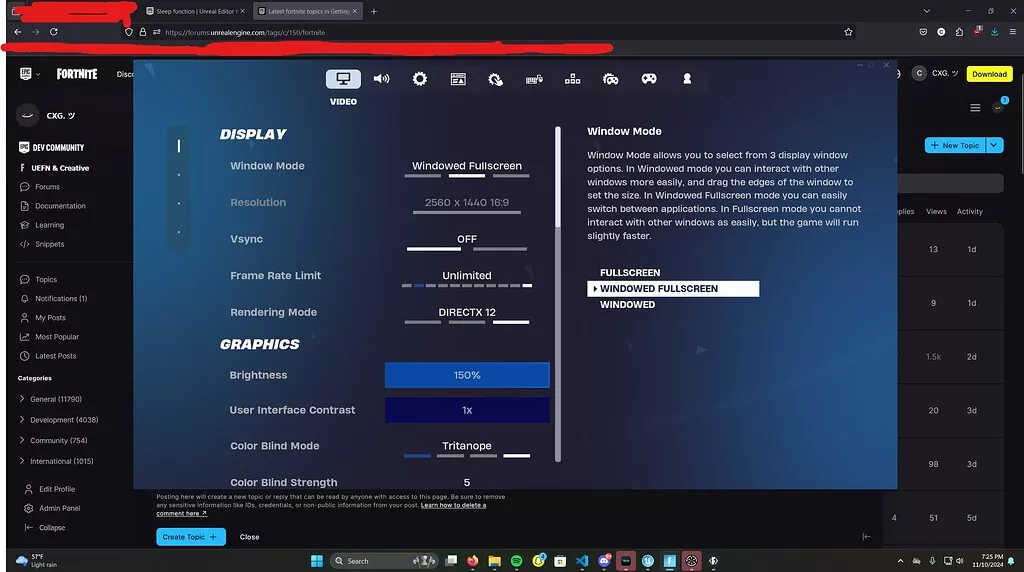
These are the most important settings that can make your gameplay smooth and lag-free in Fortnite. Apply these in Fortnite’s Video Settings menu.
| Setting | Recommended Value | Why It Helps |
|---|---|---|
| Display Mode | Fullscreen | Allows Fortnite with direct GPU access for better performance |
| Resolution | Native or 1080p | Balanced visuals without unnecessary GPU load |
| FPS Limit | Match your monitor’s refresh rate | Prevents GPU overload and frame tearing |
| V-Sync | Off | V-Sync adds input delay so turn it off completely |
| Rendering Mode | Performance | Maximum FPS, minimum GPU load |
| View Distance | Medium | Reduces rendering load without hurting gameplay |
| Shadows | Off | One of the heaviest settings so disable it for instant FPS boost |
| Motion Blur | Off | Motion blur adds processing load with zero gameplay benefit |
| Anti-Aliasing | Off or Low | Smooths edges but reduces FPS so not worthy for competitive play |
| Textures | Low or Medium | Lower textures free up VRAM by huge margin |
| NVIDIA Reflex | On + Boost | Reduces system latency for RTX GPU users, so enable it in Video Settings of Fortnite |
Key takeaway: Always prioritize Performance Mode + V-Sync Off + Shadows Off first. NVIDIA RTX users should also enable NVIDIA Reflex Low Latency along with the above settings for the best lag-free results in Fortnite.Common Mistakes That Cause Lag
Most lag problems in Fortnite don’t stem from the game itself. Instead, they come from avoidable mistakes. Here are the most common ones:
Playing on Wi-Fi
This is the biggest mistake most players make. Wi-Fi signals fluctuate constantly, causing high ping during gameplay. A direct Ethernet cable connection to your PC or console can solve this problem entirely.
Running High Graphics Settings
Fortnite looks great on Epic settings, but if your hardware isn’t strong enough, you’ll experience frame drops and lag. It’s important to prioritize performance over visuals.
Background Downloads
A game update, a movie download, or a cloud backup can consume your bandwidth and cause stuttering during gameplay. Pause or stop downloads while you play Fortnite to avoid lag.
Wrong Server Region
Automatic matchmaking server selection is one of the major causes of high ping. Manually selecting the server region closest to your location will noticeably lower your ping from the next session onward.
Ignoring System & Driver Updates
Ignoring GPU driver updates or Windows updates means missing patches that directly affect Fortnite performance on PC. Outdated drivers are a silent killer of performance that many players overlook.
Playing During Peak Hours
Server load is at its highest during peak hours (evenings), so playing in the early morning or afternoon will give you lower ping and less server congestion.
Pro Tips to Get Zero Lag
Apart from the basic fixes mentioned above, here are some advanced tips that can lead to smooth gameplay every time you play Fortnite.
Play During Off-Peak Hours
Fortnite servers have very low load in the morning and early afternoon. If your schedule allows it, shift your evening sessions to mornings or afternoons for lower ping and smoother gameplay.
Keep Your System Cool
Overheating causes your CPU and GPU to throttle performance to avoid damage, resulting in sudden FPS drops and stuttering during gameplay.
To keep your system cool:
- Clean dust from vents and fans regularly.
- Make sure your PC or console has proper airflow around it.
- Consider attaching a cooling pad to your laptop.
- Reapply thermal paste on older PCs if temperatures exceed 85°C.
Switch from HDD to SSD
If Fortnite is installed on a traditional hard drive (HDD), switching to a solid-state drive (SSD) will reduce load times and in-game stuttering. An SSD handles Fortnite’s map asset loading during a match far more efficiently than an HDD.
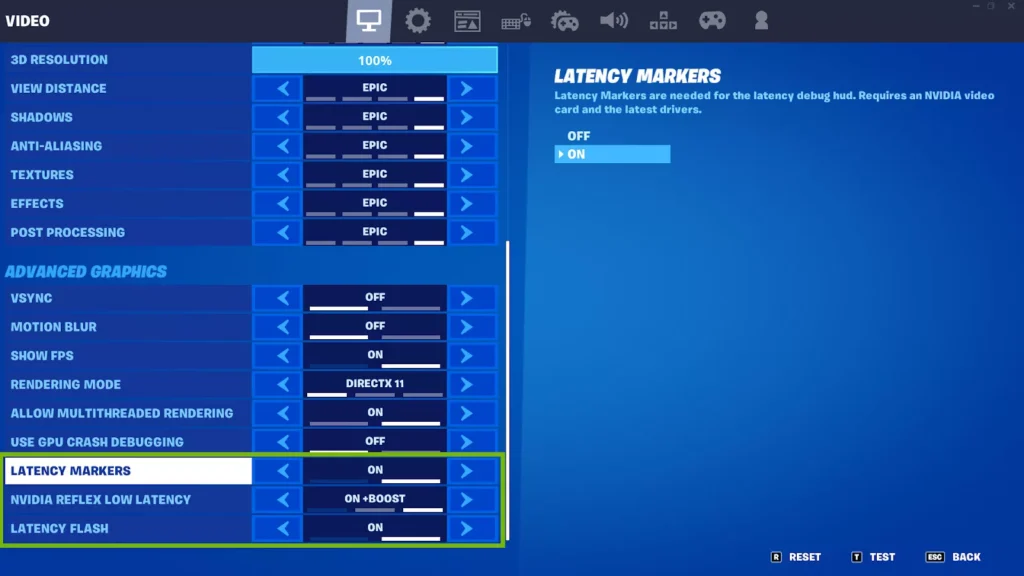
Enable NVIDIA Reflex (RTX GPU Users)
If your system has an NVIDIA RTX GPU, enabling NVIDIA Reflex Low Latency in Fortnite’s Video Settings reduces the time between your input and what appears on screen. Set it to On + Boost for the best results — this is one of the best free optimizations available for RTX users.
Regularly Update Your System
Windows updates include network stack improvements and security patches for better connection stability.
Console firmware updates on PS5 and Xbox include performance and network optimizations.
GPU driver updates generally include game-specific optimizations for titles like Fortnite.
Make updating a monthly habit to consistently improve your Fortnite experience.
Use a Quality Router
A budget router may struggle with high gaming traffic on a busy home network. A Wi-Fi 6 or gaming-grade router with QoS (Quality of Service) prioritizes your gaming device’s traffic over everything else on the network.
Have a look at: How to Play Split Screen in Fortnite (PS5 and Xbox Guide)
Conclusion
You might think that fixing lag in Fortnite requires expensive hardware upgrades, but in most cases, it can be resolved with small adjustments to your system or console settings.
The majority of Fortnite players see a noticeable improvement in FPS and lag after switching to a wired connection from Wi-Fi, selecting the right server close to their region, and enabling Performance Mode.
Follow the steps in this guide in order: first resolve any internet connection issues, then optimize the in-game settings, and then move on to system-level changes. Each fix contributes to better gameplay.
Whether you’re looking to fix lag in Fortnite on PC, Xbox, or PS5, or reduce ping across platforms, this guide covers it all — tried and tested.
The latest Fortnite Chapter 7 Season 2 requires well-tuned settings to run smoothly on your system, so make sure you stay updated.
Follow this guide and restart your game to see real results in your next session.
Why is Fortnite so laggy even with good internet?
Good internet doesn’t always guarantee lower ping or top performance. Selecting the wrong matchmaking region, background apps consuming bandwidth, or outdated GPU drivers are the main reasons for lag in Fortnite. Check your server region first, then close unnecessary background applications and update your drivers to notice improvements.
How do I reduce ping in Fortnite?
Manually select the matchmaking server region closest to your location. Switch from Wi-Fi to a wired Ethernet connection. Avoid playing during peak evening hours. Following these three steps will reduce ping during gameplay.
What is the best FPS setting for Fortnite?
Set your FPS limit to match your monitor’s refresh rate. If your monitor supports 144Hz, lock FPS at 144. Turn off V-Sync completely as it causes input delay, and enable Performance Mode to get maximum FPS during gameplay.
Does Performance Mode reduce lag in Fortnite?
Yes. Performance Mode reduces the rendering load on your GPU and results in higher, more stable FPS. This single setting can be very helpful for those looking to fix lag in Fortnite on older or lower-end hardware.
How do I fix Fortnite lag on PS5 or Xbox?
To fix lag in Fortnite on PS5 or Xbox, switch from Wi-Fi to a wired Ethernet connection, restart your console fully, and clear the cache. Then set your DNS to Google’s public DNS (8.8.8.8 / 8.8.4.4) and select the nearest matchmaking region in Fortnite’s settings.