

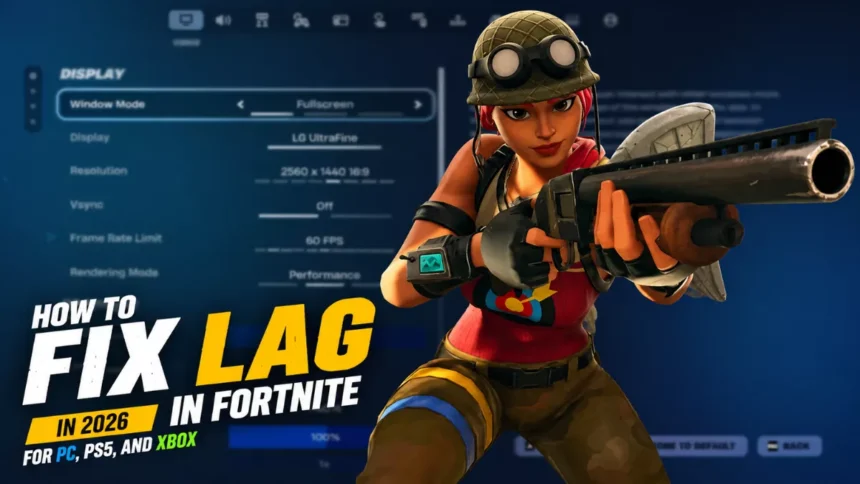
Wrong settings can cost you a match you should ideally have won. In Fortnite, even a small FPS drop or delay can be the difference between a Victory Royale and an early elimination.
Your graphics, display, and sensitivity settings determine how smooth and responsive the game feels to you. In this guide, I’ve covered the best Fortnite settings for PC, PS5, and Xbox, so you can deliver your best shots in Fortnite across platforms.
Why Fortnite Settings Matter
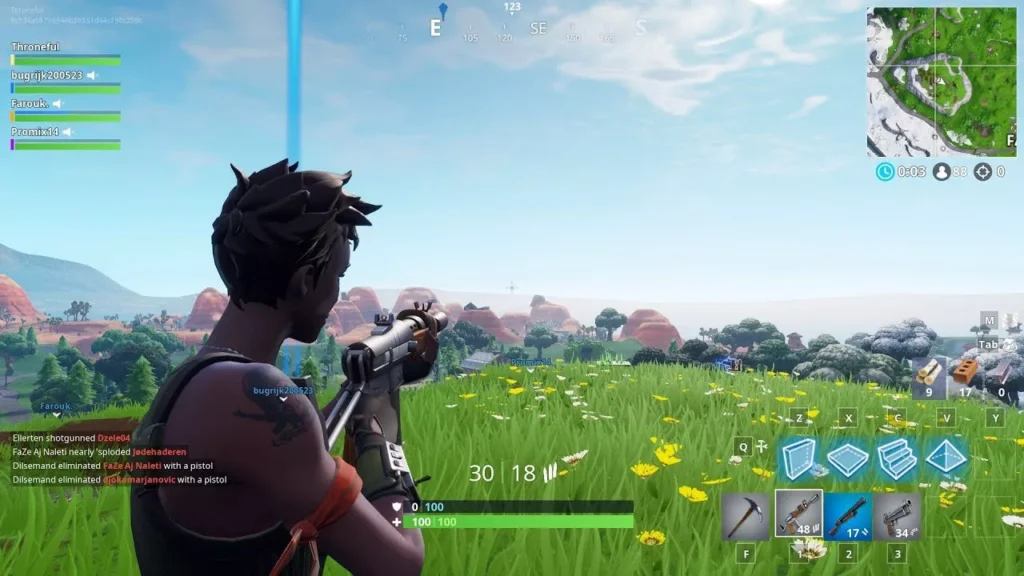
A lot of players jump into Fortnite using the default settings and never bother changing them. That’s one of the biggest reasons their gameplay feels inconsistent. The right settings don’t just make the game look better — they directly affect your reaction time, aim accuracy, movement smoothness, and overall performance.
In a fast-paced battle royale like Fortnite, every frame matters. If your FPS drops during a build fight or your input feels delayed in close-range combat, you’re already at a disadvantage before the fight even begins.
Optimized settings help you:
- Get smoother and more stable FPS
- Reduce input lag and screen tearing
- Improve visibility during fights
- Build and edit faster
- Track enemies more accurately
- Make gameplay feel more responsive overall
The best settings also depend on your platform. A high-end gaming PC can prioritize performance and competitive visuals differently than a PS5 or Xbox console. That’s why using platform-specific settings is important if you want the best possible experience.
Whether you’re playing casually or grinding ranked matches, properly tuned settings can genuinely improve your consistency and help you win more fights.
FPS and Smooth Gameplay
Higher FPS means faster screen updates — and it is very important for a fast-paced game like Fortnite.
- At 60 FPS, each frame takes ~16.6ms to render.
- At 144 FPS, that drops to ~6.9ms.
- At 240 FPS, it’s just ~4.2ms.
That gap results in quicker reaction times and smoother aim tracking. According to Nvidia’s competitive gaming research, lower latency improves player performance in games like Fortnite.
Reduced Input Delay
Input delay is the time gap between your button press and the actual on-screen action. In Fortnite, this affects:
- Build speed — placing walls and ramps under pressure.
- Edit speed — opening and closing edits in fights.
- Weapon switching — cycling loadouts without a stutter.
I advise you to turn off V-Sync and run the game in Fullscreen mode to eliminate input delay within seconds.
Competitive Advantage
If you observe closely, you’ll notice that pro players optimize every setting before entering a match in Fortnite.
Players like Bugha, Mongraal, and Clix are known for running low graphics with maximum FPS priority. According to Prosettings.net, most professional Fortnite players use Performance Mode with shadows and post-processing turned off completely.
The goal is simple — remove the visual clutter, gain clarity, and react faster.
Best Fortnite Settings for PC
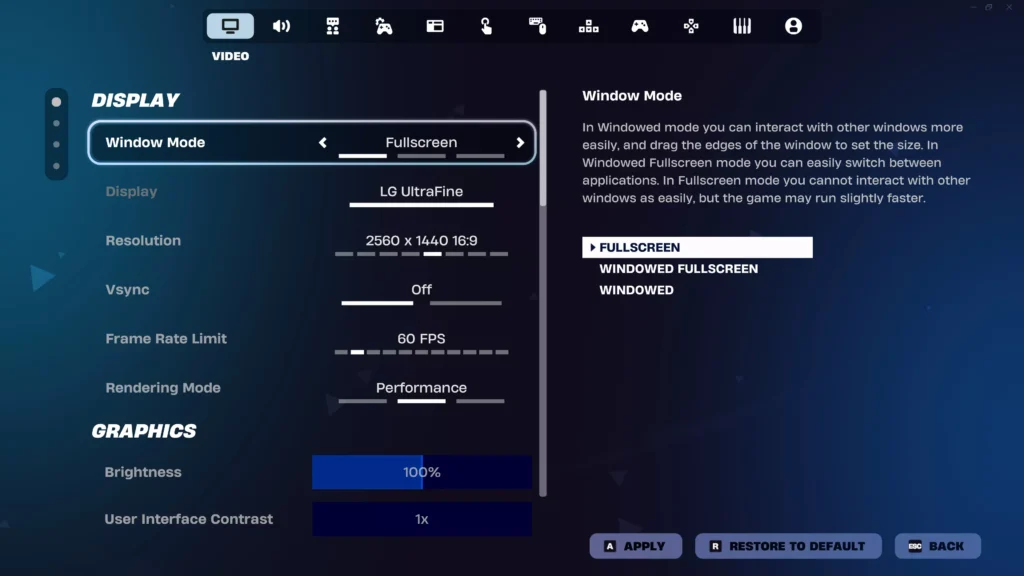
These are the best Fortnite settings for PC that players should use in 2026. Whether you use a high-end system or a mid-range one, these settings will help you increase FPS and reduce input delay. Go through these settings for the best results:
Display Settings
Your display settings are the foundation for getting the best output in Fortnite. If these are wrong, you’ll face problems in every other aspect of your system.
| Setting | Recommended Value |
| Window Mode | Fullscreen |
| Resolution | Native (your monitor’s default) |
| Frame Rate Limit | Unlimited (match monitor refresh rate only if screen tearing occurs) |
- Fullscreen mode gives your GPU direct control of the display, reducing input delay compared to Windowed or Borderless.
- Always use your native resolution — lowering the resolution may result in less visual clarity while adding very little improvement in FPS.
- Frame Rate Limit set to Unlimited allows the game to push as many frames as possible. According to Epic Games’ 2026 competitive settings guide, Unlimited is the ideal setting for almost everyone; only adjust it to your monitor’s refresh rate if you experience screen tearing.
Graphics Settings (Optimized for FPS)
These settings determine how your game looks at a base level.
| Setting | Recommended Value |
| Brightness | 100% |
| User Interface Contrast | 1x |
| Color Blind Mode | Optional (Tritanope Mode popular among pro players) |
- 100% brightness helps in spotting enemies and structures clearly, especially in darker areas.
- Colour Blind Mode is a personal choice, but Tritanope at strength 5–7 is used by the majority of pro players for better enemy contrast.
Advanced Graphics Settings
These settings can have the biggest impact on FPS and input delay on your PC. Follow the table below to apply the same settings to your system:
| Setting | Recommended Value |
| V-Sync | Off |
| Motion Blur | Off |
| Show FPS | On |
| Rendering Mode | Performance Mode |
- V-Sync OFF is a must for competitive play. It adds input delay, period.
- Motion Blur OFF — removes the artificial smearing effect that makes it harder to track enemies.
- Show FPS keeps you informed of frame drops in real time.
- Rendering Mode — Fortnite now provides three options in 2026: Performance (DX11), DirectX 12, and DirectX 11 (Legacy). According to Epic Games’ 2026 competitive settings guide, Performance Mode is the top recommendation for most players as it bypasses Nanite and Lumen completely to deliver high frame rates. If you have an RTX 3070 or better, DirectX 12 with TSR upscaling can also deliver 144+ FPS with better visuals for high-end systems.
- NVIDIA Reflex Low Latency (On + Boost) — if you have an NVIDIA GPU, enable this. It helps reduce GPU latency and is recommended for players in Epic’s 2026 guide.
Quality Settings (Recommended)
These settings control visual detailing. For competitive play, I recommend keeping them lower.
| Setting | Recommended Value |
| View Distance | Near |
| Shadows | Off |
| Anti-Aliasing | Off |
| Textures | Low or Medium |
| Effects | Low |
| Post Processing | Low |
| Meshes | Low |
- View Distance on Near — According to Epic Games’ 2026 competitive settings guide, players near you stay visible while the game focuses on rendering your immediate surroundings. This is the most important recommendation for players who compete in Fortnite.
- Shadows OFF reduces visual distractions and takes load off your system’s GPU.
- Anti-Aliasing OFF sharpens edges and can improve enemy visibility at long range.
- Textures on Low or Medium — keep textures on Low if your device has limited FPS capacity, or Medium for a high-performance PC.
- Meshes on Low render objects with less detail, which directly frees up your PC’s GPU performance.
Best Fortnite Settings for Low-End PC
Running Fortnite on a budget PC doesn’t always mean poor performance. With the right settings, you can significantly improve FPS, reduce lag, and make gameplay feel much smoother — even on older hardware.
The goal on a low-end PC should always be performance over visual quality. Competitive players often lower graphics intentionally because smoother gameplay matters more than fancy visuals.
| Setting | Recommended Value |
|---|---|
| Window Mode | Fullscreen |
| Resolution | Native or 1600×900 |
| Frame Rate Limit | Match your monitor refresh rate |
| Rendering Mode | Performance Mode |
| V-Sync | Off |
| Motion Blur | Off |
| Show FPS | On |
Enable Performance Mode First
This is the first big change you can make. According to Epic Games’ official Fortnite performance guide, Performance Mode skips many of Fortnite’s rendering processes, resulting in higher FPS even on low-end hardware.
- To enable it: Go to Settings → Graphics → Rendering Mode → Performance.
Lower Your 3D Resolution
I advise you to reduce the 3D resolution to 80–90%. This helps your GPU reduce the number of pixels it renders per frame without destroying visual clarity.
- 100% = full resolution rendering.
- 80–90% = decent FPS boost with minimal visual difference.
- Below 75% = visuals look bad, so avoid it.
Disable Background Apps
Your PC’s RAM and CPU are very important resources, so close all background apps before starting Fortnite:
- Web browsers (Chrome)
- Discord (use mobile or a second device)
- Streaming software like OBS
- Any auto-updates running in the background
Open Task Manager and check CPU and RAM usage before entering the game. The lower the usage of both, the better the performance expected in your Fortnite session.
Set All Graphics to Low
You need to lower the graphics settings to get better performance from a low-end PC. Set the following to Low:
- View Distance: Low
- Shadows: Off
- Anti-Aliasing: Off
- Textures: Low
- Effects: Low
- Post Processing: Low
- Meshes: Low
Visual clarity is not meaningful when you’re running at 40 FPS with constant stutters during gameplay. Stability is more important, and lowering the graphics quality achieves that.
Best Fortnite Settings for PS5 and Xbox
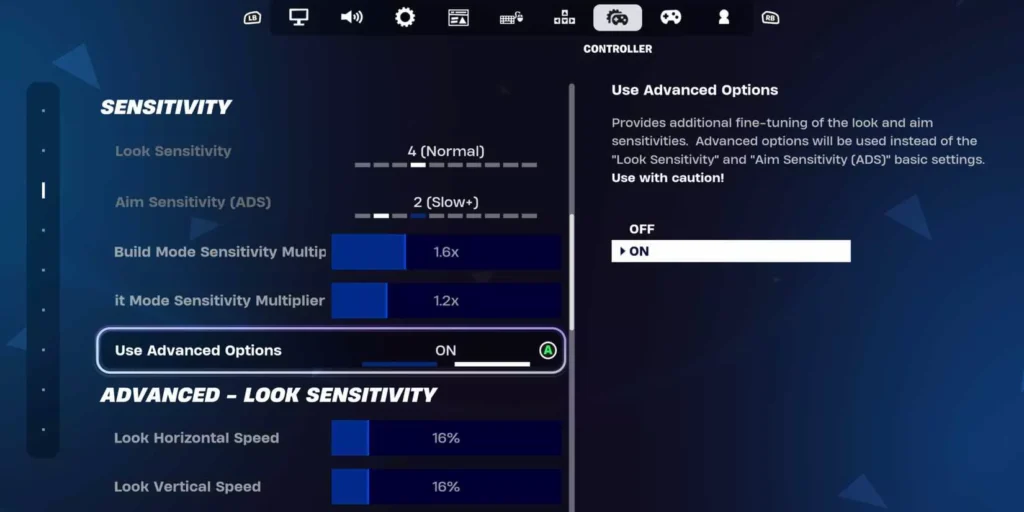
Compared to PC players, console players have fewer options to explore in settings, but the right configuration still makes a meaningful difference in gameplay.
Here’s how you can get the best Fortnite settings for PS5 and Xbox in 2026:
Console Graphics Optimization
Before changing any Fortnite settings, first set up your console by following the steps below:
For PS5:
- Go to Settings → Screen and Video → Video Output.
- Enable 120 Hz Output if your TV or monitor supports it.
For Xbox Series X/S:
- Go to Settings → General → TV & Display Options.
- Set the refresh rate to 120 Hz if supported by your monitor or TV.
Once you complete these console settings, make the following changes in Fortnite settings:
| Setting | Recommended Value |
| Frame Rate | 120 FPS Mode |
| Motion Blur | Off |
| Shadows | Off or Low |
| Visual Effects | Low |
- 120 FPS mode makes building, editing, and aiming smoother than 60 FPS.
- According to Epic Games’ patch notes, 120 FPS support is now available on PS5 and Xbox Series X/S with a compatible display.
- If your display doesn’t support over 60 Hz, I advise you to turn off shadows and effects to get the smoothest experience possible on your console.
Controller Settings (Basic Optimization)
Adjusting your controller settings is just as important as GPU configuration. To get the best Fortnite settings, controller players should start with:
| Setting | Recommended Value |
| Look Sensitivity | 6–8 (Medium to High) |
| Build Mode Sensitivity Multiplier | 1.8x–2.3x |
| Edit Mode Sensitivity Multiplier | 1.8x–2.5x |
- Look Sensitivity at 6–8 gives you enough speed to track fast opponents without losing aim control.
- Build Mode Multiplier at 1.8x–2.3x helps you build structures quickly while maintaining control over your aim and movement.
- Edit Mode Multiplier at 1.8x–2.5x is important for fast edits in close-range fights. It is one of the most important skills in Fortnite in 2026.
Start with the lower end of each range and increase gradually. I advise you to never copy a pro’s sensitivity without testing it yourself. You need to find what actually works for you and your muscle memory.
Best Audio Settings for Fortnite
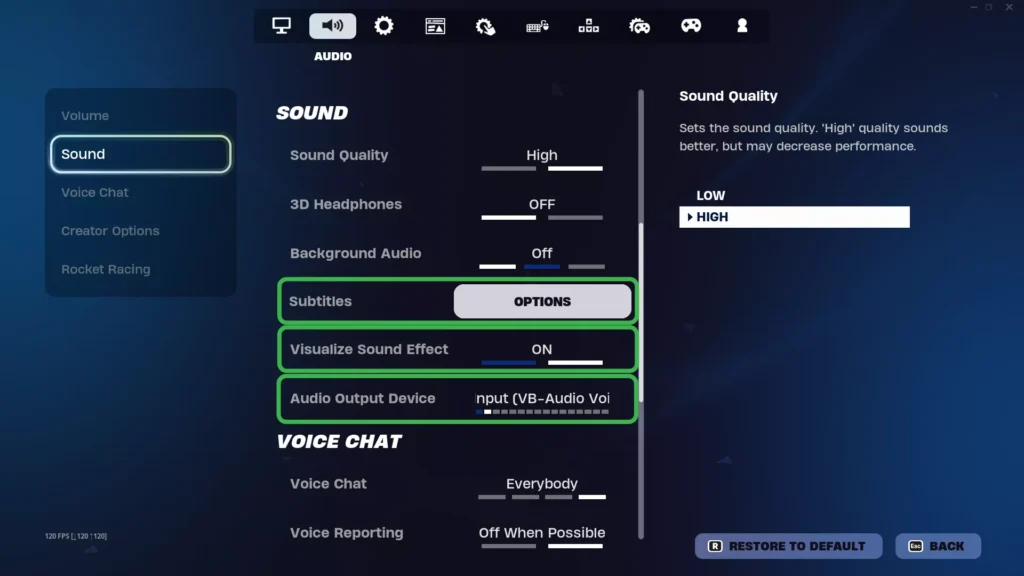
Audio is generally overlooked by many, but it is one of the most important aspects of Fortnite’s settings. Hearing enemy footsteps, a chest opening, or someone pushing through a wall can give you an upper hand before the fight even starts.
| Setting | Recommended Value |
| Visualize Sound Effects | On |
| Sound Quality | High |
| 3D Headphones | On (if supported) |
Visualize Sound Effects — Always On
This setting displays icons on your screen for nearby sounds such as footsteps, chests, gunshots, and more. It is very helpful in noisy environments and when playing without headphones.
Even with headphones, I suggest keeping this setting on to get a visual warning of someone nearby during a match.
Sound Quality — Set to High
Low sound quality may compress audio, so it is advised to keep it at High so footsteps and environmental sounds are heard accurately during gameplay.
High sound quality will have a noticeable impact on your gameplay when you try it in your next Fortnite session.
3D Headphones — On (If Supported)
This setting enables spatial audio processing, which gives you a clear sense of the direction from which a sound is coming. If you have a good pair of headphones, it may help you pinpoint enemy positions and eliminate them with your in-game tactics.
According to Epic Games’ 2026 competitive settings guide, 3D Headphones uses binaural audio to produce 3D sound in your headphones, similar to real-world surround speakers. I suggest using Fortnite’s built-in settings for this rather than any third-party audio software.
This setting is only useful if you use headphones while playing Fortnite. If you don’t, you can ignore it.
Best Keybinds and Sensitivity Tips
There’s no “perfect” keybind layout, but you can follow some smart principles for good outcomes. The goal is to make your most-used actions fast, comfortable, and instinctive.
Keep Keybinds Comfortable and Reachable
I suggest keeping your building and editing keys close to your left hand at all times. If you have to stretch during fights to hit a bind, it’s slowing down your gameplay.
Some popular keybinds used by top players include:
- Wall: Q or Mouse Button 4
- Floor: C or Mouse Button 5
- Ramp: V or E
- Edit: F or G
These are not mandatory for anyone — these keybinds are simply comfortable to use in any game situation.
Avoid Default Binds If They Feel Uncomfortable
If you’re still playing with Fortnite’s default keybinds, you should edit them to your preferences for the best results. Your keybinds should feel comfortable at any point in the game.
Note: Don’t change everything at once. It’s always better to change one or two binds at a time, get used to them, and then adjust the remaining ones.Test Sensitivity in Creative Mode
I don’t recommend changing your mouse or controller sensitivity during a ranked session. Instead, you can:
- Enter a Creative Mode map in Fortnite.
- Use aim training maps like Kovaak’s Aim Trainer or Fortnite’s built-in aim courses to test settings.
- Make small adjustments — no more than 0.5–1 point at a time.
- Play at least 30–45 minutes with the new settings before making any decisions about them.
Sensitivity works closely with muscle memory, so it’s important to play with new settings for a full session. If everything works well, keep the same settings; otherwise, adjust them for better control.
Common Mistakes to Avoid
I’ve made a lot of mistakes, and I’m sure many of you might be making the same ones:
Using Epic Graphics on a Low-End PC
Epic settings are best suited for high-end PCs or consoles. If you try to run them on a budget PC, you’ll notice more frame drops, lag, and sometimes the game may not be playable at all.
If your PC doesn’t deliver a consistent 60 FPS, it’s better to set everything to Low and enable Performance Mode. Better frame rates at the cost of some visual quality is always the right trade-off.
Playing With V-Sync ON
V-Sync synchronizes your frame rate to your monitor’s refresh rate to avoid screen tearing. It seems helpful, but in a competitive game, it adds input delay, which eventually leads to slower builds and edits.
Turn it off. If screen tearing is a major issue for you, use NVIDIA G-Sync or AMD FreeSync instead. These can solve the problem without any input delay.
Ignoring FPS Drops
Sudden drops in FPS are not just annoying — they also give your enemies an advantage. If you consistently experience frame drops during gameplay, then:
- Check your thermal performance, as overheating causes throttling.
- Check the background CPU and RAM usage.
- Confirm that your power plan is set to High Performance in Windows settings.
- Lower your 3D resolution by 5–10% for better frame rates.
These steps helped me improve frame rates in Fortnite, which was a constant frustration before I discovered them.
Copying Pro Settings Without Testing
You may wonder how pro players dominate gameplay so easily, but it’s their hours of muscle memory that make their settings work. Directly copying their sensitivity or keybinds without practice will result only in frustration.
You can always use pro settings as a reference — start by changing values in small increments, test them yourself, and keep what works for regular gameplay.
Pro Player Settings (Overview)
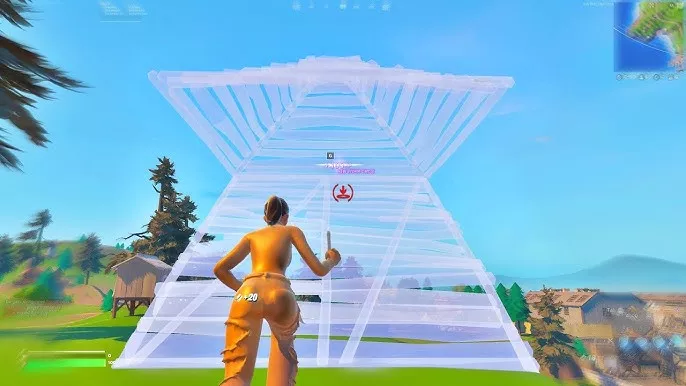
You might be curious about the settings pro players use that set them apart. There are some common patterns I’ve identified:
Most Pros Use Low Graphics — Always
All pro players prioritize FPS over visuals. According to Prosettings.net, the majority of pro players run their game with:
- Shadows: Off
- Anti-Aliasing: Off
- Effects: Low
- Post Processing: Low
- Meshes: Low
- Rendering Mode: Performance Mode
The reason is simple — fewer visual distractions result in faster target acquisition. A clean screen is essential for competitive Fortnite.
High FPS Is the Top Priority
Most top professional players play at 240 FPS or higher, paired with a 240 Hz monitor. This combination minimizes input delay and makes motion significantly smoother.
Players with 144 Hz setups keep their settings as low as possible to maintain stable, consistent frame rates above their monitor’s refresh rate.
Customized Keybinds Are Universal
No pro player uses the default Fortnite keybinds and dominates the competition. Each one adjusts their keybinds based on hand size and playstyle for the best results.
Some examples from Prosettings.net:
- Bugha uses personalized building binds optimized for speed.
- Mongraal has an aggressive sensitivity setup built for fast edits.
- Clix prioritizes edit speed with a compact, close keybind layout.
The biggest takeaway: spend time figuring out which settings work best for you rather than sticking with the defaults.
Also checkout: Best Weapons in Fortnite (Current Meta Guide)
Conclusion
The best Fortnite settings for PC, PS5, and Xbox are not the ones that look fancy but don’t benefit you during gameplay. The right settings make the game feel fast and responsive, and give you an advantage over your enemies in a fight.
I recommend finding a balanced set of settings to improve your performance across every aspect of gameplay, whether it’s smoother builds or sharper audio cues.
All guides sound good in theory, but it’s always best to test and adjust them according to your playstyle, display, and system to get the most out of them in Fortnite.
Start with the recommendations here, then fine-tune from there. Small changes compound into a noticeably better experience over time.
Follow the recommendations in this guide and adjust them to your needs for a better Fortnite experience over time.
What are the best settings for Fortnite to get high FPS?
Enable Performance Mode, turn off Shadows, Anti-Aliasing, and Post Processing, and set Effects, Meshes, and Textures to Low. With these changes, you’ll notice significant improvements in FPS without impacting gameplay clarity.
Should I use Performance Mode in Fortnite?
Yes, it is recommended for every player. The Epic Games 2026 competitive guide recommends the same for an FPS boost.
What FPS is best for Fortnite?
The higher the FPS, the better the gameplay, but 144 FPS is the minimum required for a good experience. The majority of pro players target 240 FPS paired with a 240 Hz monitor for minimal input delay in Fortnite.
Are low settings better in Fortnite?
Yes, if you’re playing competitively. Low settings help remove visual distractions, reduce GPU load, and stabilize your frame rate. A clean, smooth game at Low settings is always better than a visually impressive game with inconsistent FPS.
What settings do pro players use in Fortnite?
Most pros run Performance Mode with all major graphics settings on Low or Off, including Meshes and Shadows. They use customized keybinds, target 240 FPS on a 240 Hz display, and set their controller or mouse sensitivity to suit their muscle memory.