


Do this first: The moment you discover data is missing, stop using your Android device immediately. Enable Airplane Mode or power it off. Every new photo, app install, or update risks permanently overwriting deleted data. Speed is everything.
Losing data on an Android phone takes seconds. One wrong tap, a failed OS update, or a factory reset without a backup, and photos, messages, and contacts that took years to accumulate disappear. The good news is that “deleted” on Android rarely means “permanently gone” right away. Deleted files stay in storage until new data physically overwrites them. Fast action and the right software can often bring them back.
- How Android Data Recovery Actually Works
- What to Look for Before You Download
- No-Root Recovery Option
- Preview Before You Pay
- Read-Only Scanning
- Transparent Pricing
- Active Development
- PC-Based Recovery Tools
- 1. Disk Drill for Android
- 2. Wondershare Dr.Fone Data Recovery (Android)
- 3. FoneLab Android Data Recovery
- 4. Tenorshare UltData for Android
- 5. iMobie PhoneRescue for Android
- 6. On-Device Recovery Apps (No PC Needed)
- 7. File Recovery: Photo Recovery App
- 8. MiniTool Mobile Recovery for Android
- Side-by-Side Comparison
- Step-by-Step Recovery Walkthrough
- Root Access: What You Need to Know
- How to Prevent Android Data Loss
- Can I recover Android data without a computer?
- Does Android data recovery require root access?
- Can data be recovered after a factory reset?
- How long does an Android recovery scan take?
- Are these tools safe to use?
- What is the best completely free option?
- Our Final Verdict
The problem is that Android recovery tools are everywhere, and most overpromise. We cross-checked 8 tools against independent benchmark tests, real user feedback, and verified 2026 pricing to give you an honest picture of what actually works.
How Android Data Recovery Actually Works
Android recovery tools use one of three approaches, and knowing which applies to your situation saves a lot of time and frustration.
PC-Based Deep Scan
You connect your phone to a computer via USB with USB Debugging enabled. The software scans raw storage sectors for deleted file signatures. This method gives the highest recovery rates, especially for contacts, messages, and app data, but typically requires root access on non-Samsung devices for full internal storage access.
SD Card Scan (No Root Required)
Remove the SD card, plug it into a card reader, and scan it with any standard recovery tool. No root needed, recovery rates are high, and the process is straightforward. This is the most reliable free recovery option available.
On-Device App Scan (Limited, No PC)
Apps like DiskDigger run directly on Android. On non-rooted devices the scan is limited to thumbnail caches and accessible storage locations. Coverage is narrower but requires zero technical setup. Good for quick photo recovery when you cannot access a computer.
Android vs iPhone: Android recovery is more flexible in some ways (SD cards, rooting options) but more complex overall. There is no single universal method. The right approach depends on your device brand, Android version, and whether your device is already rooted.
What to Look for Before You Download
No-Root Recovery Option
Rooting voids your warranty and can trigger factory resets, potentially destroying the data you are trying to recover. The best tools deliver meaningful recovery without requiring root on most devices.
Preview Before You Pay
Never pay for a recovery tool before confirming it found your files. Every reputable tool offers a free scan and preview. You should see thumbnails, message previews, or contact details before committing to purchase.
Read-Only Scanning
The scan must never write to your device. Any tool that modifies storage during a scan risks overwriting files you are trying to recover. All reputable tools on this list perform read-only scans only.
Transparent Pricing
Discovering a paywall mid-process, after a 30-minute scan, is a deliberate friction tactic. Trustworthy tools are clear about what is free and what costs money before you start. Check for auto-renewal settings after any purchase.
Active Development
Android updates regularly. A recovery tool that has not been updated for 18 months may have compatibility gaps with your device model or Android version. Check the “last updated” date before downloading anything.
PC-Based Recovery Tools
Desktop recovery software gives the deepest scan results and supports the widest range of data types. These tools require connecting your Android device to a computer via USB.
1. Disk Drill for Android
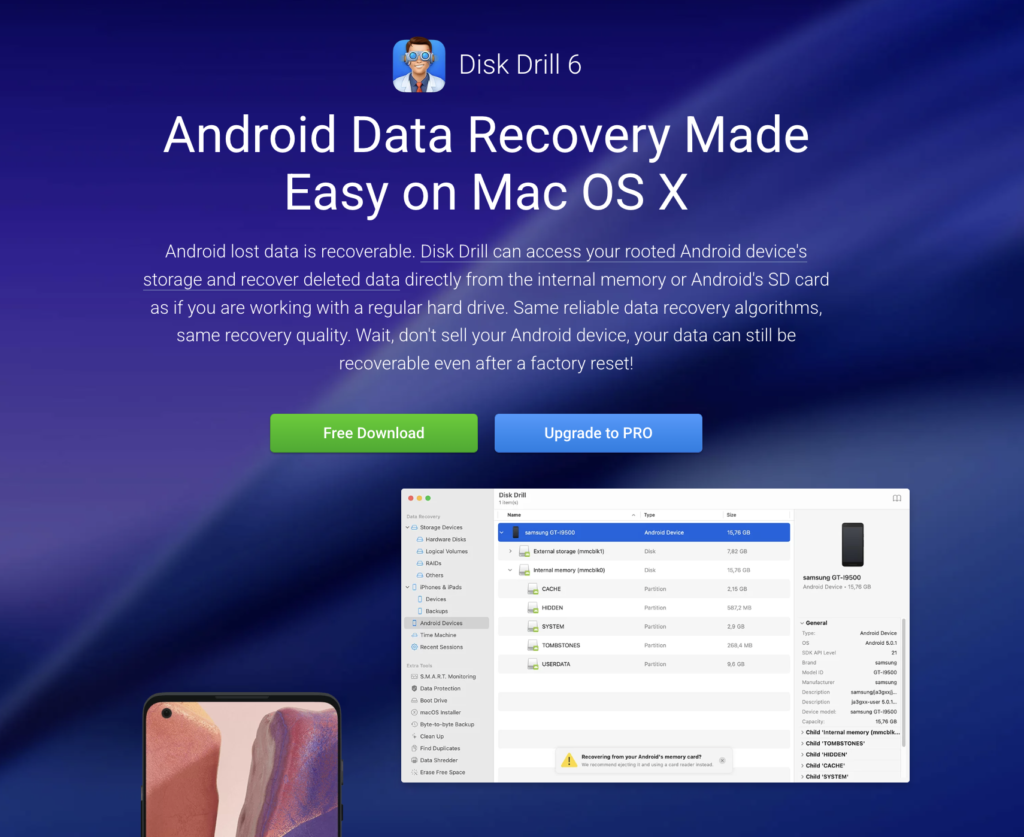
Disk Drill by CleverFiles is our top-ranked Android data recovery tool for 2026 and the highest-rated option on independent testing platforms. On macOS, it scans Android internal storage directly over USB as well as microSD cards. The Windows version focuses on microSD card and external storage recovery and does not scan Android internal memory directly. Both versions support over 400 file formats and include a file preview before recovery, so you can verify exactly what is recoverable before spending anything.
What sets Disk Drill apart beyond recovery is its ecosystem of free bonus tools: a duplicate file finder, byte-to-byte backup (critical for protecting a corrupted SD card from further damage during scanning), SMART disk health monitoring, and a Mac cleanup module. Both versions offer a free scan with file previews so you can confirm what is recoverable before buying the $89 Pro license.
- Recovery Rate: 9.6
- Ease of Use: 9.5
- File Format Support: 9.8
- Value: 9.0
👍 Pros
👎 Cons
Best for: Mac users who need to scan Android internal storage, and anyone who wants the most comprehensive free scan plus bonus tools.
2. Wondershare Dr.Fone Data Recovery (Android)
Dr.Fone by Wondershare is one of the most widely used Android recovery tools globally and earns its place on this list for one specific strength: it is the only tool here that supports recovery from broken Android devices, including phones with black screens, cracked displays, or devices stuck in a boot loop. If your phone will not respond at all, Dr.Fone is your first call. It also recovers from Google Drive backups when local recovery is not possible, which is a genuinely useful fallback option.
The downsides are worth knowing upfront. The full toolkit is priced at $162.95 in 2026, making it the most expensive option on this list. Independent users consistently report that the free scan shows files they already have on their phone rather than recovering genuinely deleted data in all scenarios. Marketing claims on the official website can also create expectations that real-world results do not always match. For a one-time recovery need, the monthly Android Toolkit license at $79.95 is the more practical option than the annual full toolkit.
- Recovery Rate: 8.2
- Ease of Use: 9.0
- Broken Device: 9.5
- Value: 6.0
👍 Pros
👎Cons
Best for: Users with a physically damaged or unresponsive Android device who need broken-device recovery.
3. FoneLab Android Data Recovery
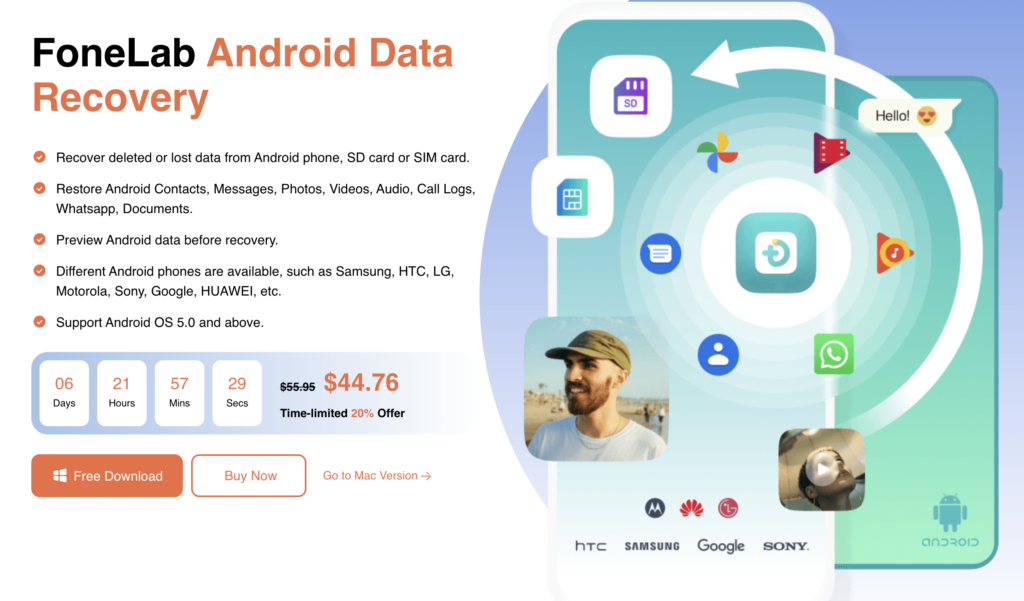
FoneLab earns its place on this list for a feature most other tools overlook: SIM card data recovery. Users who store contacts directly on their SIM card rather than syncing to Google can recover those contacts through FoneLab even after they appear lost. It covers all standard data types including photos, videos, audio, documents, messages, call logs, and WhatsApp attachments, across both internal storage and SD cards. The interface is clean, the workflow is straightforward, and the free preview accurately represents what is recoverable before any payment is made.
👍 Pros
👎 Cons
Best for: Users who store contacts on a SIM card and need SIM-specific recovery that most tools do not offer.
4. Tenorshare UltData for Android
Tenorshare UltData for Android recovers over 35 data types including WhatsApp messages, WeChat data, photos, contacts, and call logs without requiring root access on most devices. Independent tests from late 2025 found it recovered over 85% of deleted images from Android 12 devices. It supports over 6,000 Android phones and tablets and was updated to support Android 16 in early 2026, confirming active ongoing development. The three-step recovery process needs no tutorial, and it includes an AI photo enhancement feature that improves the resolution of recovered images.
One important caveat that belongs in any honest review: there is a verified pattern of user complaints about Tenorshare’s billing practices across its product range, including unexpected recurring charges reported on Capterra and other review platforms as recently as January 2026. Always purchase from the official website, review your order details carefully, and disable auto-renewal if you are only making a one-time recovery.
- Recovery Rate: 8.8
- No-Root Depth: 9.2
- WhatsApp Recovery: 9.5
- Billing Trust: 5.5
👍 Pros
👎 Cons
Best for: Users who need WhatsApp or app data recovery without rooting, but must check billing settings carefully after purchase.
5. iMobie PhoneRescue for Android
PhoneRescue for Android from iMobie is notable for a feature the other tools on this list do not offer: the ability to restore recovered files directly back to the Android device rather than saving them only to a computer. It recovers all standard data types including photos, videos, audio, documents, messages, contacts, call logs, and WhatsApp data. It works with or without root for basic recovery scenarios, though root is needed for deeper message and app data access. The interface walks users through recovery step by step with minimal technical knowledge required.
👍 Pros
👎Cons
Best for: Users who want to restore files directly back to their Android device rather than to a computer.
6. On-Device Recovery Apps (No PC Needed)
DiskDigger is one of the most downloaded Android recovery apps on Google Play with over 100 million installs, and it stands as the most genuinely free option on this list. The free version recovers photos directly on your Android device with no PC required. On non-rooted phones, it performs a limited scan focused on thumbnail caches and accessible storage. On rooted devices, it performs a full deep scan across all internal storage. Recovered files can be saved locally, sent to Google Drive, Dropbox, or emailed directly from within the app. Pro version unlocks video and document recovery beyond photos.
👍 Pros
👎Cons
Best for: Anyone who needs free photo recovery directly on their phone without a computer.
7. File Recovery: Photo Recovery App
File Recovery is a lightweight on-device app focused on photo, video, and document recovery without root access. It performs automatic scans on launch, groups results by date, size, and folder for easy navigation, and supports batch recovery. It also includes a permanent deletion tool that wipes selected files completely and prevents future recovery, which is useful for privacy-conscious users. The interface is designed for quick, no-setup operation with no PC needed at any point.
👍 Pros
👎 Cons
Best for: Quick on-device photo and video recovery when a PC is not available and root access is not an option.
8. MiniTool Mobile Recovery for Android
MiniTool Mobile Recovery for Android is one of the very few PC-based tools that provides genuine free file recovery beyond just a preview. The free version recovers up to 1 GB of data at no cost, which covers a meaningful set of photos, contacts, or messages for many typical data loss scenarios. It supports internal storage and SD card recovery, covers photos, videos, messages, contacts, and WhatsApp attachments, and works across Samsung, Xiaomi, Huawei, HTC, Google, LG, Sony, and Motorola devices. Independent benchmark tests rated it at around 70% recovery rate, lower than the top-tier tools but stable.
👍 Pros
👎 Cons
Best for: Users who need a small genuine free recovery without committing to a paid license first.
Side-by-Side Comparison
| Tool | Platform | No Root | Broken Device | Free Tier | Our Rating | Price | |
|---|---|---|---|---|---|---|---|
| Disk Drill | Win + Mac | ✓ | Limited | ✗ | Free scan | ★★★★★ | $89 Pro |
| Dr.Fone | Win + Mac | Partial | ✓ | ✓ | Preview only | ★★★★☆ | $79.95+ |
| FoneLab | Win + Mac | Partial | Limited | ✗ | Preview only | ★★★★☆ | Paid |
| Tenorshare UltData | Win + Mac | ✓ | ✓ | ✗ | Preview only | ★★★★☆ | $35.95/mo · $39.95/yr |
| PhoneRescue | Win + Mac | Partial | ✓ | ✗ | Preview only | ★★★★☆ | Paid Pro |
| DiskDigger | Android App | ✓ | ✗ | ✗ | Free photos | ★★★★☆ | Free / Pro |
| File Recovery App | Android App | ✓ | ✗ | ✗ | Free | ★★★★☆ | Free |
| MiniTool | Win + Mac | ✓ | Attachments | ✗ | 1 GB free | ★★★★☆ | Paid for more |
Step-by-Step Recovery Walkthrough
Regardless of which tool you choose, the process follows the same fundamental steps. Work through this as quickly as possible after discovering data loss.
- Stop Using Your Device Immediately: Enable Airplane Mode or power off. Every new photo, app install, or update risks permanently overwriting deleted data. Speed is everything at this stage.
- Download Only from the Official Developer Website: Go directly to the developer site. Never use third-party download aggregators, which frequently bundle adware or modified software versions with legitimate tool names.
- Enable USB Debugging: Go to Settings, then About Phone, and tap Build Number seven times to unlock Developer Options. Then go to Developer Options and enable USB Debugging. This is required for all PC-based recovery tools.
- Connect and Start the Scan: Connect via USB, trust the connection prompt on your phone, select your target data types, and start scanning. Do not interrupt the scan. A full internal storage scan can take 15 to 45 minutes depending on storage size.
- Preview Before Paying: Browse scan results in the free preview. Confirm your specific files are visible and in usable condition before purchasing a recovery license. If the preview is empty, the data may already be overwritten.
- Recover to Your Computer, Not Back to the Phone: Always save recovered files to your computer first. Writing data back to the same device during recovery risks overwriting other deleted files still waiting to be rescued.
Root Access: What You Need to Know
Root access is the most misunderstood concept in Android data recovery. Here is a plain-English explanation of what it means and what to do.
Rooting gives an app administrator-level access to your Android file system, allowing recovery tools to scan restricted storage areas where deleted data sits. Without root, most tools can only scan accessible storage such as SD cards, thumbnail caches, and specific app folders. With root, a deep scan covers all internal storage, significantly improving recovery rates for messages, call logs, and app data.
The tradeoff is real and important. Rooting voids your device warranty and introduces security vulnerabilities. More critically, the rooting process on many Android devices triggers a factory reset as a built-in security measure, permanently wiping internal storage in the process. You could lose the very data you are trying to recover.
🚨 Never root your phone to recover data. If your device is not already rooted, do not root it for recovery purposes. The process often wipes internal storage. Use tools like Disk Drill (on Mac) or Tenorshare UltData that offer meaningful no-root recovery instead.
How to Prevent Android Data Loss
- Enable Google Photos Backup. Go to Google Photos, then Settings, then Backup. Set to Wi-Fi only. Every photo syncs automatically the moment it is taken.
- Set up a weekly Google One device backup. A full device backup covers contacts, messages, app data, and settings, not just photos. Go to Settings, then Google, then Backup.
- Back up WhatsApp to Google Drive daily. Open WhatsApp, then Settings, then Chats, then Chat Backup. Set to daily automatic backup so your chat history is never more than 24 hours out of date.
- Store photos on an SD card. Camera storage saved to a microSD card is far easier to recover than internal storage, and recovery is possible without root in most cases.
- Back up before every major Android OS update. OS updates occasionally fail mid-install and can corrupt storage. Run a full Google backup before applying any major Android update.
- Export contacts as a VCF file monthly. Go to Contacts, then Menu or Settings, then Export. Save to Google Drive. It takes under 60 seconds and fully protects your contact list independently of Google sync.
Can I recover Android data without a computer?
Yes, to a limited extent. DiskDigger recovers photos for free directly on the device with no PC. For contacts, messages, and full internal storage scans, a PC-based tool delivers significantly better results.
Does Android data recovery require root access?
Not always. Tools like Disk Drill (on Mac), Tenorshare UltData, and DiskDigger offer meaningful no-root recovery. Recovering messages and app data from non-Samsung internal storage generally requires root. Never root a device specifically to recover data, as it can trigger a factory reset.
Can data be recovered after a factory reset?
It is very difficult. A factory reset is designed to securely overwrite user data. If you have a Google backup from before the reset, restoring from it is your most reliable option. Recovery software has limited success on factory-reset devices because the storage areas are overwritten during the reset process.
How long does an Android recovery scan take?
SD card scans typically complete in 5 to 15 minutes. Full internal storage scans via PC tools take 15 to 45 minutes depending on storage size. Do not interrupt the scan once it has started.
Are these tools safe to use?
All tools listed here perform read-only scans and cannot overwrite your data during the process. Always download from the official developer website. Third-party aggregator sites frequently bundle malware alongside legitimate software names, including recovery tools.
What is the best completely free option?
DiskDigger is the most genuinely free option for photo recovery with no PC required. MiniTool provides 1 GB of free recovery for those who can use a computer. Disk Drill offers 500 MB free on Windows. All other tools on this list are free to scan and preview only.
Our Final Verdict
Disk Drill is our top pick for 2026. It earned the highest independent ratings, offers free scan to verify recoverability, provides file previews before any payment, and includes bonus tools (duplicate finder, SMART monitoring, byte-to-byte backup) that no other tool here matches. Mac users get direct Android internal storage scanning over USB, but root access is required on the Android device for this to work. For users with a physically broken or unresponsive device, Dr.Fone is the only tool here that addresses that scenario. If you need WhatsApp recovery without root, Tenorshare UltData is the specialist, though check your billing settings carefully after any purchase. For completely free photo recovery on your phone with zero setup, DiskDigger remains the easiest starting point.
💡 Quick tip: Start with the free scan in any tool before paying. Every option here lets you preview recoverable files at no cost. If the preview shows your files, you know recovery is possible. If it shows nothing meaningful, the data is likely already overwritten and no paid license will change that outcome.