
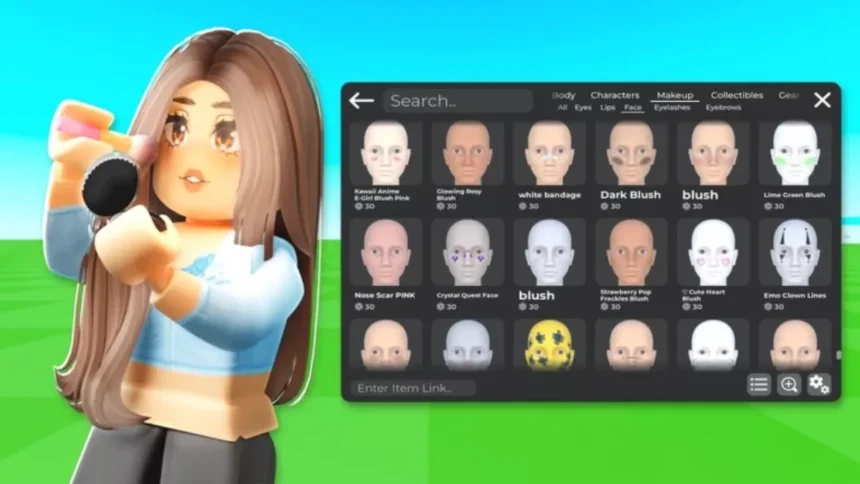
When most people join Roblox, their avatar is the last thing on their mind. But it is one of the first things other players notice, whether on your profile, in a lobby, or at the start of a new game.
The good news is that building a great-looking avatar does not require spending any Robux. There are plenty of free customization options available, and this guide covers both free and paid methods so you can decide what works best for you.
Whether you are opening the avatar editor for the first time or looking to level up your current look, this guide walks you through everything you need to know in 2026.
What Is a Roblox Avatar?
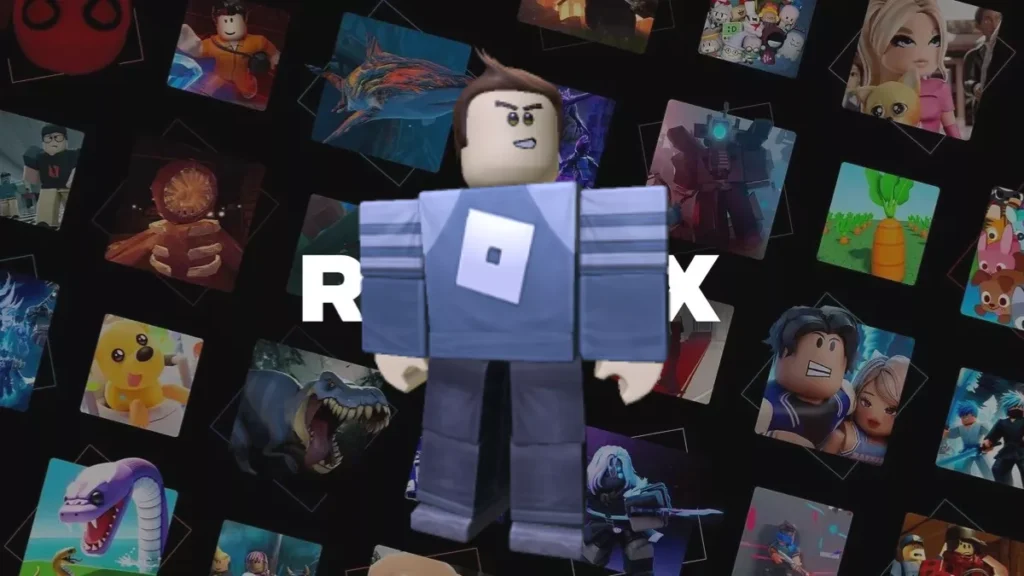
Here’s the full review covering both information accuracy and grammar:
Information Check
- “Roblox avatars come in two body types, R6 and R15” — This is now outdated. Roblox introduced a third avatar type called Rthro (also called Roblox Human) which features a more realistic human body shape. Leaving this out makes the information incomplete for a 2026 guide.
- “R6 is a classic block-style avatar made up of 6 parts” — Accurate. The 6 refers to the number of body parts: head, torso, left arm, right arm, left leg, right leg.
- “R15 comes with a modern body type with 15 parts, smooth movement, and more customization options” — Accurate overall but worth noting that R15 also supports layered clothing, which is a significant feature many players care about in 2026.
- “If you ask me, I would recommend the modern R15 Avatar version to you in 2026” — The recommendation itself is reasonable but Rthro should at least be mentioned here so readers have the full picture before making a choice.
- “your digital identity throughout the platform, whether it be in games, on your profile page, in lobbies, or when you interact with players” — The earlier intro section already made this same point about avatars appearing in games, profiles, and lobbies. This section repeats that without adding new information.
Grammar and Writing Issues
- “in simple words” — A filler phrase that adds nothing. Just start the definition directly.
- “whether it be in games, on your profile page, in lobbies, or when you interact with players” — The last item “when you interact with players” does not match the structure of the other three items which are all nouns or noun phrases. Should be “in interactions with other players” to keep the list parallel.
- “The R15, on the other hand, comes with a modern body type with 15 parts” — “Comes with a modern body type with 15 parts” uses “with” twice in the same phrase. Needs rewording.
- “If you ask me, I would recommend the modern R15 Avatar version to you in 2026” — “If you ask me” and “to you” are both unnecessary. “Avatar” does not need to be capitalized mid-sentence. “The R15 is the better choice for most players in 2026” is cleaner and more direct.
- “it gives a nostalgic feel to many players” — Accurate and fine to keep but slightly informal. “It carries a nostalgic appeal for longtime players” reads better.
Suggested Rewrite
Your Roblox avatar is your digital identity across the platform. It appears on your profile, in game lobbies, and throughout every game you play.
Roblox currently offers three avatar body types:
- R6 is the classic style, built from six body parts with simple animations. It has a blocky, retro look that carries a nostalgic appeal for longtime players.
- R15 is the standard modern avatar, made up of 15 body parts with smoother movement and significantly more customization options. It also supports layered clothing, which allows items to stack realistically over one another.
- Rthro is the most recent body type, designed to resemble a more human-like figure. It works within the R15 framework but uses proportions closer to a real person.
For most players in 2026, R15 is the recommended starting point as it offers the best balance of customization options and broad game compatibility.
How to Access Avatar Editor in Roblox
Accessing the Avatar Editor on desktop is straightforward:
- Go to roblox.com and log in to your account.
- Click on “Avatar” in the left-side navigation menu.
- The Avatar Editor will open, giving you access to all available customization options.
On mobile, open the Roblox app and look for the Avatar option in the bottom navigation bar or through your profile. The layout differs from the desktop version but all the same core customization features are available.
Note that Roblox updates its interface periodically, so the exact location of menu options may vary slightly depending on the current version of the site or app.
How to Customize Your Roblox Avatar
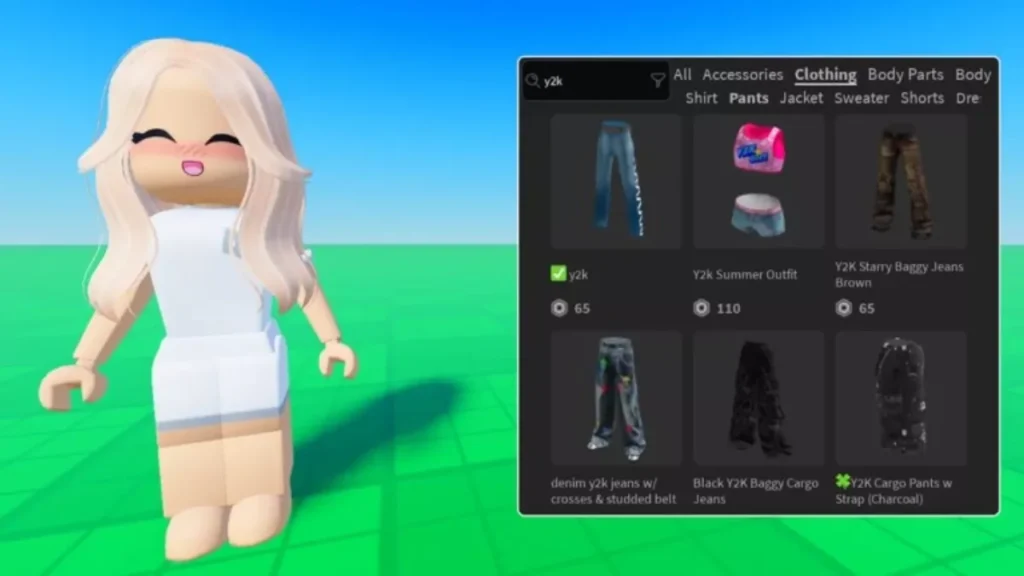
I personally love the avatar customization, and you can do the same by opening the avatar editor with different categories, making Roblox character customization easier for beginners.
Change Body Features
Under the body tab of the Avatar Editor, you can adjust the following:
- Skin tone – You have access to a full colour palette to make your avatar shine above that of others. You can even assign different colours to different body parts with different sizes and proportions.
- Body size – For R15 avatars, you can also adjust the height, width, and overall shape of your character.
- Animations – You can change the default animations used while walking, jumping, and running for your avatar for free for most of them, while some require Robux to be implemented on your character.
Add Clothing Items
You can visit the clothing tab and change the following:
- Shirts – You can try different shirts from your inventory or avatar shop under the clothing tab.
- Pants – Similar to shirts, you can try out different pants for your avatar and mix and match what looks good on it.
- Accessories – You can even try out hats, backpacks, face items, and more according to your choice.
Use the Avatar Shop
The Avatar Shop (previously known as Catalog) provides more customization options to the players. It comes with millions of items across different categories like Body, Clothing, Accessories, and Animations, provided by Roblox and some of the independent creators.
To browse items, click on “Get More” in the Avatar Editor, or you can reach the Avatar Section on the Roblox website and visit the Shop tab.
There are some free items as well as paid ones. Based on your requirement, apply the filter for category, price, and creator to get your avatar a makeover.
How to Get Free Avatar Items in Roblox
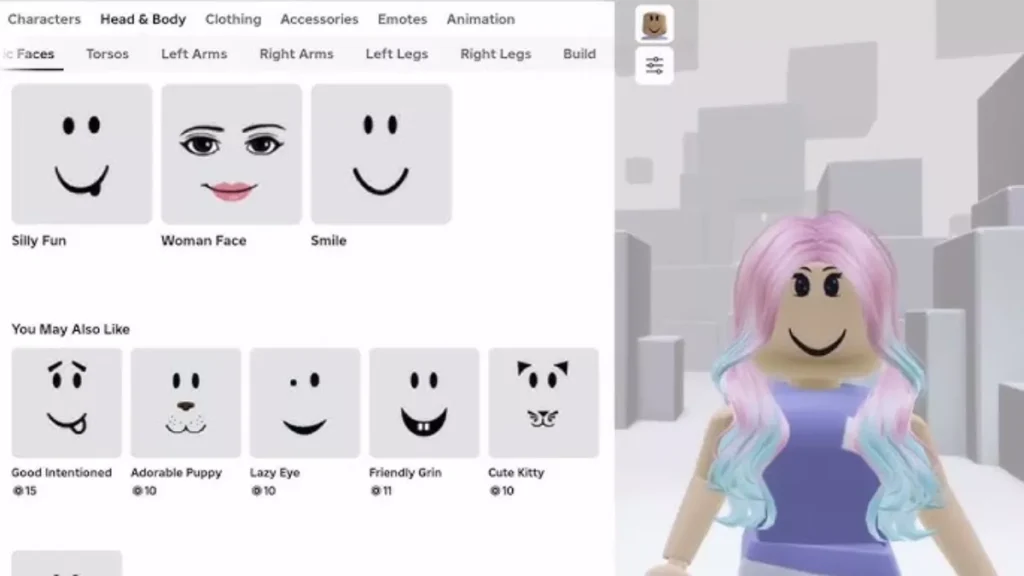
One of the more pleasant surprises on Roblox is how many free customization items are actually available. Here is how to find them.
- Avatar Shop free filter Open the Avatar Shop and use the price filter to set the maximum cost to zero Robux. This will display all currently available free items, including accessories, faces, gear, and more. Check back regularly as Roblox has been adding new free items to the catalog more frequently in 2026.
- Promo codes Roblox releases promo codes through official events and brand partnerships. These can be redeemed at roblox.com/redeem and often include exclusive accessories that are not available anywhere else. Reputable gaming sites regularly maintain updated lists of active promo codes, which can save you time tracking them down.
- Events and promotions Roblox regularly runs events and collaborations with entertainment brands, games, and films. Participating in these events is one of the most reliable ways to collect limited free avatar items. Following Roblox’s official social media accounts is the best way to stay informed when new events go live.
- In-game rewards Some Roblox games include dedicated areas where players can claim free avatar accessories without spending any Robux. Check the description page of individual games or follow their developers on social media to find out if they offer this. Note that event-based games are time-limited, so claim any available rewards before they close.
How to Save and Switch Avatar Outfits
Roblox allows you to save multiple avatar outfits and switch between them with a single click, making it easy to have different looks ready for different games or occasions.
To save an outfit, style your avatar however you like in the Avatar Editor, then click “Save Outfit.” Give it a name and it will appear under the Outfits tab, ready to apply whenever you need it.
Keep in mind that Roblox does cap the number of saved outfits per account, so it is worth reviewing and clearing out older ones if you are an active customizer. Having a few dedicated outfits for different game types, such as roleplay, combat, or social hangout games, is a practical way to make use of this feature.
Best Tips to Create a Unique Roblox Avatar
Here are a few practical tips that make a real difference when putting together a standout avatar:
- Mix free and premium items You do not need to spend heavily to have a great-looking avatar. Try pairing one well-chosen premium item, such as a hat or face accessory, with quality free items from the catalog. The contrast often creates a more interesting look than going fully free or fully paid.
- Follow trending styles for inspiration Browse the Featured and Best Selling sections in the Avatar Shop to get a sense of what styles are popular on the platform. Rather than copying a look directly, pick one element you like from different styles and build something that feels original to you.
- Keep it simple and clean Colour coordination is one of the most overlooked aspects of avatar design. Avatars with a clear, consistent colour palette tend to look more polished than those with clashing or overly busy combinations. In 2026, minimal and well-coordinated styles are particularly well received across the community.
Common Issues and Fixes
Avatar not updating after changes If your avatar is not reflecting recent changes, refresh the Avatar Editor page or clear your browser cache and try again. On mobile, close and reopen the Roblox app instead. If the problem persists within a specific game, save your avatar first and then relaunch Roblox. Note that some games use their own character models and will not display your custom avatar regardless of settings.
Items not showing in inventory After claiming a new item, wait a few minutes and then refresh the page, as inventory updates are not always immediate. If the item still does not appear, make sure you are logged in to the correct Roblox account. Also check that you are looking in the right inventory category, as items are sorted by type and can be easy to miss if you are searching in the wrong section.
Sync issues across devices If your avatar appears outdated on one device after making changes on another, the simplest fix is to log out of that device and log back in. Avatar changes can take a short time to sync across devices, so signing back in typically forces the account to pull the most recent version.
FAQs
How do I change my avatar in Roblox?
Log in to your account at roblox.com and click on “Avatar” in the left navigation menu. This opens the Avatar Editor, where you can change your body type, clothing, accessories, and animations.
Can I create a Roblox avatar for free?
Yes, the Avatar Editor is completely free to use and comes with a range of free items to get you started without spending any Robux.
Where can I get free avatar items?
Free items are available through the Avatar Shop’s price filter, promo code redemption at roblox.com/redeem, in-game reward areas, and limited-time seasonal events.
Why is my avatar not updating?
Refresh the Avatar Editor, clear your browser cache, or relaunch the Roblox app. If the issue is within a specific game, save your avatar and relaunch Roblox to apply the latest changes.
Can I save multiple outfits in Roblox?
Yes, click “Save Outfit” in the Avatar Editor to save your current look. Saved outfits appear under the Outfits tab and can be switched with a single click. Note that Roblox does have a maximum limit on the number of outfits you can save per account.
Are avatar items permanent?
Items obtained through purchases or promo codes are generally permanent and will remain in your inventory. For event-based items, the items themselves do not expire once claimed, but they can only be collected while the event is still active.
I hope my personal experience on how to create an avatar in Roblox and customize it helped you. For more Roblox guides, visit Fandom Scoop.